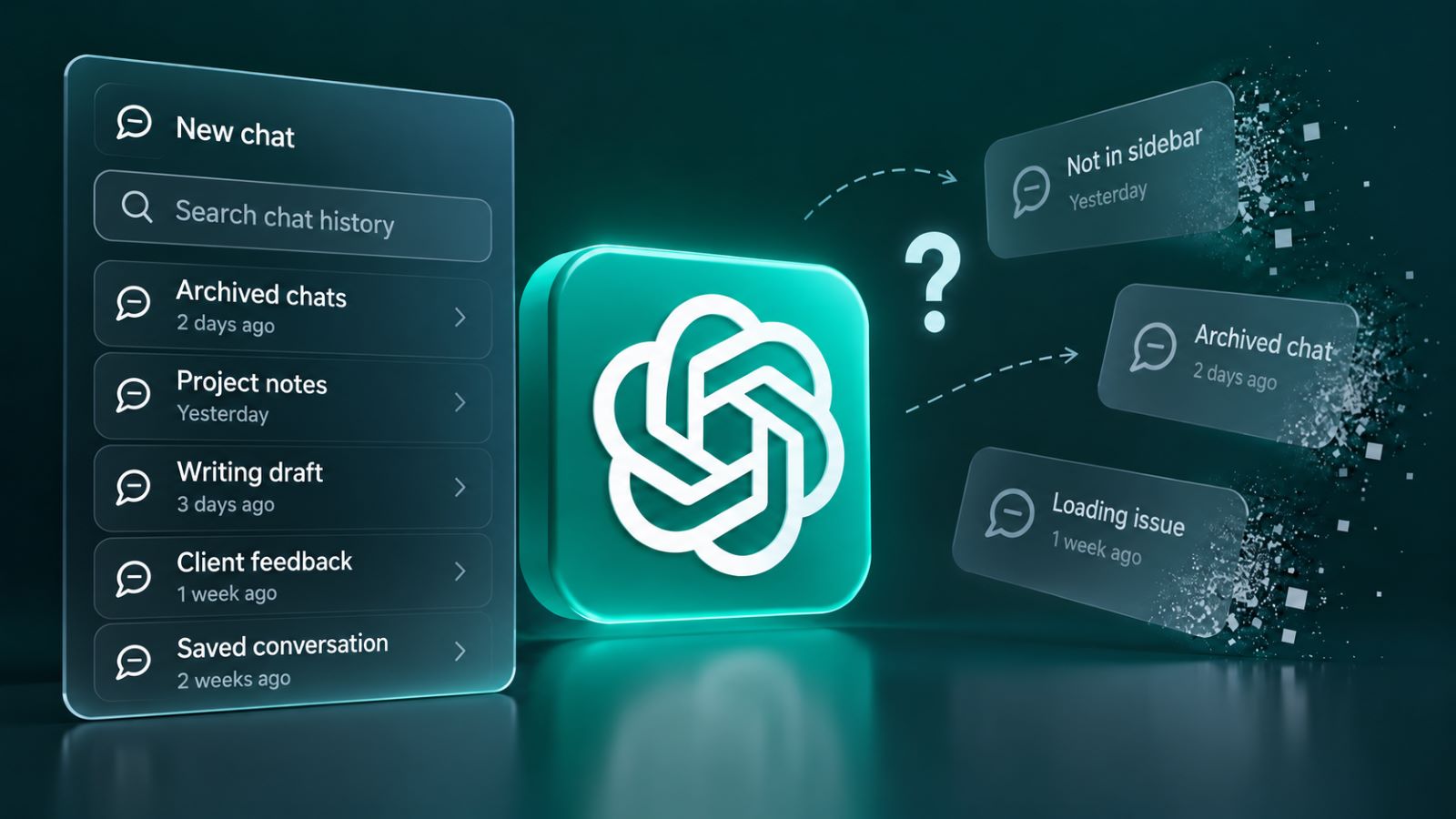
Your ChatGPT conversation list suddenly looks empty, or a discussion you opened yesterday refuses to load. That doesn’t necessarily mean your messages have been deleted. Archived chats, account differences, and temporary service problems can produce similar symptoms. The challenge is distinguishing a conversation that has disappeared from one that ChatGPT simply isn’t displaying.
Before resetting your browser, establish whether the chat still exists. Search and Archived Chats are the quickest places to start, while account checks and data exports can help when the explanation is less obvious. Following that order can save you from unnecessary troubleshooting and prevent changes that complicate the original problem.
Why ChatGPT Chat History Disappears or Stops Loading
Missing conversations don’t all point to the same cause. An older discussion might no longer appear in the recent sidebar, even though it remains saved. A chat that opens to a blank screen suggests a different problem involving the loading process. Sometimes an entire history appears empty simply because you’re signed into another account.
The symptoms provide a useful starting point:
| What You See | Possible Explanation | First Check |
|---|---|---|
| Older chats missing from the sidebar | Recent-history list doesn’t show everything | Search for a distinctive phrase |
| One conversation has disappeared | Archived chat or different workspace | Check Search and Archived Chats |
| Entire history looks empty | Wrong account, session issue, or outage | Verify account and service status |
| Conversation visible but not loading | Browser, network, or service problem | Try another browser or device |
| Previous Temporary Chat missing | Conversation wasn’t saved to history | Check how the chat was started |
Choose one conversation you remember clearly. Search for an unusual phrase or recognizable title rather than a broad topic such as “writing” or “work.” If it opens with the expected messages intact, you know the discussion wasn’t deleted. You can then focus on why it wasn’t visible in the usual place instead of trying to recover something that still exists.
How to Find Missing ChatGPT Chats Using Search and Archives
Older conversations can remain saved even when they disappear from the recent-history sidebar. ChatGPT Search looks beyond that short list and can include archived chats. Checking both locations is usually faster than repeatedly scrolling or refreshing the conversation panel.
Find Old ChatGPT Conversations With Search
Search can locate conversations beyond the recent sidebar list. Start with details you remember from the discussion rather than a broad topic, then follow these steps:
- Open Search from the ChatGPT sidebar, or press Ctrl+K on Windows or Cmd+K on macOS.
- Enter a distinctive phrase from the conversation’s title or messages.
- Try another phrase or select All if that filter is available and the first search finds nothing.
- Open the matching conversation and confirm that its messages load.
Search results can include archived conversations and chats associated with Projects. OpenAI’s chat search documentation explains how older discussions remain discoverable after leaving the recent sidebar list. The mobile app offers similar search functionality, although the layout may differ. If a result appears but opens to a blank window, you have found the conversation but still need to investigate its loading problem.
Check Archived Chats Before Assuming Deletion
Archiving removes a conversation from the regular sidebar without deleting its contents. The chat remains associated with your account and can still appear in search results. This makes the archive worth checking when one or two conversations disappear while the rest of your history looks normal.
Open Settings → Data controls → Archived chats. Depending on your device, the interface may show View archived chats or an additional Manage control. Find the conversation and choose Unarchive if you want it returned to ordinary history. Also consider whether Archive all chats was used, which can explain why many discussions vanished from the sidebar at once.
Be careful when using these controls because Unarchive and Delete have very different consequences. If the conversation isn’t in the archive, verify the account and workspace before assuming permanent loss. For ongoing projects, descriptive titles and consistent organization can make working with ChatGPT easier without relying entirely on the recent-history list.
Check Your ChatGPT Account and Workspace
A completely empty history may reflect an account mismatch rather than a storage failure. ChatGPT can open normally under another login while showing none of the discussions you expected. This is particularly easy to overlook when you have separate personal and professional accounts. Before changing browser settings, confirm the email address and workspace currently associated with your session.
Different sign-in methods can also create confusion when more than one account exists. Check whether you originally used Google, Microsoft, Apple, or another authentication option, and verify that the current account matches. Workplace access permissions and retention policies may differ from those of a personal account. If you regularly switch workspaces, make sure you’re looking in the one where the conversation was created.
Search for a chat you know belongs to the selected account. Finding it gives you a reference point for checking the remaining history. Only try another account when you genuinely use one, rather than experimenting with unrelated login methods.
Why Temporary Chats Don’t Appear in History
Temporary Chats follow different rules from ordinary saved conversations. They don’t appear in regular history unless you choose to save them. That distinction can be confusing when a temporary discussion lasted several hours or contained important information. The absence of such a chat doesn’t necessarily indicate a technical failure.
ChatGPT allows an active Temporary Chat to be saved as a regular conversation. Once saved, it follows the account’s normal history and data settings. An unsaved Temporary Chat, however, cannot be reopened through ordinary history after you leave it.
Another setting sometimes causes confusion: Improve the model for everyone. Turning it off doesn’t automatically remove ordinary saved conversations from your history. Model improvement and conversation retention are separate controls, so changing one should not be mistaken for deleting the other.
How to Fix ChatGPT Chats That Won’t Load
A conversation may appear in Search but refuse to display its messages when opened. You might see a blank page, an endless loading indicator, or an error message. Unlike a missing sidebar entry, this suggests that ChatGPT has located the conversation but cannot display it normally. Browser behavior, network conditions, and temporary service problems are all possible explanations.
Check OpenAI’s service status page before changing your browser configuration. A reported incident may explain why history isn’t loading across multiple devices. When a relevant outage is underway, repeated cookie clearing is unlikely to resolve the underlying problem.
If no incident is reported, try opening the same conversation in a private browsing window. Sign into the correct account and compare the result with your usual browser. A chat that loads privately but fails in the normal session may be affected by stored site data or an extension. This test doesn’t identify the exact cause, but it tells you where to investigate next.
Test potentially interfering extensions individually, particularly those that block scripts, cookies, or website requests. If the problem persists, clearing ChatGPT-specific site data may help reset the session, although you’ll usually need to sign in again. Avoid resetting unrelated browser settings before establishing that they’re involved.
Network restrictions can create similar symptoms. Try another connection while keeping the account and device unchanged, then open the same conversation again. If ordinary messages, login, and other features also fail, broader ChatGPT connection troubleshooting may be more useful than continuing to focus on history alone. A failure that follows one network but not another provides a stronger clue than repeatedly refreshing the page.
These comparisons work best when you change one variable at a time. Keeping track of what works in each environment helps distinguish a browser problem from a network or service issue.
How to Export ChatGPT Chat History
When Search and Archived Chats cannot locate a discussion, a data export offers another way to inspect the records associated with an eligible ChatGPT account. It can help when you’re unsure whether the interface is failing to display information that still exists. An export provides a separate copy of available account data, although it isn’t a restoration tool.
Open your profile menu and go to Settings → Data controls → Export data. Select Export and confirm the request. OpenAI’s data export instructions describe the process and account eligibility.
Exports can take up to seven days to arrive, and the download link expires 24 hours after notification. Download the ZIP file before that deadline and store it securely. The package may contain private conversations and other sensitive account information, so avoid placing it in an unnecessarily shared folder. If you work on a public or shared computer, take particular care with the extracted files.
Inspect the exported history for the missing discussion, using recognizable wording or an approximate date. Finding it provides useful evidence that the conversation appears in the exported account records, even if the interface couldn’t display it. You may then have more specific information to provide when requesting support. An export does not automatically restore chats to the sidebar, and a missing entry in the package doesn’t conclusively establish why the conversation is unavailable.
Self-service exports are available for eligible consumer accounts and certain ChatGPT Edu workspaces. Business, Enterprise, and Healthcare workspaces use organization-managed data-access processes instead. If you cannot sign into ChatGPT, OpenAI’s Privacy Portal provides another route for requesting eligible account data.
Can Deleted ChatGPT Chats Be Recovered?
Deletion is different from archiving, a missing sidebar entry, or a temporary loading failure. OpenAI states that deleted conversations cannot be restored through ChatGPT or OpenAI Support, including chats removed using Delete all chats. A deleted conversation disappears from the account view, while permanent deletion from OpenAI systems follows the applicable retention rules. A retention period is not a recovery window.
Requesting a data export won’t restore conversations that were already deleted. Temporary Chats that were never saved also cannot be retrieved through ordinary history, although their absence has a different explanation. Organizational retention policies may impose additional limits on how long workspace discussions remain accessible.
Before concluding that a discussion is permanently gone, confirm the account, search for its contents, and check Archived Chats. If an export is available, it may provide another clue about the records associated with the account. These checks cannot guarantee recovery, but they help distinguish actual deletion from a display or account problem. That distinction matters before you invest more time in troubleshooting steps that cannot change the outcome.
When to Contact OpenAI Support About Missing Chats
Contact support when conversations remain unavailable after checking the account, workspace, Search, archives, and relevant service incidents. An entire history disappearing across multiple devices deserves further investigation, particularly when you’re certain the conversations were previously saved. Repeated failures to open discoverable chats can also justify contacting support after browser and network checks.
A useful support report distinguishes one missing chat from an entire history that won’t load. Gather these details before reaching out:
- Account email, sign-in method, and active workspace, if applicable.
- Approximate dates or titles of the missing conversations, and whether the problem affects one chat or many.
- Exact error messages or screenshots with sensitive information removed.
- Devices, browsers, and networks already tested, plus the results of Search and Archived Chats.
OpenAI Support is available through the chat option in the Help Center. Providing the tests you’ve already completed can help avoid repeated troubleshooting. Do not share passwords, authentication codes, or unnecessary confidential conversation contents; review any requested diagnostic files before sending them.
When your ChatGPT history is missing, establish what can still be found before changing settings. Search and archives often resolve that uncertainty, while controlled browser tests help with conversations that refuse to load. Account verification and data exports provide further ways to investigate unexplained gaps. Most importantly, treating missing chats and loading failures as different problems prevents unnecessary changes and gives you a clearer path toward an answer.