If ChatGPT is not working, clearing browser data or reinstalling the app may seem like the quickest fix. Yet a blank screen, a login loop, and a response that never finishes can have entirely different causes. The problem may originate with OpenAI’s service, your browser, your account, or the network connecting them.
Before changing anything important, find out where the failure occurs. A few comparisons can reveal more than repeatedly refreshing the same page, and you may avoid losing an unfinished conversation along the way.
Is ChatGPT Down or Is Something Wrong on Your Device?
Start with the OpenAI Status page, which reports known incidents affecting ChatGPT and related services. A widespread outage can resemble a problem with your computer or phone, particularly when the interface loads but responses fail. Check whether the affected service matches what you are experiencing before troubleshooting locally.
The dashboard distinguishes between different products and types of disruption. ChatGPT might remain accessible while conversations, authentication, or file uploads experience difficulties. Status information is aggregated across users and services, so an operational status does not guarantee that every account or feature is working normally. Newly emerging problems may also take time to appear on the dashboard.
If a reported incident matches your symptoms, avoid changing system settings while the service recovers. Otherwise, the next useful step is to determine whether the failure follows your browser, device, account, or connection.
Five Things to Try Before Changing Any Settings
Most initial troubleshooting should be reversible. You can learn a great deal about the problem without deleting cookies, reinstalling applications, or resetting your network configuration. Start with simple comparisons that leave your existing setup intact.
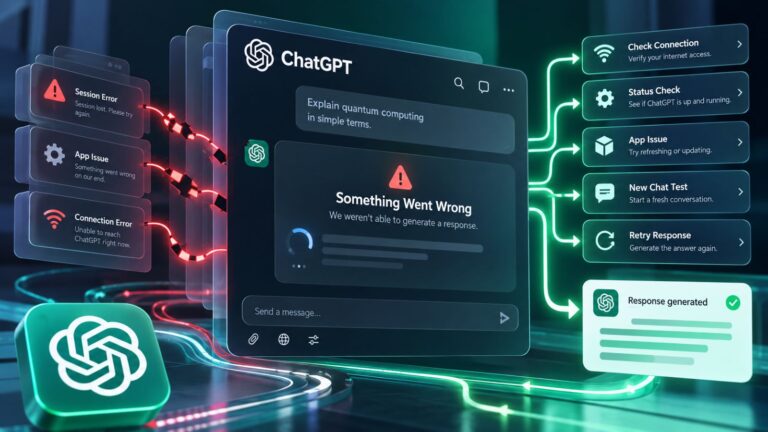
- Refresh ChatGPT or restart the app. If the interface responds, open a new conversation and send a simple prompt.
- Open ChatGPT in a private or incognito browser window. This creates a fresh session and normally bypasses most extensions.
- Try another browser on the same device and network. If it works, investigate the original browser before changing system settings.
- Switch from Wi-Fi to mobile data or another available connection. Keep the device and browser unchanged for a clearer comparison.
- Test ChatGPT on another device using the same account. Note whether the original problem appears there too.
Each result narrows the possibilities, even when it does not immediately solve the problem. Use the differences between successful and unsuccessful tests to decide where to investigate next.
| What You Notice | Possible Cause | Best Next Step |
|---|---|---|
| ChatGPT works in private mode | Stored site data or extensions | Isolate the browser conflict |
| ChatGPT works in another browser | Browser-specific settings | Inspect the original browser |
| ChatGPT works on mobile data but not Wi-Fi | Network filtering or connectivity | Check VPN, proxy, or Wi-Fi restrictions |
| ChatGPT works in the browser but not the app | Application-specific issue | Restart and update the app |
| ChatGPT fails across devices | Service, account, or connection issue | Check status and account access |
| Only one conversation fails | Conversation-specific loading or generation issue | Test a new chat |
Treat these outcomes as clues rather than definitive diagnoses. Private browsing, for example, changes both the browser session and the extensions that typically run. If it works, you still need to identify which difference matters before making a permanent adjustment.
Why Is ChatGPT Not Loading?
If ChatGPT won’t open, displays a blank screen, or keeps loading indefinitely, the browser or its connection to the service may be responsible. A page can fail even when other websites open normally, particularly if a required script or network request is blocked. Sometimes the interface appears partially, with a spinning indicator or missing controls. Other times, the entire page remains white.
Try a hard refresh using Ctrl + Shift + R on Windows or Command + Shift + R on macOS. If the page still refuses to load, compare it with a private window before deleting stored data or resetting browser settings. Browser extensions, VPNs, and local network settings can cause similar symptoms, but OpenAI’s troubleshooting steps help distinguish them.
Clear ChatGPT Site Data Without Resetting Your Browser
Cookies and local storage help websites preserve sessions and preferences, but outdated or conflicting data can occasionally interfere with authentication. This is worth investigating when ChatGPT loads correctly in private browsing but fails in your usual profile.
Open your browser’s privacy or site-settings menu and locate the stored data associated with ChatGPT. Remove the affected site’s cookies and storage rather than clearing everything across your browser. If the failure specifically involves authentication, related OpenAI sign-in data may also require attention.
Deleting site data normally signs you out, but it does not erase conversations saved to your OpenAI account. Unsent text and locally stored session information may disappear, so copy anything important first. Once you have signed in again, repeat the action that previously failed. If the problem immediately returns, stored data may not have been the underlying cause.
Check Whether an Extension Is Blocking ChatGPT
Ad blockers, privacy extensions, script filters, and tools that modify web pages can interfere with ChatGPT. A previously reliable setup may develop problems after an extension update or a change to the website itself.
Temporarily disable extensions that affect scripts, cookies, or network requests, then reload ChatGPT. If the page starts working, restore those extensions individually until you identify the conflict. A site-specific exception may solve the issue without requiring you to remove the extension altogether.
Private browsing can reveal this kind of interference, but it should not become your permanent workaround. Once the conflicting setting is identified, you can usually restore normal browsing without resetting your entire profile.
What to Do When ChatGPT Stops Responding
ChatGPT can be slow without being completely unresponsive. A demanding request may remain on Thinking or Working while another conversation returns an answer almost immediately. Sometimes a response starts and freezes midway through. In other cases, messages won’t send at all, or the Send button appears inactive.
These symptoms call for different checks. When a response appears stuck, allow some time for a complex request to progress before interrupting it. If nothing changes, use Stop generating and Regenerate or Retry where available. Then open a new conversation and send a short prompt.
If ChatGPT is not sending messages, check whether the text field accepts input and whether the Send button responds in a fresh chat. A failure limited to one conversation is different from an interface that cannot submit any prompt. Repeatedly sending the same lengthy request will not help you distinguish between them.
Long conversations with many messages can become less responsive than fresh ones. If a new chat works normally, transfer the original goal, relevant constraints, and useful results instead of recreating every earlier exchange. Clear context and specific requests are especially valuable when working with ChatGPT after an interrupted task. Copy any important unsent material before refreshing or navigating away.
For problems affecting several unrelated conversations, investigate the browser environment and network connection. Temporary service conditions, extensions, VPNs, and traffic filters can all interfere with generating answers. An isolated generation error rarely justifies reinstalling the entire application.
Why Can’t You Log In to ChatGPT?
Login problems often involve account identification or authentication rather than ChatGPT’s ability to generate responses. Before clearing browser data, confirm that you are using the correct account and sign-in method. An account mismatch cannot be fixed by repeatedly refreshing the login page.
If you registered through Google, Microsoft, or Apple, select the corresponding option and use the same provider account. Email and password login should use the address associated with your ChatGPT account, which may differ from the address receiving billing messages. Changing authentication methods at random can create additional confusion, particularly when you have multiple accounts. A successful login to the wrong account can be just as misleading as a failed attempt.
Apple’s Hide My Email feature adds another complication. An account created through Apple may be associated with an address ending in @privaterelay.appleid.com rather than your regular email, so using the original Apple sign-in method is important.
Another common problem is a login page that repeatedly displays “Checking your browser” or returns to the verification screen. VPNs, privacy extensions, cookie restrictions, and script blockers can interfere with this process. Make sure JavaScript and necessary cookies are allowed for ChatGPT and OpenAI authentication services. A private window or different network may reveal whether your browser configuration is responsible.
Repeated failed attempts can trigger temporary security restrictions. If you receive a suspicious-login warning, stop trying continuously and allow the restriction time to clear; some situations may require waiting up to an hour. Managed work or school accounts introduce another possibility, since an administrator may control single sign-on and account provisioning.
If you suspect unauthorized access, review your account security once you regain access. Enabling two-factor authentication can provide additional protection, although it will not override a temporary sign-in restriction. This distinction matters when a login problem may involve both account security and ordinary authentication errors.
If ChatGPT remains accessible on another device, check Settings → Account before signing out. Confirming the email address can prevent you from troubleshooting the wrong profile or losing access to an account with an active subscription.
Why Does ChatGPT Work on One Network but Not Another?
A network can provide normal internet access while interfering with particular ChatGPT connections. VPNs, proxies, DNS filters, security software, and corporate gateways may block authentication requests or interrupt responses. This becomes especially relevant when ChatGPT works on mobile data but fails through office Wi-Fi.
Compare two networks using the same device and browser whenever possible. If the error disappears after changing connections, the original network becomes the main suspect, although the comparison alone cannot identify the responsible component.
On a personal device, temporarily disconnecting an optional VPN or filtering service can help isolate the problem. Restore your normal protections afterward and adjust only the configuration responsible for the conflict. Changing DNS, firewall rules, and proxy settings simultaneously makes the result much harder to interpret.
Corporate environments require more caution because network controls may be managed centrally. Some ChatGPT features depend on secure WebSocket connections, which restrictive gateways can interrupt even while ordinary HTTPS pages load normally. You might open a conversation successfully but lose connectivity when ChatGPT begins sending its response. Repeated disconnects under those conditions provide a more useful clue than a generic browser error.
If the service works outside your managed network, share the exact symptom, approximate time, and network comparison with your IT team. Administrators can investigate traffic filtering and connection requirements without you bypassing workplace security controls.
ChatGPT App Not Working on iPhone, Android or Desktop
An app that crashes immediately after launch needs a different approach from one that opens normally but cannot generate a response. Start by checking for updates and restarting your device. If the ChatGPT app keeps crashing, compare its behavior with the browser version before considering reinstallation.
The web version provides a useful reference because it helps separate an application failure from a wider account or network problem. If the website works on the same device and connection, focus on the installed app. Restart it, confirm that the latest compatible version is installed, and sign in again if you can safely access your account credentials. Reinstallation may eventually be appropriate, but it will not resolve a service outage or a blocked network connection.
On iPhone and Android, permissions can affect individual features without breaking ordinary text chat. Microphone access may interfere with voice conversations, while photo or file permissions can prevent attachments from working correctly.
Desktop applications may encounter similar conflicts involving security software, local permissions, or managed-device policies. If the browser remains reliable but the desktop app fails, record the application version and operating system before changing anything more substantial. This information can help distinguish a software-specific issue from a problem affecting your account.
What Do Common ChatGPT Error Messages Mean?
Error messages provide useful clues, but rarely identify the exact underlying cause. Read the wording carefully before deciding whether to retry, change networks, or investigate your account.
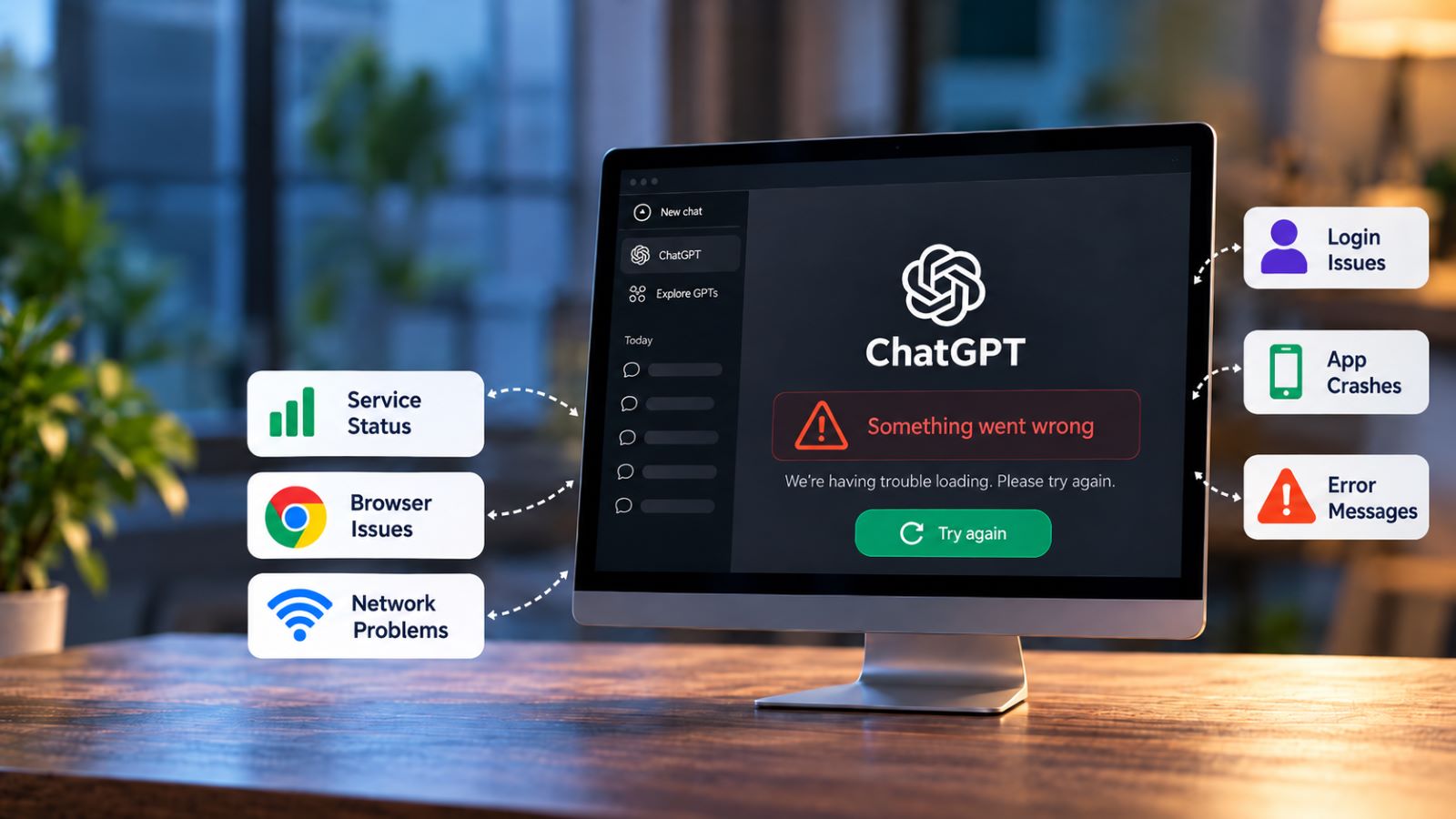
“Something went wrong” is a general failure that may reflect a temporary service problem or local browser and network conditions. Try a new conversation and check service status before clearing data. An error affecting only one request may disappear when you retry it.
“A network error occurred” or a WebSocket connection error suggests that ChatGPT cannot maintain a reliable connection. VPNs, proxies, security filters, and unstable networks are reasonable suspects, making a network comparison more informative than another page refresh.
“There was an error generating a response” may affect a single attempt rather than the entire account. Regenerating the answer or starting a fresh conversation is a sensible first step. If unrelated prompts fail across browsers and devices, investigate beyond the individual request.
“Unusual Activity Detected” involves security checks rather than ordinary response generation. Shared network addresses, VPN connections, or suspicious traffic patterns may contribute, but the warning should not be ignored or bypassed through automated retries. If it appears unexpectedly, review your account activity for anything unfamiliar and avoid repeated sign-in attempts. A persistent warning is a reason to contact support rather than trying to work around the restriction.
A usage-limit warning is not necessarily a technical failure. If ChatGPT reports that a particular model, thinking option, or feature has reached its allowance, check the displayed reset time where available. You may be able to choose another option, depending on your plan and workspace settings. Resetting the browser will not restore an allowance that has genuinely been exhausted.
Other problems fall outside these general categories. Failed file uploads, missing conversations, and persistent errors tied to a specific feature may need more focused troubleshooting after service-wide and connectivity problems have been ruled out.
What to Do When Nothing Fixes ChatGPT
If ChatGPT still fails after checking service status, browser behavior, account access, and network connectivity, stop changing settings at random. A clear record of what happened will be more useful than another round of reinstalling applications.
Write down the exact error message, approximate time and time zone, browser or app version, operating system, and device. Note whether the problem affects every conversation, one model, or a particular feature. Results from private browsing and network comparisons are particularly valuable because they show which possible causes you have already investigated. Include the steps needed to reproduce the problem if you can do so safely.
You can contact OpenAI Support through the Help Center’s support chat. Screenshots may make the issue easier to understand, but remove passwords, verification codes, payment details, and confidential conversation content before sharing anything. A precise description is usually more useful than a large collection of unrelated screenshots.
For persistent browser failures, support may request a HAR file or console logs captured while reproducing the problem. These diagnostic files can contain authentication details or personal information, so follow the provided collection instructions and sanitize the data before sending it through the appropriate support channel.
Troubleshooting does not require trying every available fix. It requires identifying whether the failure belongs to the service, browser, account, network, or application, then changing only what the evidence supports. That usually means fewer disrupted sessions, less unnecessary reconfiguration, and a clearer path to getting ChatGPT working again.