To protect your accounts with 2FA and password managers, focus on removing a few common points of failure rather than memorizing complicated security rules. A unique password for every important account, a well-protected password manager, strong multi-factor authentication, and a recovery method you can actually use cover most of the everyday risks that lead to account takeovers.
The order matters. Your primary email and password manager deserve attention before less important logins because either one can become a gateway to many other accounts. Once those are secure, work outward to financial services, cloud storage, messaging, and the accounts you use less often.
Which Accounts Should You Secure First?
You do not need to overhaul every login in one sitting. Begin with accounts that can expose money, private conversations, stored files, or access to other services.
A practical first group includes:
- your primary email account;
- your password manager;
- your main Google, Apple, or Microsoft account;
- banking and payment services;
- work accounts and cloud storage;
- messaging apps;
- social accounts that contain personal data or recovery information.
Primary email deserves special attention because password-reset messages often land there. Someone who controls that mailbox may be able to reset other credentials even when those accounts have strong passwords of their own.
Password reuse creates a similar chain reaction. When one breached service exposes a credential, the same password becomes much more dangerous if it also opens your email, shopping account, cloud storage, or another important login. Fixing reuse on high-value accounts first gives you more protection than changing dozens of low-risk passwords at random.
How a Password Manager Protects Your Accounts
A password manager solves a practical problem that memory alone handles badly: most people have too many logins to create and remember a genuinely different strong password for each one.
Instead of building predictable variations around the same phrase, you can let the manager generate unique passwords and store them in an encrypted vault. Using password managers and autofill makes unique credentials practical across many services while reducing the need to type or copy them manually. You should still make sure you are signing in on the correct site.
The real advantage is containment. One exposed password no longer gives an attacker an obvious route into several unrelated accounts, which sharply reduces the damage a single breach can cause.
How to Protect the Password Manager Itself
A password manager becomes a high-value account because it holds access to many other services. Treat its own security more carefully than an ordinary low-risk login.
Use a long, unique primary password or passphrase that appears nowhere else. Personal details, reused fragments, predictable substitutions such as replacing a with @, and small variations of old passwords weaken that separation.
Add the strongest additional authentication method the provider supports. A passkey or hardware security key can be especially useful here because protecting a vault is one of the places where phishing resistance has real value. Recovery should be planned at the same time: know what happens if you forget the primary password, lose a trusted device, or can no longer use your normal second factor.
Should Your Password Manager Store Your 2FA Codes Too?
Many password managers can generate time-based one-time passwords alongside saved credentials. For everyday accounts, keeping both in one encrypted vault can be convenient and is still far better than password reuse or having no second factor at all.
The tradeoff is concentration. If an attacker gains full access to the vault, they may obtain both the password and its one-time code. That does not make integrated 2FA useless, but it does mean that stronger separation is worth considering for the accounts where a compromise would hurt most.
Primary email, the password manager itself, financial accounts, developer services, and critical work systems are good candidates for a passkey, hardware security key, or separate authenticator rather than relying entirely on one vault.
Which 2FA Method Should You Use?
Not all forms of two-factor authentication (2FA) protect against the same threats. Adding a second factor is usually an improvement over password-only access, but the method you choose affects how well the account can resist phishing, SIM attacks, stolen credentials, and accidental approvals.
| Method | Main Strength | Main Weakness |
|---|---|---|
| SMS code | Easy to set up and widely supported | Phishing, SIM swaps, or phone-number compromise can expose the code |
| Authenticator app | Works without mobile carrier access and avoids SMS delivery | A user can still enter the code into a phishing site |
| Push approval | Fast and convenient | Poor implementations can be abused through repeated approval prompts |
| Passkey | Strong phishing resistance and no reusable password to type | Not every service or recovery flow supports it equally well |
| Hardware security key | Strong phishing resistance and physical control | Requires keeping the key available and planning for loss |
An authenticator app is often a sensible step up from SMS because it removes dependence on the mobile carrier. It is not phishing-resistant, however; a convincing fake site can still trick someone into entering the code.
For higher-value accounts, prefer a passkey or hardware security key when the service supports one. SMS still has a place when a service offers no stronger method, and password plus SMS generally provides more protection than a password alone.
Where Do Passkeys Fit With Passwords and 2FA?
Passkeys change the usual password-plus-code model. On supported services, a passkey can replace a reusable password and let you sign in by unlocking a trusted device with a PIN, fingerprint, or face recognition.
Their main security advantage is that there is no reusable secret for you to type into a fake login page. Passkeys and compatible hardware security keys can provide phishing-resistant authentication, which makes credential-stealing phishing much harder to turn into a successful login.
Traditional passwords and 2FA are not disappearing overnight. Many services still require them, and some recovery flows remain tied to older authentication methods even when normal sign-in supports passkeys. In practice, it makes sense to adopt passkeys where support is mature while keeping a password manager and conventional MFA for the accounts that still depend on them.
A hardware key can provide similar phishing resistance for supported accounts and may be particularly useful for email, work identities, and the password-manager vault itself. Anyone who relies on one should also plan for its loss rather than making a single physical key the only route back into the account.
How to Set Up Recovery Without Locking Yourself Out
Strong authentication can become a problem if the legitimate owner has no way back in after losing a phone, replacing a device, or forgetting a credential. Recovery planning works best while everything is still accessible.
Check the options provided by each important service. Depending on the account, recovery may involve backup codes, another registered device, a second security key, a trusted phone number, a recovery email, or a service-specific identity check. Not every method needs to be enabled everywhere, but you should know which route remains available if your usual one disappears.
Avoid making a single phone responsible for authentication and recovery at the same time. Losing it is much more serious when the device contains your authenticator, your only copy of the recovery codes, and the only signed-in email account that can reset everything else.
Where Should You Keep Recovery Codes?
Recovery codes need to be protected without becoming impossible to reach. Keeping the only copy as an ordinary screenshot in the phone gallery or sending the codes to yourself through an unprotected message creates an obvious weakness.
An offline copy in a controlled physical location is one straightforward option. An encrypted vault can also be suitable for recovery information that does not unlock that same vault. What matters is avoiding a circular dependency.
For example, storing a website’s backup codes in your password manager may be perfectly reasonable. Storing the password manager’s only emergency recovery information inside that same locked vault is not.
What Should You Do If Your Phone or Second Factor Is Lost?
Use a recovery method you configured before the loss rather than trying random login routes. A backup code, second registered authenticator, spare security key, or trusted device may restore access without weakening the account.
After you get back in, review the security settings instead of treating the recovery itself as the finish line. Remove the lost device where appropriate, inspect active sessions, confirm recovery details, and regenerate any backup codes you may have stored on the missing phone.
A lost device does not automatically mean an account has been compromised. The situation becomes more urgent when the phone was unlocked, unfamiliar security alerts appear, or the device still has access to email, authentication apps, financial services, or other sensitive accounts.
What Should You Do If an Account May Already Be Compromised?
Account compromise does not always announce itself with a failed login. New devices, altered recovery details, messages you did not send, unexpected password-reset emails, disabled MFA, or unfamiliar sessions can all indicate that someone else has access.
When the evidence looks credible, work through the problem in a deliberate order:
- Secure your primary email first if the attacker may also have access to it.
- Change the compromised password from a trusted device.
- Make the replacement unique rather than modifying the old password.
- Sign out unfamiliar sessions and remove unknown devices.
- Check recovery email addresses, phone numbers, passkeys, and MFA methods.
- Regenerate recovery codes if someone may have seen, copied, or obtained the previous set.
- Replace the same password anywhere else it was reused.
On iPhone, changing a password on iPhone can mean updating the device passcode, Apple Account password, or saved website credentials. Identifying which credential the attacker reached prevents you from resetting the wrong thing while leaving the compromised account untouched.
If unauthorized access continues after a password change, assume the problem may extend beyond one credential. An active session, compromised email account, malicious browser extension, stolen recovery method, or infected device can keep providing access even after you replace the original password.
Account Security Mistakes That Undo Good Protection
Security tools cannot compensate for every weak habit. Many account takeovers still begin with ordinary convenience decisions that quietly remove the separation created by unique passwords and additional authentication.
Common examples include:
- reusing passwords across unrelated services;
- giving the password manager a weak or reused primary password;
- enabling strong authentication on low-value accounts while leaving email unprotected;
- keeping the only recovery codes on the same phone used for 2FA;
- approving unexpected push requests without checking them;
- typing authenticator codes into pages reached through suspicious links;
- relying on one hardware key with no backup;
- disabling MFA temporarily and forgetting to restore it;
- changing strong passwords on a fixed schedule when no breach or security event has exposed them.
Routine password expiration is not automatically an improvement. Forced changes every few weeks or months can encourage predictable patterns and small variations of the same credential. Change a long unique password when reuse, exposure, suspected compromise, or a service-specific security event gives you a reason to do so.
2FA should not be treated as protection against everything either. It can make stolen passwords much less useful, but it cannot make a malicious attachment safe, protect data already visible on an unlocked device, or stop someone from approving a convincing fraudulent request.
A Practical Account Security Setup
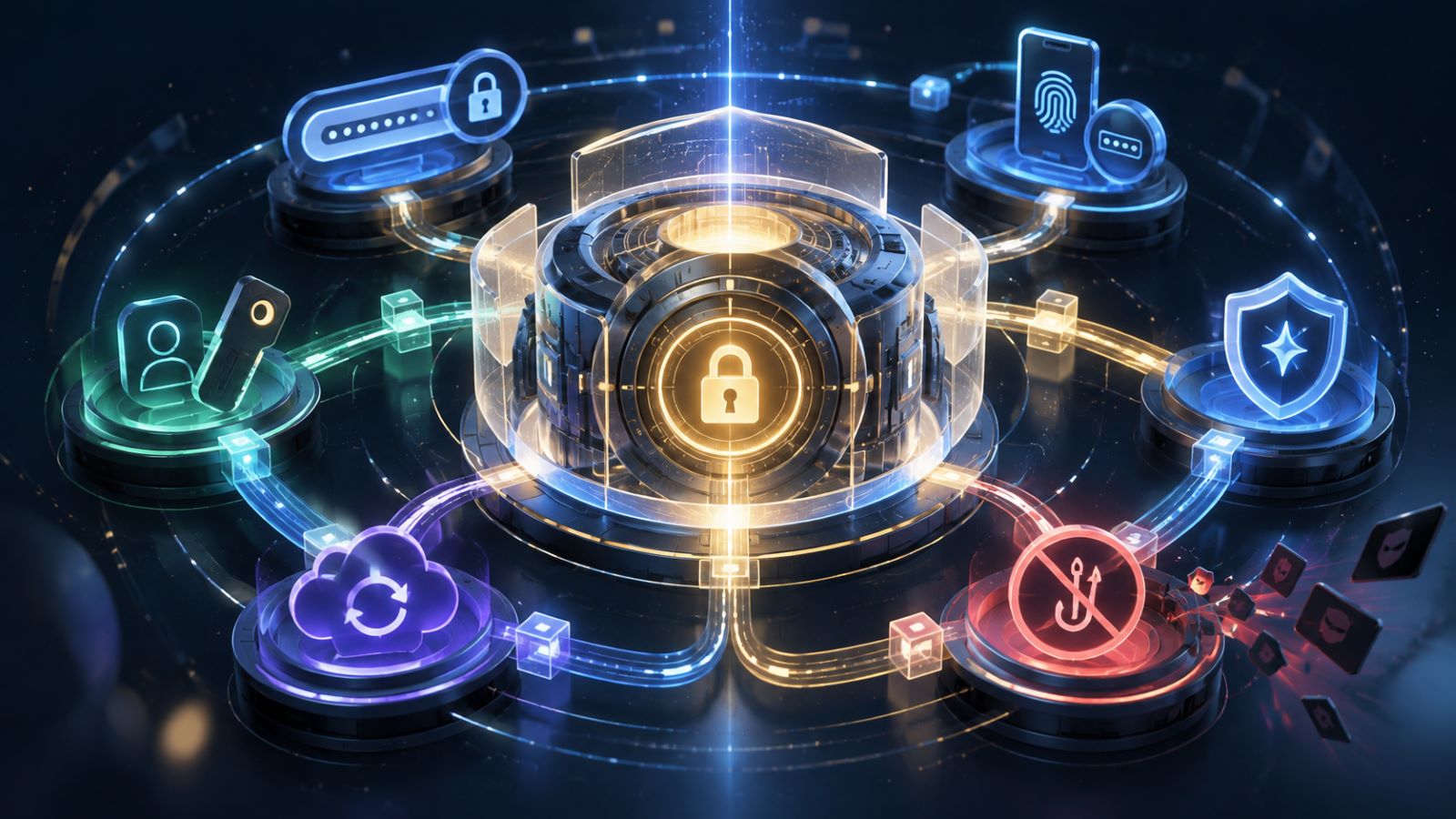
A strong setup does not need to become complicated. Use a password manager to create and store unique credentials, then protect the manager itself with a unique primary password and strong additional authentication. For your most sensitive accounts, move to passkeys or hardware security keys when support is available; authenticator apps remain a solid choice elsewhere, and SMS is still better than password-only access.
Recovery completes the system. Keep at least one route back into your important accounts that does not depend on the same device or vault you normally use to sign in. The pieces reinforce one another: unique credentials contain the damage from a breach, stronger authentication makes stolen passwords harder to use, and an independent recovery path keeps you from locking yourself out.