
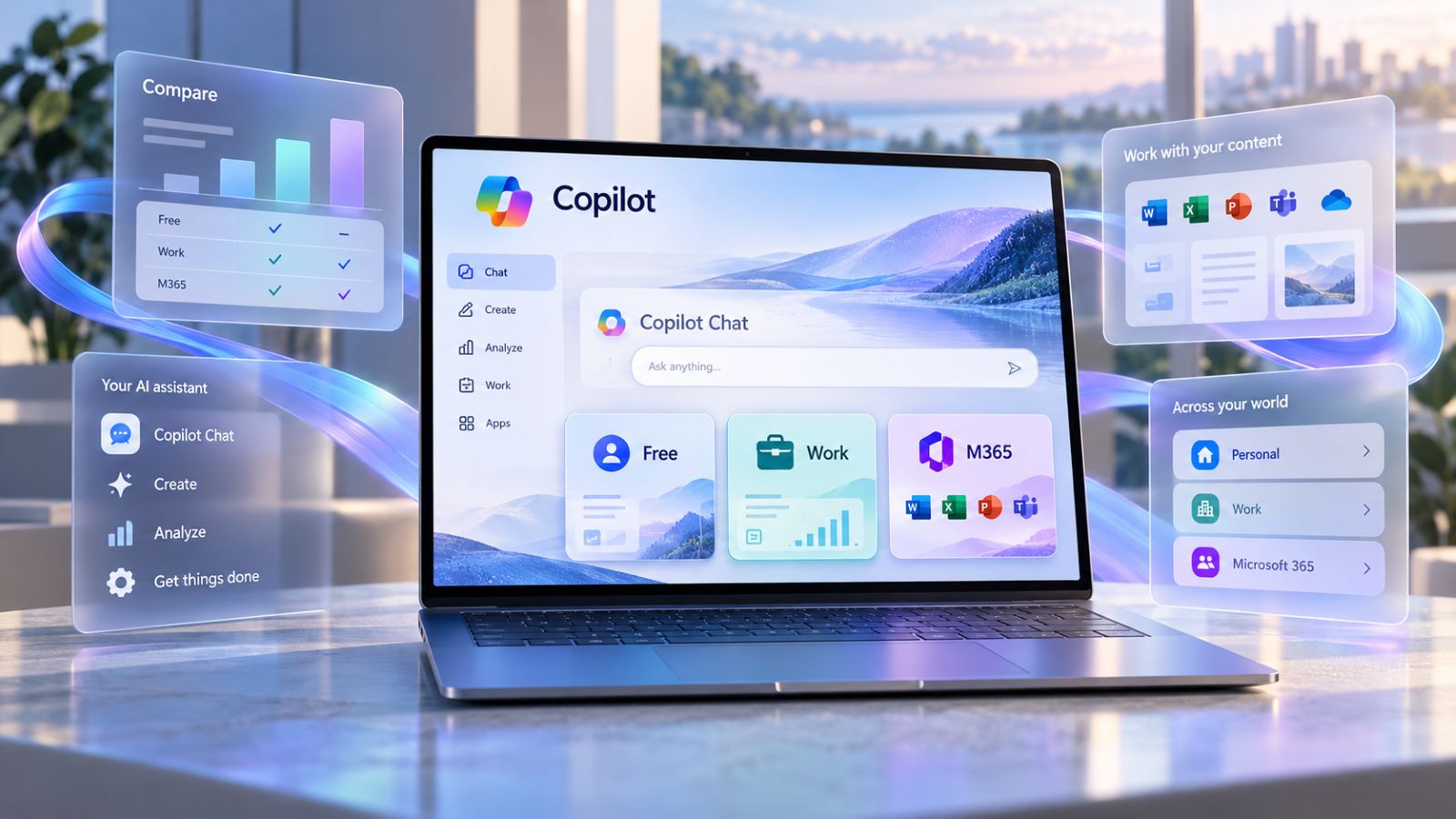
Microsoft Copilot is Microsoft’s AI assistant for writing, summarizing, research, file work, image creation, and other tasks across web, desktop, mobile, and Microsoft 365 apps. The confusing part is that the same name can describe noticeably different experiences depending on the account you use, the subscription or work license attached to it, and where you open Copilot.
The different Microsoft Copilot versions make more sense once personal subscriptions, workplace licenses, and app-specific features are separated. Windows versus web still affects the interface and some capabilities, but it no longer explains most of the difference by itself. The account behind Copilot often determines far more: what data the assistant can use, which Microsoft 365 apps it can work inside, and how generous the usage limits are.
What Is Microsoft Copilot?
Microsoft Copilot is a conversational AI assistant that can answer questions, draft and rewrite text, summarize information, work with files, create images, and refine results through follow-up prompts. Underneath that experience are the same broader class of large language models used by many modern AI assistants, combined with Microsoft’s own apps, identity system, permissions, and data connections.
The current product reaches beyond a simple chatbot. Depending on the account and subscription, Copilot can include voice, model choice, agents, Notebooks, file creation, and longer multi-step work. Some features appear only in particular plans or environments, so two people can use Microsoft Copilot on the same device and still see different controls.
The basics of using it remain simple. Give Copilot enough context, explain the result you want, and review important names, dates, figures, or assumptions before relying on the output. A confident response can still contain a wrong detail, especially when the request depends on current information or incomplete source material.
Why Are There So Many Microsoft Copilot Names?
Microsoft has reorganized the Copilot lineup several times, which explains much of the naming confusion. One particularly important change is that the Microsoft 365 Copilot app is now called the Microsoft Copilot app. The same application can accept personal, work, or school accounts and change what it shows after sign-in. Microsoft’s current description of the Microsoft Copilot app reflects that broader role.
Several related labels are therefore still in circulation:
- Microsoft Copilot;
- Copilot Chat;
- Copilot inside Word, Excel, Outlook, and other Microsoft 365 apps;
- Microsoft Copilot with a workplace add-on license;
- Copilot features included with consumer Microsoft 365 plans.
Microsoft Copilot vs Microsoft 365 Copilot is not always a clean product-versus-product comparison. Microsoft Copilot is the broader assistant and app experience, while Microsoft 365 wording usually points toward Copilot capabilities tied more closely to Microsoft 365 apps, subscriptions, or workplace licensing.
It also helps to separate product names from access points. Desktop, web, and mobile versions may look different, yet they can still represent the same broader assistant. Personal and work identities, by contrast, create a much more meaningful boundary because they affect permissions, data sources, plan entitlements, and administration.
Microsoft Copilot Free vs Paid Microsoft 365 Plans
Microsoft Copilot does not require a paid subscription for basic use. Free users can chat, create content, work with files, and use other core capabilities, although availability and limits vary by feature and system capacity.
Paid Microsoft 365 plans add higher allowances and deeper integration with Microsoft’s productivity apps. Current Copilot usage limits differ across Microsoft 365 Personal, Family, Premium, and Pro, and Microsoft currently gives Pro the highest usage limits among those individual plans.
| Option | Best Understood As | Main Difference |
|---|---|---|
| Free Microsoft Copilot | General-purpose AI assistant | Core chat and creation tools with lower or capacity-based limits |
| Microsoft 365 Personal | Individual productivity plan | Copilot plus Microsoft 365 apps and increased AI access |
| Microsoft 365 Family | Household Microsoft 365 plan | Microsoft 365 benefits for the household, with AI benefits tied to the subscription owner |
| Microsoft 365 Premium | Higher-tier personal plan | Higher limits and broader advanced AI capabilities |
| Microsoft 365 Pro | Highest current AI limits among these individual plans | More extensive usage allowances for supported Copilot features |
Users comparing Copilot free and paid plans should look beyond the chat interface. Higher limits matter if Copilot becomes part of daily work, but app integration can be more important than the raw allowance. Someone who regularly drafts in Word, analyzes data in Excel, or works from Outlook may gain more from Copilot being available inside those tools than from simply receiving more chat capacity.
That makes the upgrade question fairly practical. If free Copilot already handles occasional writing, questions, or image creation, paying may add little. The paid tiers become more compelling when Copilot starts replacing repeated copy-and-paste steps inside Microsoft 365.
Microsoft Copilot for Personal vs Work Accounts
Account type changes Copilot more fundamentally than the device used to open it. A personal Microsoft account and a work or school identity may share the same Copilot interface while operating under very different rules.
With a personal account, Copilot works around your individual Microsoft experience, the web, uploaded content, and supported connected services. A qualifying Microsoft 365 subscription can extend AI features into productivity apps and increase the limits attached to some capabilities.
A work or school account introduces Microsoft Entra identity, organizational permissions, compliance controls, and administrator settings. The experience then depends on the organization’s Microsoft 365 environment and whether the user has been assigned an additional Microsoft Copilot license.
This is why two people sitting at similar Windows PCs can have noticeably different Copilot experiences. One might use a consumer Microsoft 365 plan, another might have basic workplace Copilot Chat, and a third might be able to reason across company email, meetings, chats, and files. The hardware can be identical while the account behind it changes almost everything important.
Microsoft Copilot vs Copilot Chat
For business users, Microsoft Copilot vs Copilot Chat is one of the distinctions worth understanding early.
Copilot Chat is available to eligible Microsoft 365 business users without the full Copilot add-on. It provides enterprise-protected AI chat, web reasoning, uploaded-file context, and access to Copilot in some Microsoft 365 situations. That already makes it useful for drafting, research, summarization, and working with material a user explicitly provides.
The full license changes the depth of integration rather than simply unlocking chat. Microsoft’s current comparison of Copilot Chat and licensed Copilot describes the larger experience in terms of broader work-data reasoning, Work IQ, priority model access, wider agent capabilities, and deeper Microsoft 365 integration.
In practical terms, basic Copilot Chat behaves more like a secure workplace AI assistant with limited organizational context. A fully licensed Copilot can become part of the work environment itself, using meetings, messages, documents, and other information the user already has permission to access.
How Microsoft 365 Copilot Differs for Work
Workplace Copilot labels make those differences easier to identify. The account can show one of three current labels:
Copilot Chat (Basic);M365 Copilot (Basic);M365 Copilot (Premium).
These labels describe more than branding. They help show whether Copilot is mainly available as secure workplace chat, whether it appears directly inside supported Microsoft 365 applications, and whether the account has the fuller premium work-data experience.
Copilot Chat (Basic)
Copilot Chat (Basic) represents the lighter workplace configuration without the Microsoft Copilot add-on. Users still get secure AI chat and can work with web information or material they explicitly provide.
What is missing is the same breadth of direct Copilot access and organizational reasoning found at higher levels. A user can still summarize an uploaded file or draft content, but Copilot does not automatically become a deeply connected layer across the employee’s broader Microsoft 365 work.
For teams that mainly need protected AI chat, that may be enough. The limitations become more noticeable when the expected workflow involves moving naturally between documents, meetings, messages, and other company data without manually supplying the context each time.
M365 Copilot (Basic)
M365 Copilot (Basic) is a middle ground. It still does not represent the full premium add-on, but it can provide more direct Copilot access inside supported Microsoft 365 applications.
That distinction matters because the experience starts to feel less like a separate chatbot and more like an assistant embedded in everyday Office work. A user may encounter Copilot while working in Word, Excel, PowerPoint, or another supported app rather than having to move everything into a standalone chat window.
The remaining boundary is depth of work-data reasoning. Basic access can improve convenience and app integration, while the premium tier is designed for the broader organizational context that many companies associate with the full Microsoft Copilot experience.
M365 Copilot (Premium) represents the fuller licensed workplace experience. It adds broader Work IQ reasoning, priority access, more extensive agent capabilities, and deeper integration with Microsoft 365 data and apps.
This is the level where Copilot can work across information such as meetings, email, chats, and files rather than depending mainly on what the user manually supplies. For jobs that involve synthesizing information scattered across Microsoft 365, that broader context can make the difference between a generic AI response and something grounded in the employee’s actual work.
The license does not remove permission boundaries. If an employee cannot normally open a mailbox, document, SharePoint location, or another protected resource, Copilot should not turn that information into newly accessible content.
Does Copilot on Windows Differ From Copilot on the Web?
Yes, although treating “Windows Copilot” as a completely separate assistant is no longer very useful. The Windows app provides a native desktop entry point and can support PC-specific capabilities that would make less sense in an ordinary browser tab.
The web experience remains convenient when the task mainly involves chat, research, writing, or uploaded content. On Windows, Copilot can feel more integrated into the desktop environment, especially when Microsoft adds features designed around local PC use.
Even so, changing from a browser to the Windows app does not automatically unlock workplace data or premium Microsoft 365 capabilities. Those differences still depend on the signed-in account, plan, and license. The launch point changes the experience at the edges; the identity behind it determines the larger boundaries.
What Data Can Microsoft Copilot Use?
Copilot becomes more useful when it has relevant context, but the type of context it can use changes with the account, license, application, and existing permissions. This is one of the biggest practical differences between consumer Copilot and workplace versions.
Personal Accounts
With a personal account, Copilot can draw on the prompt, uploaded content, the web, and supported personal services connected to the account. A qualifying Microsoft 365 consumer subscription can also bring Copilot into apps such as Word, Excel, PowerPoint, and Outlook.
That extra context can save time, but convenience should not replace judgment. Credentials, client records, private financial documents, confidential business material, and other sensitive files may not belong in an AI workflow simply because the assistant can accept them.
A useful rule is to separate what Copilot can process from what you should provide. When a redacted excerpt or simplified copy will answer the question, there is little benefit in exposing the complete original document.
Work and School Accounts
Work accounts can provide several levels of organizational context. Without the Microsoft Copilot add-on, uploaded files and certain app-specific situations can still supply work information, but Copilot does not receive the same broad Work IQ context available to a fully licensed user.
With the add-on license, Copilot can reason more broadly across meetings, email, chats, files, and other Microsoft 365 information. That can reduce the amount of manual context a user needs to collect before asking a question, particularly when the answer depends on several sources scattered across the organization.
Existing access controls continue to apply. Copilot should extend what an authorized user can do with available information rather than bypassing the organization’s permission model. That boundary is especially important in environments where different teams share the same Microsoft 365 tenant but not the same documents or communication channels.
How to Check Which Copilot Version or License You Have
Start with the account rather than the Copilot icon. The same logo can sit in front of very different entitlements.
For personal use, check whether the Microsoft account is using free Copilot or Microsoft 365 Personal, Family, Premium, or Pro. That gives you a better indication of limits and Microsoft 365 integration than whether Copilot was opened on Windows or in a browser.
Work and school users can look at the label displayed under their name:
Copilot Chat (Basic)indicates the lighter workplace experience;M365 Copilot (Basic)adds broader direct Microsoft 365 app access;M365 Copilot (Premium)indicates the fuller licensed experience.
That label is usually more useful than trying to infer the “version” from where Copilot happens to be open. If a colleague sees features you do not, comparing account labels and assigned licenses is a better first check than reinstalling the app.
Why Some Copilot Features May Be Missing
A missing feature does not automatically mean something is broken. Availability can vary with the account, Microsoft 365 plan, workplace license, app version, administrator settings, platform, service capacity, and rollout stage.
Consumer and workplace Copilot also evolve at different speeds. Microsoft may introduce a capability in one account type or application before it appears elsewhere, and organizations can restrict features that are technically available on the broader platform.
A feature gap often turns out to be an account or rollout difference rather than a broken installation. Comparing the plan, license, policy, and app version is usually more useful than following an older tutorial built around a different Copilot interface.
Which Microsoft Copilot Version Makes Sense for You?
Free Microsoft Copilot can already cover occasional questions, drafting, image creation, and general AI assistance. A paid Microsoft 365 plan becomes more relevant when you want higher limits or Copilot working directly alongside Microsoft’s productivity apps.
For workplace use, the decision is less about consumer free versus paid plans. Basic Copilot Chat can provide secure AI assistance without the full add-on, while a licensed Microsoft Copilot experience becomes more valuable when the job depends on reasoning across meetings, email, chats, documents, and other Microsoft 365 data.
The wider AI ecosystem can matter too. Comparing Gemini and ChatGPT workflows alongside Copilot helps show whether tight integration with one productivity suite or a more tool-independent workflow is more important for the work you actually do.
There is no single “best Copilot version” detached from the workflow around it. A personal user who mainly drafts and researches has very different needs from an employee whose work lives across Teams, Outlook, SharePoint, and Office files. Once the account, plan, and data access are clear, Microsoft’s Copilot lineup becomes much easier to navigate.