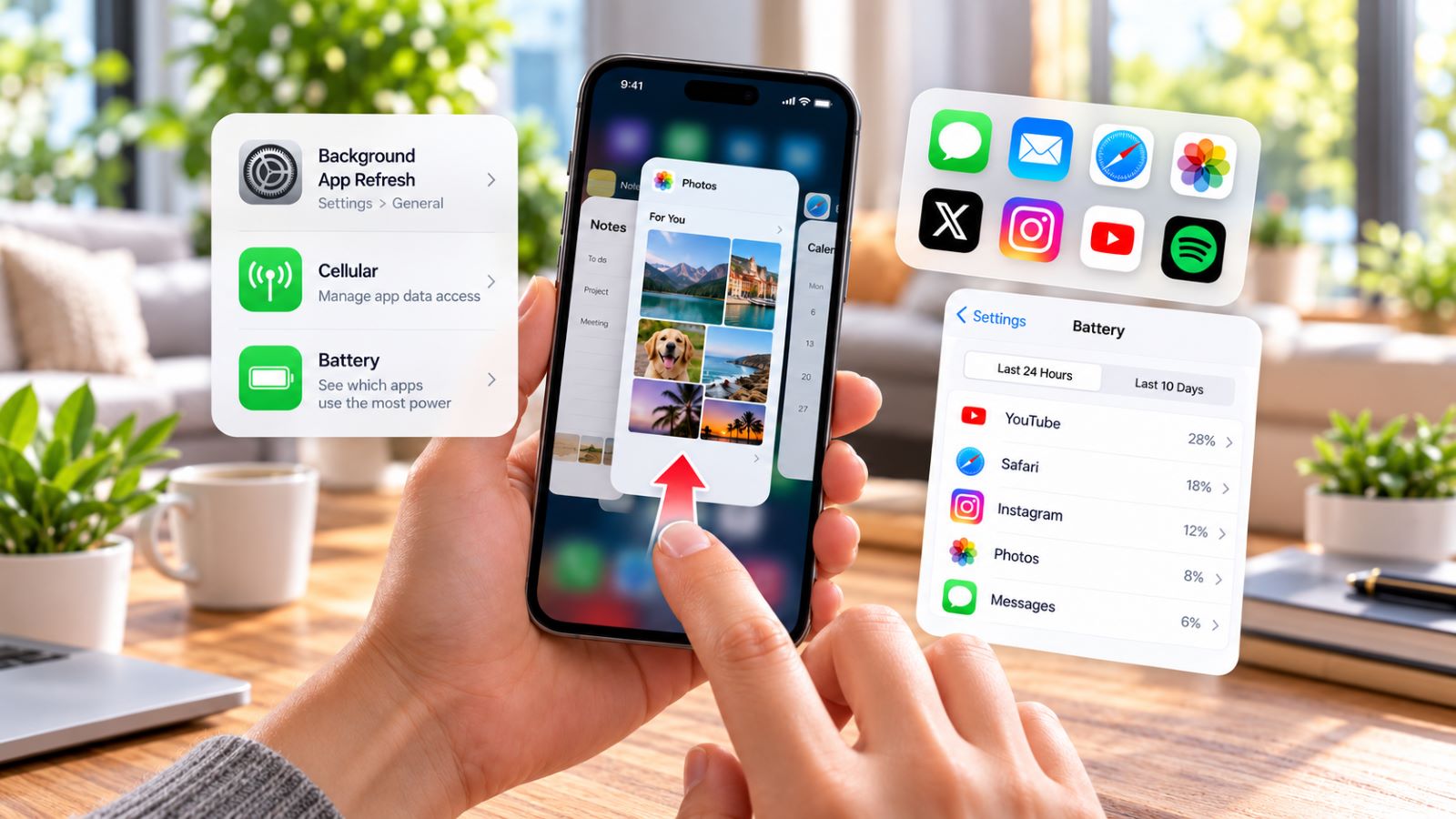
The iPhone does not have a desktop-style Task Manager. Instead, iOS splits app control across the App Switcher, Battery, Background App Refresh, and Cellular controls. Together, these tools help you switch apps, troubleshoot freezes, check battery use, and limit unnecessary background activity.
An app appearing in the App Switcher is not necessarily running in the background. iOS can suspend recently used apps, while certain apps may still perform specific background tasks such as navigation, audio playback, syncing, or content refresh. When something feels wrong, check the affected app first instead of routinely closing everything.
Where Is the iPhone Task Manager?
The iPhone App Switcher is the closest equivalent to the recent-apps view most people mean when they look for an iPhone task manager. Apple explains how to switch between recently used apps on iPhone and return to an app without reopening it from the Home Screen.
To open it:
- On an iPhone with Face ID, swipe up from the bottom edge and pause near the middle of the screen.
- On an iPhone with a Home button, double-click the Home button.
You should now see cards for recently used apps. Swipe left or right to browse them, then tap the app you want to return to.
Does the App Switcher Show Apps Running in the Background?
Not necessarily. The App Switcher is mainly a view of recently used apps, not a live process monitor like Task Manager on Windows.
An app can remain visible there after iOS has suspended it. Other apps may continue approved background work: navigation can keep using location, audio apps can keep playing, and some apps may refresh or sync when iOS allows it. That is why the App Switcher alone cannot tell you which app is responsible for battery drain or background data use.
How Do You Force-Close a Frozen App on iPhone?
Force-close an app when it freezes, stops responding, or clearly fails to work as expected. Routinely swiping away every recently used app is not a useful general performance or battery-saving habit.
- Open the App Switcher.
- Find the app that is not responding.
- Swipe its preview card upward to close it.
- Open the app again and repeat the action that caused the problem.
Apple’s instructions on how to close an app on iPhone treat force-closing as a troubleshooting step for an unresponsive app. If the problem returns, update the app and restart the iPhone before considering a reinstall. When only one app keeps failing, that points more strongly to the app itself than to a system-wide problem.
How Do You Check Background Activity on iPhone?
No single iPhone screen acts as a complete process monitor. Instead, iOS separates background control into several settings, each answering a different question: can an app refresh content, is it using unusual battery power, and can it use mobile data?
Check Background App Refresh
Go to Settings → General → Background App Refresh to control which apps can refresh content while you are not actively using them.
If one app appears to sync or refresh more than necessary, disable Background App Refresh for that app first rather than turning it off everywhere. Continue using the phone normally and check whether the app still behaves the way you expect. If content stops refreshing when you need it, restore the setting for that app.
Check Battery Usage and Background Activity
Open Settings → Battery when you want evidence about battery impact instead of assumptions based on the App Switcher. Apple’s iPhone battery usage information explains how the Battery screen breaks down usage by app and can identify background activity.
Look for apps consuming a noticeably large share of battery and check the activity details before changing settings. High usage does not automatically indicate a problem. Navigation, streaming, uploads, video calls, photo syncing, and other demanding tasks can legitimately use substantial power, so compare the number with what you were actually doing.
Check Cellular Data by App
Go to Settings → Cellular to see which apps can use mobile data. If an app does not need cellular access, you can disable it there and allow it to work over Wi-Fi instead.
Cellular access and background execution are different things. The Cellular screen does not tell you which processes are currently running; it answers the narrower question of which apps may use your mobile connection. That distinction matters when you are troubleshooting unexpected data consumption rather than battery drain.
Is There an iPhone Task Manager Shortcut?
There is no dedicated Task Manager button or desktop-style keyboard shortcut on iPhone. The closest shortcut is the App Switcher gesture: swipe up and pause on Face ID models, or double-click Home on models with a Home button.
For troubleshooting, combine the App Switcher with Settings → Battery. One lets you return to or force-close a specific app; the other gives you much better evidence about battery use and background activity.
Do You Need the App Switcher or a Task Management App?
The phrase “task manager” can mean two very different things on iPhone. If you want to control apps, investigate battery use, or deal with a frozen application, you need iOS system tools. If you want to organize deadlines, projects, and personal tasks, you need a productivity app such as Reminders or another task management service.
iPhone App-Control Tools at a Glance
| Goal | iPhone Tool |
|---|---|
| Switch between recently used apps | App Switcher |
| Close a frozen app | App Switcher |
| Check which apps use the most battery | Battery |
| Limit background content updates | Background App Refresh |
| Limit mobile data for an app | Cellular |
| Manage to-dos, deadlines, and projects | Reminders or a task management app |
This distinction prevents a common dead end. The App Switcher will never organize a project, while a productivity app cannot tell you whether another application is using unusual battery power in the background.
Common iPhone Task Manager Mistakes
The biggest mistake is assuming that every card in the App Switcher represents an app constantly running in the background. That assumption often leads people to close everything repeatedly without first checking whether any app is actually causing a problem.
Common mistakes include:
- force-closing every recent app in an attempt to save battery
- treating App Switcher cards as a live list of running processes
- disabling Background App Refresh for every app before identifying the real problem
- confusing cellular data permissions with background execution
- ignoring the Battery screen when investigating unexplained power use
- reinstalling an app before trying an update, force-close, and restart
A better approach starts with the symptom. If one app freezes, troubleshoot that app first. If battery use looks unusual, check Battery. When an app refreshes or syncs more than necessary, review Background App Refresh instead of changing unrelated settings. Working through one relevant control at a time makes it much easier to tell what actually helped.
What If Several iPhone Apps Keep Misbehaving?
When crashes, freezes, or strange behavior affect several unrelated apps, the problem may no longer belong to one application. Restart the iPhone, install available iOS updates, and check that the device still has enough free storage before making broader changes.
Then test the same apps again under normal use. If the problem continues across unrelated apps, the next step is system-level troubleshooting or Apple Support rather than more app-by-app changes.