
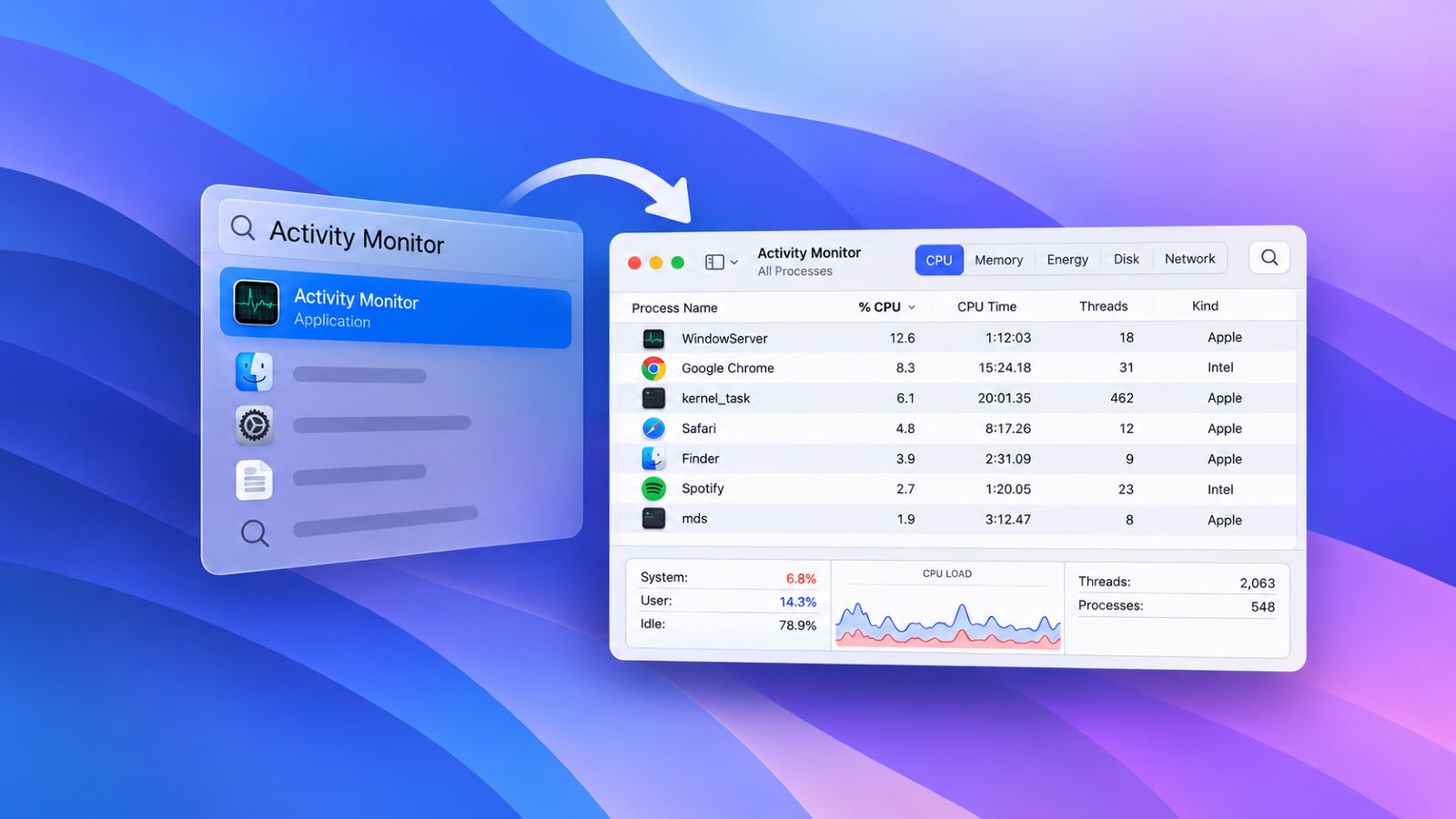
Mac does not have an app literally called Task Manager. Its built-in equivalent is Activity Monitor, which shows running apps and processes along with their CPU, memory, energy, disk, and network use.
The fastest way to open it is through Spotlight: press Command-Space, type Activity Monitor, and press Return. Finder provides another reliable route when you prefer navigating through folders or Spotlight is not responding.
Does Mac Have a Task Manager?
Yes, although Apple calls the tool Activity Monitor rather than Task Manager. It serves much of the same purpose as Windows Task Manager by showing running processes, resource use, and apps that may no longer be responding.
Its purpose is system monitoring and troubleshooting rather than planning work. If by “task manager” you mean software for organizing personal tasks, deadlines, and to-do lists, free task management apps belong to a different category.
The distinction matters because the same phrase can describe two very different types of software. On macOS, searches for Task Manager usually refer to processes and system performance.
How to Open Task Manager on Mac
There are several ways to launch Activity Monitor, but most people only need one or two of them. Spotlight is normally fastest, while Finder shows exactly where the app is located.
Open Activity Monitor With Spotlight
- Press Command-Space.
- Type Activity Monitor.
- Press Return.
The window opens with live information about running apps and background services. CPU, memory, and other values change continuously as the Mac handles different workloads.
Open Activity Monitor From Finder
Open Finder, then go to:
Applications → Utilities → Activity Monitor
If you’re wondering where Task Manager is on Mac, Activity Monitor is stored in Applications → Utilities. This route is also handy when Spotlight is unavailable or you want to locate the app directly.
Open the Utilities Folder Directly
With Finder active, press Shift-Command-U to open the Utilities folder, then double-click Activity Monitor.
This does not launch Activity Monitor by itself, but it skips some folder navigation. For occasional troubleshooting, Spotlight will still be faster in most cases.
Is There a Task Manager Shortcut on Mac?
macOS does not include a standard keyboard shortcut that launches Activity Monitor directly. Command-Space opens Spotlight, which you can then use to search for and open it.
People looking for a Mac task manager shortcut are often trying to accomplish different things, so the correct shortcut depends on what they actually need.
| What You Want to Do | Shortcut or Method |
|---|---|
| Open Activity Monitor quickly | Command-Space, type Activity Monitor, press Return |
| Open the Utilities folder | Shift-Command-U in Finder |
| Force quit a frozen app | Option-Command-Esc |
| Inspect CPU, memory, disk, or network use | Open Activity Monitor |
If the goal is simply to close one frozen application, the full process monitor is usually unnecessary. Option-Command-Esc opens the Force Quit window with fewer steps.
Apple handles running apps differently on iPhone because iOS does not expose a desktop-style process monitor. On iPhone, background app activity works differently because iOS does not expose a desktop-style process monitor.
Activity Monitor vs Force Quit: Which One Should You Use?
Activity Monitor and Force Quit overlap, but they are designed for different situations. The first gives you detailed information about processes and resource use, while the second provides a quick way to close an application that has stopped responding.
| Need | Better Choice |
|---|---|
| See which process is using CPU | Activity Monitor |
| Check memory, disk, or network activity | Activity Monitor |
| Inspect background processes | Activity Monitor |
| Quit a particular process | Activity Monitor |
| Quickly close one frozen app | Force Quit |
| Relaunch Finder | Force Quit |
Press Option-Command-Esc, select the frozen app, and choose Force Quit when you only need to close an unresponsive application. Unsaved changes can be lost, so a normal quit remains the better first choice whenever the app still responds.
If an application refuses to close or Finder itself needs to be relaunched, the same Force Quit steps cover those situations.
How to Quit a Frozen App in Activity Monitor
Activity Monitor gives you more control when the basic Force Quit window is not enough. You can identify the exact app or background process involved and inspect its resource use before deciding whether it should be stopped.
To close an app or process:
- Select it in Activity Monitor.
- Click the Stop button at the top of the window.
- Choose Quit first.
- If it still will not close, choose Force Quit.
A normal Quit lets the process shut down in an orderly way. Force Quit stops it immediately, which may mean losing unsaved work or affecting another process that depends on it.
The difference between Quit and Force Quit in Activity Monitor matters most when unsaved work or related processes are involved. An unfamiliar name alone is not a good reason to terminate something because macOS runs many background services that are meant to stay active.
What Do the Activity Monitor Tabs Show?
Activity Monitor separates system activity into several resource categories. You do not need to understand every figure on the screen; begin with the tab that matches the symptom you are investigating.
| Tab | Useful When |
|---|---|
| CPU | Mac feels slow, hot, or unusually busy |
| Memory | Apps stall, reload, or become sluggish |
| Energy | Battery drains faster than expected |
| Disk | File or storage activity appears unusually heavy |
| Network | You want to see which processes send or receive data |
CPU, Memory, Energy, Disk, and Network form the main Activity Monitor views. For everyday troubleshooting, CPU and Memory are usually the most useful places to start.
Check CPU Usage When Your Mac Slows Down
Open the CPU tab and click % CPU to sort processes by processor use. An app near the top is not automatically misbehaving; video processing, games, browser tabs, indexing, updates, and other demanding work can legitimately use substantial CPU for a while.
On a multicore Mac, a process can also show more than 100% CPU because Activity Monitor measures usage across multiple processor cores. Sustained or repeatable activity tells you more than one brief spike.
If the same application repeatedly rises to the top whenever the Mac becomes sluggish, you have a useful clue about where to investigate next. From there, you might close the app normally, restart it, update it, or look at what it was doing at the time.
Repeating the action that caused the slowdown can then show whether the same behavior returns.
Check Memory Usage When Your Mac Slows Down
Open the Memory tab when applications become sluggish, reload frequently, or performance gets worse as more programs are opened. The Memory Pressure graph gives a better overall picture than focusing only on how much RAM appears to be free.
Low memory pressure generally means macOS is handling current demand comfortably. Rising pressure suggests the system is working harder to meet memory needs, particularly when several large applications, browser tabs, or memory-intensive jobs are running together.
Closing software you no longer need may help, but a large memory figure by itself does not prove that an app is faulty. macOS deliberately uses available memory to improve performance, so the overall pattern matters more than one isolated number.
What Should You Avoid in Activity Monitor?
Activity Monitor exposes far more processes than the normal Force Quit window, which makes it valuable for diagnosis but also makes careless changes easier. A busy process is not automatically broken, and an unfamiliar name does not mean it should be stopped.
A few habits make troubleshooting safer:
- do not quit system processes unless you know what they do;
- try Quit before Force Quit;
- do not treat one short CPU spike as proof of a problem;
- avoid terminating several processes at once while diagnosing a slowdown;
- note which application was active when the issue appeared;
- change one thing at a time so you know what actually helped.
If nothing obviously unusual appears, the cause may lie elsewhere: low storage, a problematic browser tab, background syncing, an update, or hardware limitations. Activity Monitor works best as a diagnostic tool for narrowing the possibilities rather than as a place to close anything that happens to look busy.
For assigning work, tracking deadlines, and coordinating a team, team task management software serves a very different purpose from Activity Monitor.
For most Mac users, the process stays fairly simple. Open Activity Monitor with Spotlight, inspect the resource that matches the symptom, and close an app only when there is a clear reason to do so.