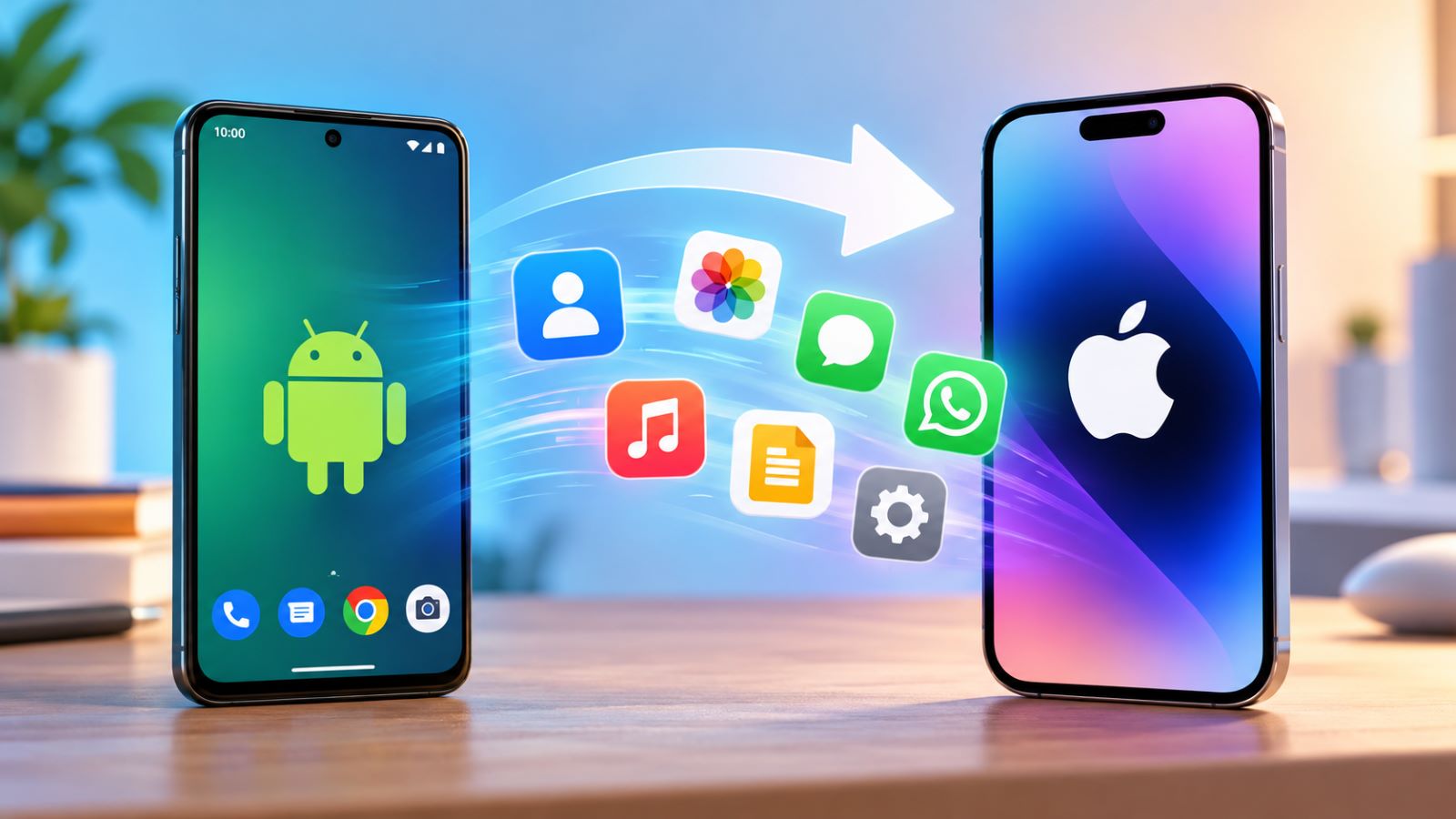
If you need to transfer data from Android to iPhone after iPhone is set up, you have two practical choices. You can erase the iPhone and return to the setup process for the most complete migration, or keep the current iPhone setup and move the remaining data category by category.
The right choice depends less on how much data you have than on what kind of data it is. Contacts, photos, documents, and many cloud-based services can move without a reset, while SMS history, phone call history, and an official WhatsApp migration are more restrictive.
| What You Need to Move | Reset the iPhone? | Best Route |
|---|---|---|
| Mail, contacts, calendars | No | Sign in to the same account |
| Photos and videos | No | Cloud service or computer |
| Files and documents | No | Cloud storage or computer |
| Music, books, PDFs | No | App sign-in or computer |
| Most apps | No | Reinstall from the App Store |
| SMS and message history | Yes for the supported migration route | Transfer during setup |
| Phone call history | Yes for the supported migration route | Transfer during setup |
| WhatsApp chat history | Yes | Factory reset + Move to iOS |
| Near-complete Android migration | Yes | Reset and transfer during setup |
Can You Use Move to iOS After iPhone Setup?
Not directly. If setup has already finished, using Move to iOS requires erasing the iPhone and returning to the setup process. Otherwise, move the remaining content manually.
That makes the decision fairly simple. If the iPhone is new and contains little you need to preserve, resetting it may be worth the inconvenience. If it already contains new photos, messages, work apps, or other data you rely on, manual transfer avoids starting over.
Before erasing anything, make sure you know how you will preserve content created on the iPhone since setup. A backup is useful, but do not assume that restoring one complete iPhone backup later will automatically merge it with a separate Android migration.
What Changes With Android 17 and iOS 26.5?
On compatible Android 17 devices and supported iPhones, Transfer without App can replace the Move to iOS app during initial setup. The Android phone pairs directly with the iPhone and sends supported data without requiring the migration app.
This does not remove the setup requirement. An iPhone that is already configured still has to return to the Transfer Your Apps & Data stage before the full Android migration can run.
Option 1: Erase the iPhone and Transfer During Setup
Resetting is the cleaner route when you want SMS history, phone call history, WhatsApp chats, and other categories that manual transfer cannot reproduce as completely.
Save anything important that exists only on the iPhone first. Then open Settings → General → Transfer or Reset iPhone → Erase All Content and Settings and complete the reset.
During setup:
- Keep both phones connected to power.
- Connect the Android phone to Wi-Fi.
- Continue iPhone setup until Transfer Your Apps & Data appears.
- Choose From Android.
- Use Transfer with App for Move to iOS, or the app-free option when your Android device supports it.
- Select the content you want to move.
- Leave both devices nearby until the progress bar on the iPhone finishes.
Do not stop simply because Android appears finished. Keep both devices nearby and untouched until the progress bar on the iPhone completes.
What the Setup Transfer Can Move
The setup-time Android migration can bring over much more than contacts and photos. Supported categories include contacts, SMS and message history, camera photos and videos, photo albums, files and folders, mail accounts, calendars, web bookmarks, Voice Memos, phone call history, WhatsApp messages and media, and some device settings.
Some free apps can also match to their iOS versions. Music, books, and PDFs may still need manual attention afterward, and installing an iOS version of an Android app does not guarantee that locally stored app data has an equivalent migration path.
Use a Cable for a Faster Transfer
A direct USB-C connection can make the migration faster and more stable on compatible devices. The Android phone may ask you to approve the connection or choose an appropriate USB mode before the transfer begins.
Once the migration starts, leave the cable connected until the iPhone finishes. Switching connection methods in the middle of the process can create unnecessary failures or force you to start over.
If the Transfer Fails
A stalled migration does not automatically mean you need a different phone or a third-party transfer utility. Rule out the common interruptions first:
- keep the Android migration screen open;
- avoid answering calls or opening other apps during transfer;
- keep both phones on power;
- confirm that the iPhone has enough storage;
- keep the devices close together for wireless transfer;
- restart both phones before repeating a failed attempt;
- try a compatible cable if wireless transfer keeps dropping.
If one category is missing after an otherwise successful migration, deal with that category separately rather than immediately repeating the entire transfer.
Option 2: Transfer Android Data Without Erasing the iPhone
An already-used iPhone does not prevent you from moving ordinary files and account-based data. It simply removes the single setup-time migration route.
If you keep the current iPhone setup, manual Android transfer works for categories such as contacts, photos, documents, music, books, and compatible apps. The process takes longer, but it lets you preserve the content already created on the iPhone.
Transfer Contacts, Mail, and Calendars
If this information already lives in Google, Microsoft Exchange, Yahoo, or another supported online account, you usually do not need to export it from Android. Add the same account to the iPhone and enable the categories you want to sync.
This approach also reduces duplicate contacts. Exporting the same address book manually after Google Contacts has already synchronized can create a second copy of many entries. Some contacts may exist only in Android phone storage or on a SIM, so handle those separately and check several important contact cards before deleting anything from Android.
Transfer Photos and Videos
If you already use Google Photos or another cloud photo service, install the same app on the iPhone and sign in. Your cloud library remains available without copying every image into Apple Photos.
For photos stored only on the Android device, a computer gives you more control. Copy the required photos and videos from Android to the computer first, then move the selected library to the iPhone using the appropriate Apple tools. Pick one main route for each photo collection because importing the same DCIM folders through multiple methods can quickly create duplicates.
Transfer Files and Documents
Google Drive, Dropbox, OneDrive, and similar services make document migration relatively simple. Install the relevant iPhone app, sign in, and access supported cloud files through the app or the Files app.
For files that exist only in Android storage, copy them to a computer or upload them to cloud storage first. That intermediate copy also gives you a backup while the migration is still unfinished.
Transfer Music, Books, and PDFs
Subscription and streaming libraries normally follow your account, so installing the equivalent iPhone app and signing in may be all you need.
Locally stored music, ePub files, and PDFs usually require more work. Copy them from Android to a computer, then add them to the appropriate iPhone app or library.
Reinstall Apps and Check App Data Separately
Most widely used Android services have iPhone versions, so you can reinstall them from the App Store. Account-based apps may restore cloud data as soon as you sign in, but local app data is less predictable.
If an app stores important information locally, check whether its developer offers a cross-platform sync or migration feature. Installing the iOS app alone does not guarantee that its Android database, settings, downloads, or offline content will follow.
What You Can’t Fully Transfer After Setup Without Resetting
The biggest distinction is between ordinary content and data that the iPhone imports as part of the initial device migration. SMS/message history and phone call history can move during setup, but there is no equivalent built-in post-setup import route for those histories.
If keeping those records matters more than preserving the iPhone’s current setup, resetting the iPhone and running the supported migration is the cleaner route.
Can You Transfer WhatsApp After iPhone Setup?
Not through WhatsApp’s official migration once the destination iPhone and WhatsApp are already in use. WhatsApp migration from Android requires a new or factory-reset iPhone and the same phone number on both devices.
There are two important limitations. WhatsApp does not merge new chats created on the iPhone with the old Android chat history, and WhatsApp call history does not transfer from Android to iPhone.
If the Android WhatsApp history matters, keep the old phone untouched until you verify the migration. Save anything important from the current iPhone separately before resetting because the old and new chat histories cannot be combined afterward.
What You Can Keep by Signing Into Your Google Account
Some Android data does not need a traditional phone-to-phone transfer because it already belongs to your Google account. Signing in with the same Google Account on iPhone can restore access to many familiar services.
- Gmail;
- Google Contacts;
- Google Calendar;
- Google Drive files;
- Google Photos;
- synced Chrome data, if Chrome sync was enabled;
- other Google apps and account-based services.
Keep the difference between access and local transfer in mind. Signing in to Google Photos gives the iPhone access to your Google Photos library, but it does not automatically copy every image into the local Apple Photos library.
How to Avoid Duplicates During a Manual Transfer
Manual migration becomes messy when the same category travels through several routes. Contacts might arrive through Google sync and a manual import, while photos can appear twice after both a cloud download and a computer copy.
Choose one primary method for each category and verify it before trying another:
- use one main source for contacts;
- transfer each photo collection once;
- avoid repeating an entire folder import because a few files are missing;
- confirm cloud-based app data before attempting a second migration;
- if a transfer fails, move only the missing category where possible.
This keeps the migration easier to troubleshoot and reduces cleanup afterward.
What to Check Before Erasing the Old Android Phone
Do not wipe the Android phone simply because a transfer screen reported success. Use the iPhone for a while and open the information that would actually hurt to lose.
Check several examples rather than relying only on totals:
- old and recent contacts;
- photos and videos from different dates;
- important documents and downloads;
- SMS conversations if you used setup-time migration;
- phone call history if you need it;
- older WhatsApp chats and attachments after a WhatsApp migration;
- banking and other sensitive account access;
- authenticator apps and two-factor authentication codes;
- SIM or eSIM service;
- apps that may store important information only on the old device.
Authenticator access deserves particular attention. A perfect photo transfer is little consolation if resetting Android removes the only working method for approving sign-ins to email, banking, or business accounts.
Keep the old phone unchanged until the important data opens normally on the iPhone and anything irreplaceable exists somewhere else as well. Only then is a factory reset of the Android device a low-risk final step.