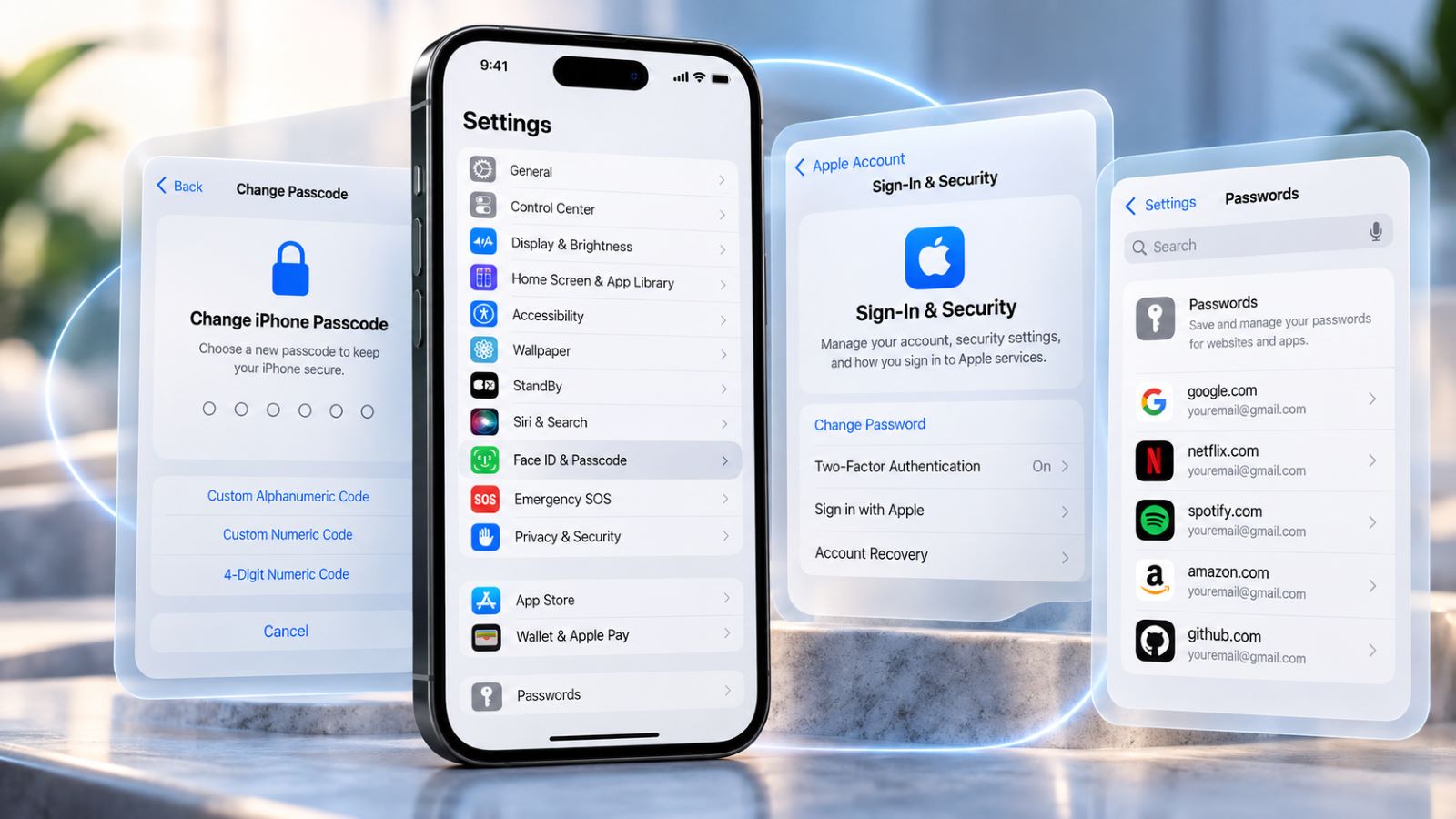
“Change my password on iPhone” can mean several different things. You may want to change the passcode that unlocks the phone, your Apple Account password, or a login used by a website or app.
Those credentials work independently and live in different places. Use the quick table below to start with the one you actually need.
| What You Want to Change | Where to Start |
|---|---|
| iPhone unlock code | Settings → Face ID & Passcode or Touch ID & Passcode |
| Apple Account password | Settings → [your name] → Sign-In & Security |
| Website or app password | Passwords app or the service itself |
| Recently changed passcode you forgot | Forgot Passcode? → Enter Previous Passcode |
| Completely forgotten iPhone passcode | Passcode Reset or device recovery |
Apple now uses the name Apple Account instead of Apple ID. The account itself has not disappeared; the terminology changed.
How to Change Your iPhone Passcode
If you want to change the code used to unlock the phone, you need to change the iPhone passcode. Face ID or Touch ID makes routine unlocking faster, but the passcode remains the underlying device credential and iPhone still asks for it in certain situations.
Apple’s current instructions for changing an iPhone passcode use the same basic process on Face ID and Touch ID models:
- Open Settings.
- Tap Face ID & Passcode or Touch ID & Passcode.
- Enter your current passcode.
- Tap Change Passcode.
- Enter your current passcode again if prompted.
- Enter the new passcode.
- Confirm it.
Once the process is complete, use the new code whenever iPhone asks for the device passcode. Your existing Face ID or Touch ID setup can continue working normally.
Choose a 4-Digit, 6-Digit, or Custom Passcode
iPhone normally uses a six-digit passcode, but you are not limited to that format. While setting a new one, tap Passcode Options to choose another type.
- 4-digit numeric code
- 6-digit numeric code
- custom numeric code
- custom alphanumeric code
A four-digit code is faster to enter but gives an attacker far fewer combinations to guess. Six digits offer a better everyday balance, while a longer numeric or alphanumeric code can provide stronger protection. Whatever format you choose, avoid birthdays, repeated digits, obvious sequences, or another number that people around you could easily predict.
Why a Passcode Change May Be Delayed
If Stolen Device Protection is active, iPhone can require additional verification before allowing sensitive security changes. Depending on your settings and location, that may include Face ID or Touch ID, a one-hour Security Delay, and another biometric check afterward.
The same protection can affect an Apple Account password change. This delay makes it harder for someone who has both your iPhone and its passcode to quickly take control of the account.
How to Change Your Apple Account Password on iPhone
Your Apple Account password controls access to Apple account services. It is separate from the passcode that unlocks the iPhone, so changing one does not automatically change the other.
To change your Apple Account password, use the following path:
- Open Settings.
- Tap your name.
- Tap Sign-In & Security.
- Tap Change Password.
- Complete the identity check.
- Enter and confirm the new password.
A trusted iPhone that is already signed in usually makes the process easier because Apple can verify your identity through the device. Some other devices or services may ask you to authenticate again afterward, depending on how they are connected to the account.
Change Your Apple Account Password Without Your iPhone
You can also change the password through Apple’s account website when the iPhone is unavailable. Identity verification still applies, and Apple may direct you toward a trusted device when one is available. If you no longer know the current password and cannot complete normal verification, the task has moved from a password change to account recovery.
Change a Child’s Apple Account Password
A parent or guardian in Family Sharing can change a Child Account password from Settings → Family, then select the child and use the available password option. With some configurations, particularly when Screen Time is involved, Apple may place the relevant control under Personal Information.
How to Change a Website or App Password on iPhone
A saved password on iPhone and the actual password held by a website are not the same thing. Your phone can store a credential for AutoFill, but editing that stored entry does not necessarily update the account on the website itself.
The safest order is to change the real password with the service and then make sure iPhone stores the new credential.
Use the Passwords App on iOS 18 and Later
On iOS 18 and later, Apple provides a standalone Passwords app for saved logins, passkeys, verification codes, and related account information.
- Open Passwords.
- Authenticate with Face ID, Touch ID, or the device passcode.
- Tap All.
- Choose the website or app.
- Tap Edit.
- Tap Change Password.
iPhone opens the website or app where you can change the actual account password. Simply editing the saved entry does not necessarily change the password held by the service. Apple’s guidance for changing website and app passwords on iPhone follows that distinction.
Once the service accepts the new password, iPhone can update the stored credential for AutoFill.
Find Saved Passwords on iOS 17 and Earlier
On iOS 17 and earlier, saved credentials live under Settings → Passwords instead of a standalone Passwords app. Authenticate, find the website or app, and open its saved entry.
You can inspect or edit the stored login there. If the account password itself needs to change, make the change through the website or app first, then update the saved credential if iPhone does not do it automatically. Some services now offer a passkey instead of another traditional password; passkeys can also appear with saved credentials, but they do not change your iPhone passcode or Apple Account password.
Forgot Your New iPhone Passcode? Your Old One May Still Work
If you changed the iPhone passcode recently and immediately forgot the new one, erasing the phone may not be necessary. On iOS 17 and later, Apple’s Passcode Reset feature lets you use the previous passcode for up to 72 hours after the change.
Apple explains the current previous-passcode recovery process. After enough failed attempts to reach the unavailable screen:
- Tap Forgot Passcode?
- Tap Enter Previous Passcode.
- Enter the old passcode.
- Follow the instructions to create another new passcode.
The old passcode works only as a temporary recovery method. Once you regain access, iPhone requires you to create a new one.
If you changed the passcode because somebody else knew the previous code, you do not have to leave that 72-hour recovery window open. In Settings → Face ID & Passcode or Touch ID & Passcode, you can expire the previous passcode early.
What to Do If You Forgot Your iPhone Passcode
If the passcode was not changed recently, or the previous-passcode option is unavailable, you cannot simply open Settings and choose another code. Once the iPhone is locked out, use Apple’s recovery options instead of continuing to guess.
Repeated incorrect attempts increase the lockout time and eventually produce an unavailable or Security Lockout screen. At that stage, check whether the phone offers an on-device reset option before moving to computer-based recovery.
Reset the iPhone Without a Computer
Recent versions of iOS can let you reset a locked iPhone directly from the device. The iPhone generally needs an internet connection, Find My must already be enabled, and you need the Apple Account credentials associated with the phone.
On iOS 17 and later, the route can appear through Forgot Passcode? and lead to an iPhone reset. On iOS 15.2 and iOS 16, Apple may instead show Erase iPhone. The labels differ, but both routes move the device into recovery rather than simply replacing the forgotten code.
The general process is:
- Start the reset from the unavailable screen.
- Authenticate with your Apple Account when requested.
- Confirm that you want to erase the iPhone.
- Wait for the device to restart.
- Set it up again.
- Restore an available backup.
Erasing the iPhone removes local data and settings, so the quality and recency of your backup matter. Data already synchronized through supported cloud services may return separately after you sign in.
When a Computer May Still Be Needed
If the on-device options do not appear or cannot complete the reset, you may need a Mac or Windows PC. The computer-based method places the iPhone into recovery mode and restores the device, which also removes the forgotten passcode. Afterward, you set up the iPhone again and restore a backup if one is available.
What to Do If You Forgot Your Apple Account Password
A forgotten Apple Account password creates a different problem from a forgotten iPhone passcode. The phone may still unlock normally even though you can no longer sign in to certain account services.
If the iPhone is a trusted device and you still know its passcode, start with Settings → [your name] → Sign-In & Security → Change Password. The trusted device can help Apple verify your identity, so you may be able to set another account password without going through a full recovery process. If that route fails because you cannot complete verification, move to Apple Account recovery rather than erasing the phone.
After You Change a Password
Afterward, make sure the credential you expect to use next is actually stored on the phone. This matters especially with websites and apps: the service may already have the new password while AutoFill still holds the old one.
The Passwords app also includes a Security section that can flag weak, reused, or compromised credentials. If you are already updating one login, it is worth checking whether another saved account needs attention as well.
Before you move on, test the new credential once. Confirm that the iPhone unlocks with the new passcode or that the account signs in normally, and make sure AutoFill has stored the correct website password where needed.