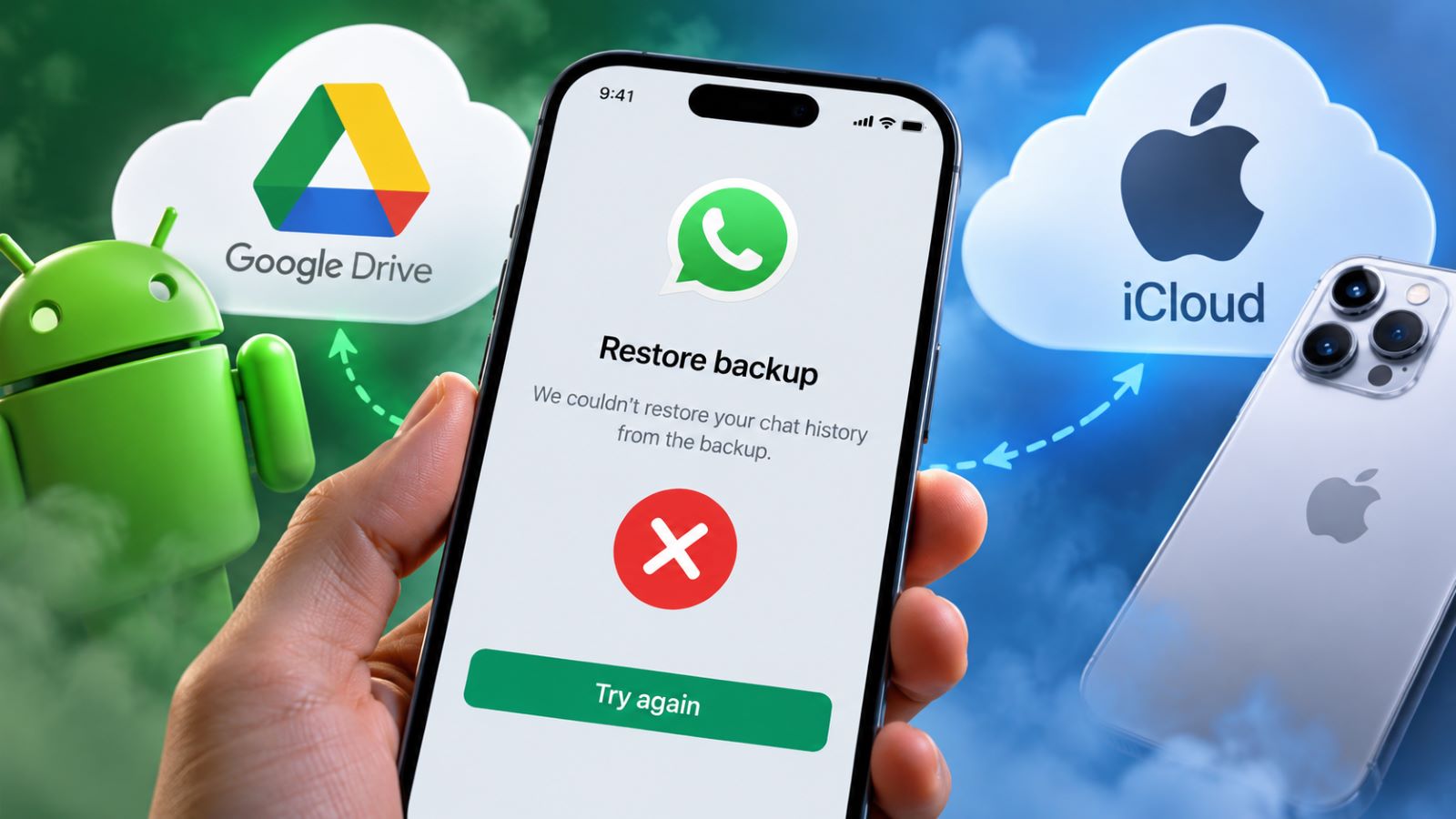
When WhatsApp won’t restore a backup from Google Drive or iCloud, the cause is usually somewhere in the restore chain: the wrong phone number, the wrong Google or Apple account, insufficient storage, an encrypted-backup credential, or a restore attempt made outside the initial WhatsApp setup flow.
Before reinstalling anything, make sure the backup belongs to the number and cloud account you are using now. Android and iPhone then require slightly different checks, so following the correct platform path is more useful than repeating the same reinstall.
Why Won’t WhatsApp Restore My Backup?
A backup can still exist in the cloud while remaining unavailable to WhatsApp. The app has to match the current setup with the information tied to that backup, and a mismatch at any one point can stop the restore from appearing.
Common blockers include:
- a different phone number from the one used to create the backup;
- the wrong Google Account on Android or Apple Account on iPhone;
- insufficient free storage on the phone or cloud account;
- iCloud Drive being unavailable on iPhone;
- Google Play services problems on Android;
- a forgotten encrypted-backup password, passkey, or encryption key;
- a backup that has expired, been overwritten, or become corrupted;
- completing WhatsApp setup before accepting the restore.
Identifying which condition does not match is usually more productive than reinstalling immediately.
Quick Checks Before You Reinstall WhatsApp
A few checks can rule out the most common problems before you delete the app again.
| Check | What Should Match | What to Do if It Does Not |
|---|---|---|
| Phone number | Same number used for the backup | Verify the correct number before restore |
| Cloud account | Original Google Account or Apple Account | Sign in to the correct account |
| Backup encryption | Correct passkey, password, or 64-digit key if enabled | Recover or change the credential while old chats are still accessible |
| Storage | Enough phone and cloud storage for the backup | Free space before retrying |
| Network | Stable connection | Use reliable Wi-Fi and avoid switching networks |
| Setup state | WhatsApp is in initial setup | Reinstall if you already skipped restore |
On Android, WhatsApp backups count toward Google Account storage. If that storage is full, new backups may fail and the only cloud copy available to WhatsApp may be older than expected.
Avoid deleting a backup merely to “refresh” it. If no other valid copy exists, removing the cloud backup can turn a restore problem into permanent data loss.
Why Does WhatsApp Skip the Restore Prompt?
WhatsApp does not keep a general Restore button inside its normal settings. The option appears during initial setup after phone-number verification, once WhatsApp finds a compatible backup.
If setup has already finished and you skipped that step, opening Settings > Chats > Chat Backup will not bring the prompt back. That screen manages backups rather than restoring old chat history.
A clean retry usually follows this sequence:
- Confirm the correct phone number and cloud account.
- Uninstall WhatsApp.
- Reinstall the current version from the official app store.
- Verify the same phone number.
- Let WhatsApp search for the backup.
- Choose
Restorewhen the option appears.
If the underlying problem is storage, encryption, account matching, or backup compatibility, another reinstall alone will simply reproduce the same result.
WhatsApp Google Drive Backup Won’t Restore on Android
Android restoration depends on the Google Account that holds the backup, the WhatsApp number tied to it, available storage, and working Google services.
Start by checking the Google Account active on the phone. This is especially important on devices with several Gmail accounts, where the backup may have been created under one account while WhatsApp is now searching another. Make sure WhatsApp and Google Play services are current as well; after updating them, a restart can clear temporary account or service issues before you try again.
Check Google Storage and the Backup Age
WhatsApp backups on Android use the same Google storage quota shared by Drive, Gmail, and Google Photos. A full account can interfere with new backups, so freeing space may be necessary before creating or retrying one.
Age matters as well. Google can automatically remove WhatsApp backups that have not been updated for five months. That means an old phone may still show signs that a backup once existed even though Google no longer holds a usable cloud copy.
A newer WhatsApp backup under the same Google Account can also replace the older cloud backup. Google Drive should not be treated as a version archive where you can freely roll back to several previous WhatsApp states.
WhatsApp iCloud Backup Won’t Restore on iPhone
On iPhone, troubleshoot WhatsApp’s own iCloud requirements rather than the general iPhone device-backup process.
Make sure you are signed in with the Apple Account that originally stored the WhatsApp backup, then verify that iCloud Drive is active and WhatsApp has permission to use it. The phone number, available storage, network connection, and any encrypted-backup credential also need to match.
The current WhatsApp iCloud restore troubleshooting covers these restore conditions in more detail.
A normal iPhone iCloud Backup and WhatsApp Chat Backup are not the same thing. Locking the phone and waiting for a routine device backup will not repair a WhatsApp restore problem. If the account, number, storage, and encryption details all match but the same restore continues to fail, the backup itself becomes a more likely suspect.
What If WhatsApp Asks for an Encrypted Backup Password or Key?
End-to-end encrypted backups add another security layer between the cloud copy and your chat history. Depending on how the backup was configured, WhatsApp can protect it with a passkey, password, or 64-digit encryption key.
What you can do next depends heavily on whether the old phone still has access to the chats. If WhatsApp remains usable there, you may be able to change the encrypted-backup password or adjust the backup settings before moving to another device.
The situation changes once both the old chats and the required credential are inaccessible. WhatsApp’s encrypted backup recovery rules explain that WhatsApp cannot simply reset a lost encryption credential and decrypt the backup for you.
Before trying password variations repeatedly, make sure encryption is actually the obstacle rather than the cloud account or restore flow.
What to Do When WhatsApp Restore Is Stuck
A restore that begins and then stops progressing needs a different approach from a backup that WhatsApp never detects.
Check the practical basics first: stable Wi-Fi, enough free storage, a current version of WhatsApp, and adequate battery. Android also depends on Google Play services working normally. Once the restore starts, avoid bouncing between Wi-Fi, mobile data, VPN connections, and filtered networks.
Chats and media may finish at different times. Conversations can become usable before every photo or video downloads, so slow media recovery does not automatically mean that the whole restore has failed.
If the process repeatedly stops at exactly the same stage after you have ruled out storage, network, and software problems, one clean reinstall may be worth trying. Continued failure at the same point raises the possibility of an incomplete or corrupted backup.
Can You Restore Google Drive on iPhone or iCloud on Android?
You cannot restore a Google Drive WhatsApp backup on iPhone or an iCloud WhatsApp backup on Android through the normal cloud restore process.
The two platforms use different backup systems. An Android backup stored through Google does not turn into an iCloud backup when you switch phones, and an iCloud WhatsApp backup does not become something Android can retrieve from Google Drive. This is why cloud restore and phone-to-phone transfer need to be treated as separate workflows.
Android to iPhone
WhatsApp supports Android-to-iPhone migration through Apple’s Move to iOS process rather than by restoring the Google backup through iCloud.
The official Android to iPhone WhatsApp transfer requires the same phone number and a new or factory-reset iPhone. Migration takes place during iPhone setup, before WhatsApp is already active on the destination device.
An iPhone that has already been set up creates a different problem. The broader process for Android to iPhone transfer is not the same as WhatsApp’s official chat migration, which still depends on the destination being new or reset.
Resetting an existing iPhone solely to move WhatsApp chats can remove data already stored there. Back up anything you intend to keep before starting over.
iPhone to Android
Moving in the other direction also uses an official transfer workflow rather than a direct iCloud-to-Google Drive restore.
Keep the original iPhone and its WhatsApp history intact until the migration completes and older conversations open correctly on Android. Use the same phone number and follow the transfer prompts available for the destination device.
A successful WhatsApp installation by itself proves very little. If the app opens but the old chat history is missing, do not erase the original phone until you know whether the transfer actually finished.
What If the Backup Is Corrupted, Deleted, or Overwritten?
Another reinstall will not help when the cloud backup itself is corrupted, deleted, overwritten, or no longer available.
An interrupted process, insufficient storage, damaged data, or another failure during creation can leave WhatsApp with a cloud copy it cannot read. Repeating the restore against the same unusable data does not repair that copy.
Cloud history is also more limited than many people expect. A new WhatsApp backup can replace the previous cloud copy instead of building a recoverable archive of older versions. On Android, a backup that remains inactive for five months can disappear automatically as well.
Deletion is even less forgiving. Do not remove an existing cloud backup while troubleshooting unless the old phone still holds the complete chat history and you deliberately intend to create a fresh replacement.
Avoid Risky Third-Party Recovery Tools
When WhatsApp cannot restore a usable cloud backup, third-party “WhatsApp recovery” tools can sound appealing because they often promise access to chats that official methods cannot recover.
Treat those claims cautiously. An unknown utility should not receive your Google or Apple password, WhatsApp verification code, encrypted-backup password, encryption key, or unrestricted remote access to the phone. End-to-end encryption also means a tool cannot simply bypass a missing credential and decrypt a protected cloud backup on demand.
Uploading private chat databases or backup files to another company’s server may introduce a new privacy risk while leaving the original restore problem unsolved.
What to Try Before You Give Up on the Backup
Before assuming the chat history is gone, verify the original phone number, cloud account, available storage, and any encrypted-backup credential. Also make sure the method fits the situation, because same-platform restoration and cross-platform migration follow different paths.
If WhatsApp still rejects the same backup after one clean setup attempt, another reinstall is unlikely to change the outcome. A corrupted, deleted, overwritten, expired, or inaccessible encrypted backup is then the more likely explanation.