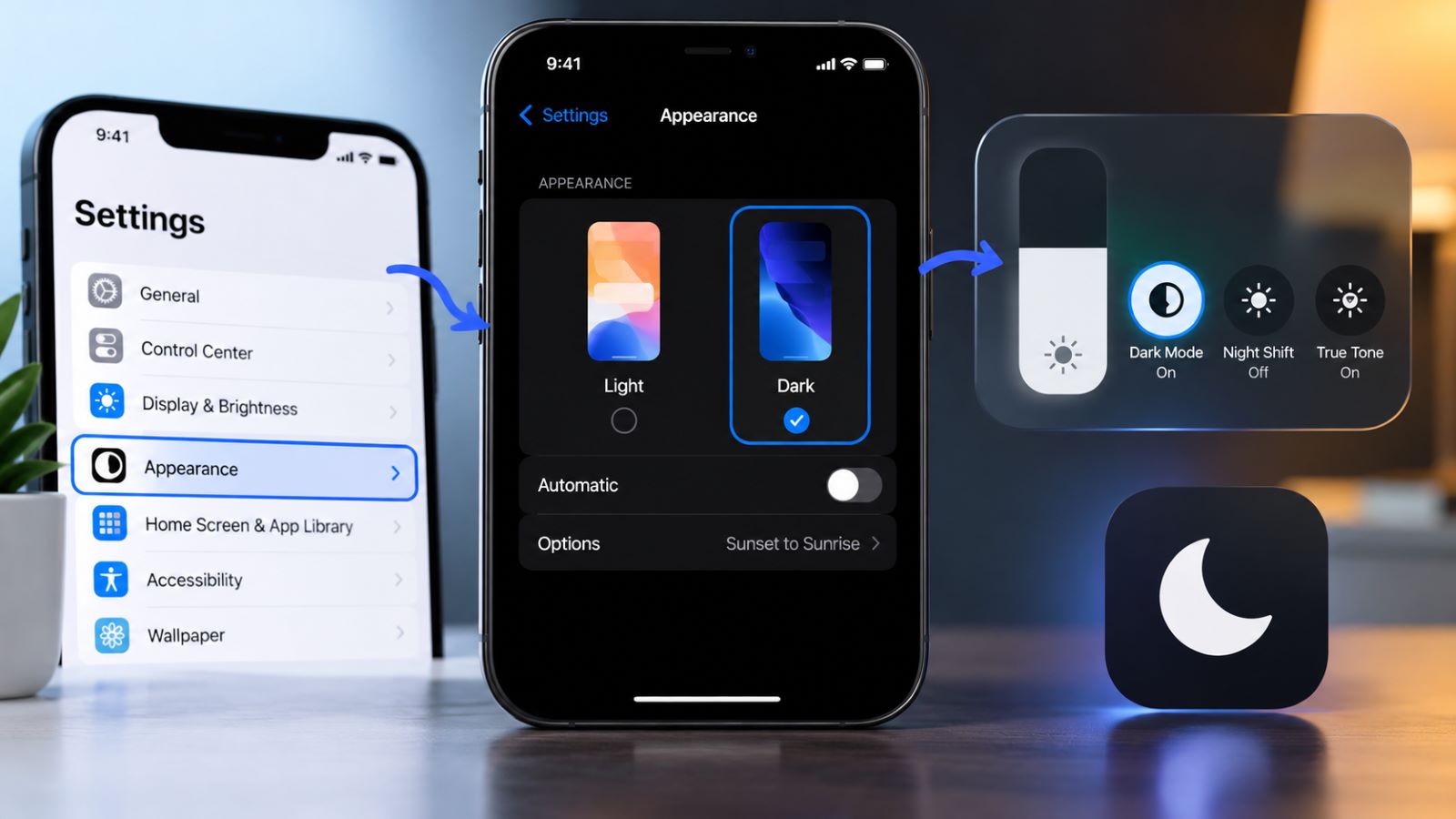
Dark Mode on iPhone changes the system interface to a darker color scheme and also affects Apple apps and many third-party apps. Depending on your iOS version, the setting may appear under Appearance or Display & Brightness. You can also switch Dark Mode from Control Center or schedule the iPhone to change between Light and Dark automatically.
If the entire interface changes except for one app, the system setting is probably working correctly. That app may use its own theme controls or may not fully follow the iPhone appearance.
How to Turn On Dark Mode on iPhone in Settings
Settings gives you the most direct way to turn on Dark Mode. On newer versions, the control sits under Appearance, while iOS 26 and earlier use Display & Brightness. The same Dark Mode controls on iPhone also cover Control Center and automatic switching.
- Open Settings.
- Tap Appearance.
- Select Dark.
The interface should change immediately. Open Settings or Notes afterward and check that the background has switched to the darker appearance rather than relying on one third-party app as a test.
On iOS 26 and Earlier
- Open Settings.
- Tap Display & Brightness.
- Under Appearance, select Dark.
This difference explains why instructions online sometimes appear to disagree. If the menu shown in a tutorial is missing on your phone, the iOS version may be the reason. Searching Settings for Dark Mode, Appearance, or Display & Brightness can get you to the relevant controls without working through every section manually.
Use Dark Mode From Control Center
Control Center is more convenient if you regularly move between Light and Dark appearance. Open it, press and hold the brightness bar, then tap Dark Mode. The appearance changes immediately without another trip through Settings.
On iPhones with Face ID, Control Center normally opens with a swipe down from the top-right corner. Models with a Home button use a swipe up from the bottom edge, so the gesture depends on the iPhone rather than the Dark Mode setting itself.
Add Dark Mode Directly to Control Center
If you switch appearances several times a day, giving Dark Mode its own Control Center button removes an extra step. It is especially handy for people who prefer Light Mode outdoors but change manually in darker rooms.
- Open Control Center.
- Touch and hold an empty area to edit it.
- Tap Add a Control.
- Add Dark Mode.
After that, one tap is enough to switch the interface. You no longer need to expand the brightness controls first.
Schedule Dark Mode on iPhone Automatically
Automatic Dark Mode removes the need to change appearance every evening. Open the same appearance settings used above, turn on Automatic, then open Options to choose when the switch should happen. This works well if you prefer a brighter interface during the day and a darker one later.
On versions that support the traditional schedule, you can choose Sunset to Sunrise or set fixed times with Custom Schedule. The automatic appearance settings on iPhone use local sunset and sunrise timing when that option is selected.
A custom schedule makes more sense when your routine does not follow daylight hours. Someone who works late may want the darker interface several hours before sunset, while an early riser may prefer Light Mode sooner in the morning. Once the schedule is set, there is no need to toggle Dark Mode manually each day.
Why an App May Stay Light When iPhone Is in Dark Mode
A single bright app usually points to an app-level setting rather than a system problem. Many apps follow the iPhone appearance automatically, but others offer separate choices such as System, Light, and Dark. The rest of iOS can therefore look correct while one app keeps its own theme.
Open the app’s settings and look for Appearance, Theme, or a similar option. Choosing System normally allows the app to follow the iPhone setting when that behavior is supported.
Custom themes add another layer. Telegram and similar apps may offer several dark palettes or AMOLED-oriented themes, so their appearance can differ noticeably from Apple’s built-in apps. That difference does not mean system Dark Mode has stopped working.
Dark Mode Is Not the Same as Smart Invert or Night Shift
Several iPhone display features change how the screen looks, but they solve different problems. Smart Invert reverses many display colors while attempting to preserve images and other media, while Classic Invert applies a broader color reversal. Color Filters modify displayed colors for accessibility needs. These options are grouped within the Display & Text Size accessibility settings.
Night Shift works differently again. It moves the display toward warmer tones rather than changing app and menu backgrounds, and the Night Shift settings can run on their own schedule independently of Dark Mode. A warmer screen therefore does not necessarily mean the iPhone is using a dark appearance.
This distinction becomes useful when something looks wrong. Smart Invert can make an interface appear dark even when Dark Mode itself is off, while Night Shift may add an orange or warmer cast without changing the basic Light interface.
Why Dark Mode on iPhone May Not Work Properly
Start by checking whether the problem affects the entire iPhone or only one app. Settings and Notes are useful reference points because they normally follow the system appearance. A single bright app usually points toward its own theme controls, while unexpected colors across several Apple apps are a stronger reason to inspect Accessibility settings.
Check Invert Colors and Color Filters
Open Settings → Accessibility → Display & Text Size and look at Smart Invert, Classic Invert, and Color Filters. Any of these can change backgrounds, interface colors, images, or video enough to make Dark Mode look different from what you expected. An option enabled accidentally may explain the problem without anything being wrong with Dark Mode itself.
Temporarily disable an unexpected setting, then check the screen again. Change one setting at a time so you can identify the cause without creating a second display problem.
Check the App’s Own Appearance Setting
When only one app stays light, open its own settings before changing system-wide options. Look for a theme or appearance menu and choose the system-following option if one is available. This keeps troubleshooting focused on the part of the interface that is actually behaving differently.
Some apps use independent themes or do not fully support the system dark appearance. In that case, the mismatch is confined to the app and does not indicate a problem with iPhone Dark Mode.
Restart After an iOS or App Update
After an update, start with the affected app before changing system-wide display options. Close and reopen the app, then restart the iPhone if several interface elements are behaving unexpectedly. This is a better first step than resetting unrelated appearance or accessibility settings.
Most Dark Mode problems can be narrowed down by checking the system appearance, one Apple app, and the affected third-party app in that order. Keeping the process simple also makes the actual cause easier to spot.
How to Check That Dark Mode Is Working
Open Settings and one or two Apple apps after turning Dark Mode on. Their backgrounds, menus, and system dialogs should follow the darker appearance consistently. If those areas change normally, system Dark Mode is active.
A third-party app that remains bright should be checked separately for theme controls, while unusual colors across the whole display point more toward Smart Invert, Color Filters, or another accessibility adjustment. For most users, no further setup is necessary. Leave Dark Mode on permanently, add the Control Center shortcut if you switch often, or use an automatic schedule and let the iPhone handle the change each day.