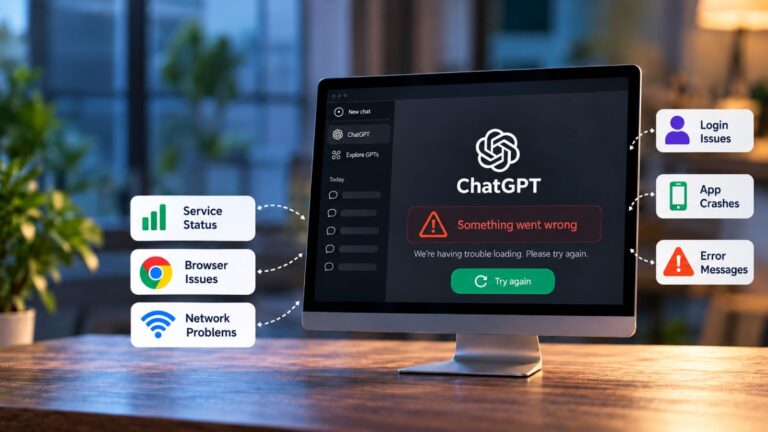
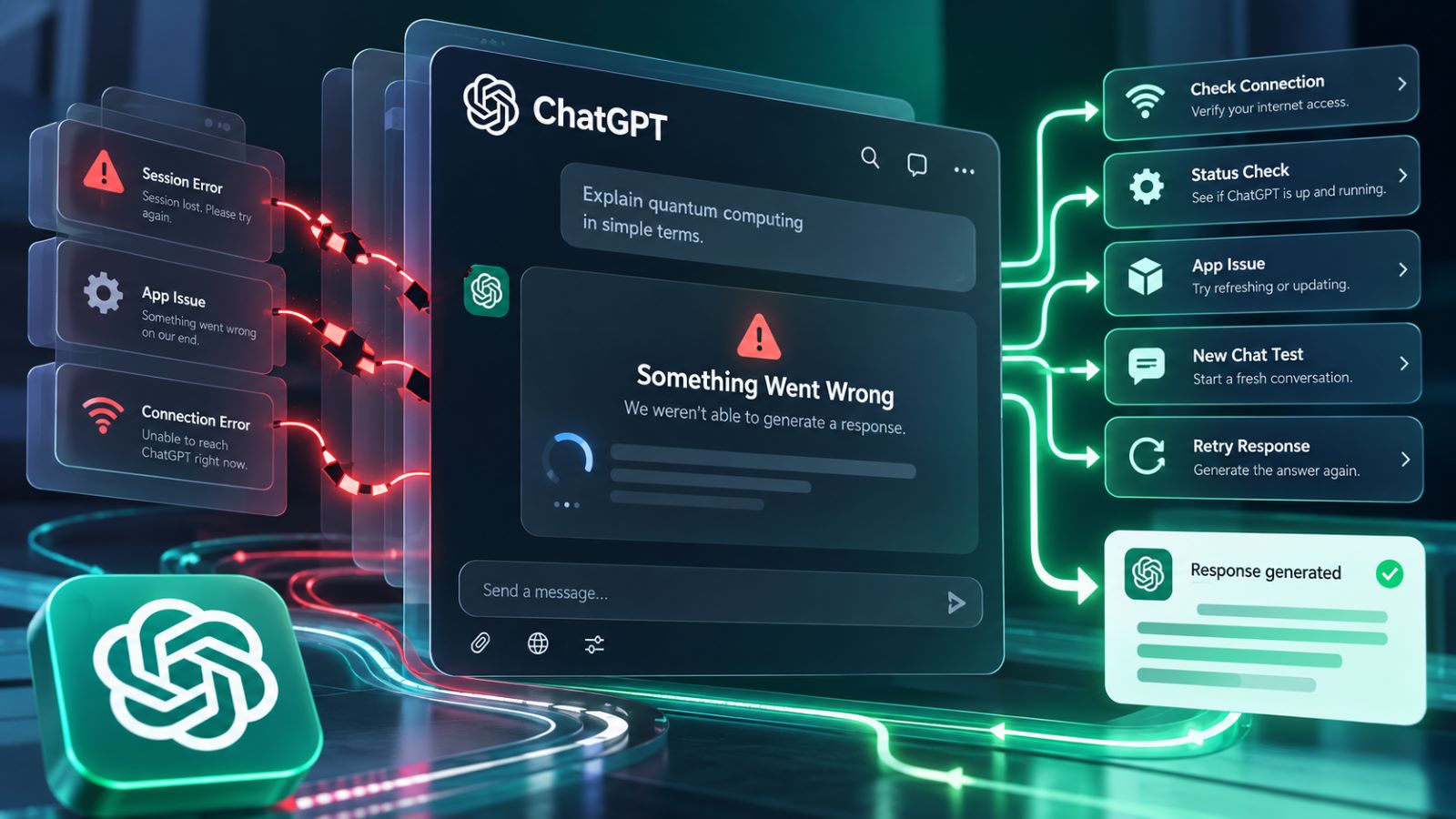
You send a message in ChatGPT, wait for an answer, and get “Something went wrong” instead. Sometimes the next attempt works normally. Other times, the same error returns every time you open a conversation or submit a prompt. The difference matters because a temporary response failure and a persistent browser problem require different approaches.
The message itself doesn’t explain what failed. Before clearing cookies or reinstalling the application, identify when the error appears and whether other parts of ChatGPT still work. A few controlled checks can save considerable time.
What Does “Something Went Wrong” Mean in ChatGPT?
“Something went wrong” is a general error message, not a diagnosis. It may indicate a temporary service issue, interrupted communication, or a problem with the current browser session. The timing of the failure provides the most useful initial clue.
| When the Error Appears | Possible Cause | First Check |
|---|---|---|
| After sending a prompt | Temporary response-generation failure | Retry the response |
| When opening ChatGPT | Service or session problem | Check service status |
| During login | Authentication or verification issue | Confirm the sign-in method |
| In one conversation only | Conversation-specific loading issue | Start a new chat |
| Only in the mobile app | Application or device problem | Compare with browser access |
| Across devices and networks | Service or account-related issue | Check status and account |
A failed response doesn’t necessarily mean the entire service is unavailable. Similarly, an error limited to one conversation should be investigated differently from a problem that prevents ChatGPT from opening altogether. Comparing these situations helps establish which checks are worth your time.
If the application cannot load at all, broader ChatGPT troubleshooting steps may be more appropriate. Otherwise, begin with the fixes below and stop once the original action works consistently again.
12 Fixes for the ChatGPT Something Went Wrong Error
Start with the least disruptive options. These twelve fixes cover service interruptions, response failures, browser sessions, and connection problems, but you don’t need to complete every step. After making a change, repeat the action that originally produced the error.
- Check OpenAI service status. Visit the OpenAI status page and look for an incident affecting ChatGPT. If a relevant outage is reported, wait for service recovery rather than repeatedly changing local settings. An all-clear status is useful information, although it doesn’t rule out every service-related problem.
- Retry the failed response. If ChatGPT displays an error after submitting a prompt, use Retry or Regenerate when available. If the response is stuck on “Thinking” or “Generating,” wait briefly, then select Stop generating before retrying. A temporary failure may resolve without changing your browser or connection.
- Start a new conversation. Copy the unfinished prompt into a fresh chat and try again. If it works there, the problem may be specific to the original conversation. Save any important context before abandoning the earlier thread.
- Refresh or restart ChatGPT. Reload the browser page or close and reopen the application. A hard refresh can reload page resources when the interface behaves incorrectly. Copy unsent text first so you don’t lose work.
- Sign out and back in. A fresh authentication session can sometimes resolve errors that persist across conversations. Use the same account and sign-in method, particularly if you manage separate personal and work accounts.
- Test a private browsing window. Sign into ChatGPT in an incognito or private window, then reproduce the error. If it works there, your normal browser profile deserves attention. Stored site data or an extension may be involved, but the test alone doesn’t identify which one.
- Disable interfering extensions. Temporarily turn off script blockers, privacy extensions, and security tools that modify website requests. Retry ChatGPT, then re-enable extensions individually if the problem disappears. This helps identify a conflict without permanently removing useful protections.
- Clear ChatGPT-specific site data. If a private window works but the normal session continues to fail, remove cookies and cached data for ChatGPT. This is less disruptive than resetting your entire browser, although you’ll generally need to sign in again.
- Update your browser or application. Install an available compatible update and restart the software afterward. Older versions can sometimes behave differently when a web service changes, but updating won’t resolve an unrelated account restriction or outage.
- Check VPN and proxy settings. Test the connection without the VPN or through another permitted server, then repeat the failed request. If the behavior changes, investigate the connection route or filtering configuration. Don’t leave security protections disabled permanently just because one test succeeds.
- Try another network or device. Switch from Wi-Fi to mobile data, or test the same account on another device. A failure tied to one connection makes local filtering or routing more plausible. If it follows the account across several environments, a service or account-related issue deserves more attention.
- Check mobile device settings. For errors occurring in the mobile app, verify connection stability, application updates, and automatic date and time. These checks are especially relevant when ChatGPT displays the more specific DeviceCheckError message.
The goal isn’t to change as many settings as possible. A test is useful when it helps distinguish one explanation from another, even if it doesn’t immediately resolve the problem.
For example, successful access on mobile data but repeated failure on office Wi-Fi gives you a practical reason to investigate that network. By contrast, an error that persists across browsers, devices, and connections may need attention beyond local troubleshooting.
Why ChatGPT Says Something Went Wrong During Login
An error during login should be treated differently from one that appears after sending a message. Authentication involves account identity, browser session state, and verification steps that aren’t necessarily involved in an ordinary conversation. Repeatedly submitting the same credentials can also complicate an existing login problem.
Start by confirming the sign-in method associated with your account. If you registered through Google, Microsoft, or Apple, use the corresponding option and the correct provider account. Attempting a different method may produce an authentication error instead of resolving the original issue.
OpenAI’s login troubleshooting instructions distinguish ordinary failures from warnings about suspicious login behavior. For a generic error, OpenAI recommends waiting at least 60 seconds before trying again. A suspicious-login warning may require waiting up to an hour because repeated failed attempts can trigger temporary restrictions.
If the verification screen repeatedly reloads, test a private window or another permitted connection. Corporate security filters and browser extensions can interfere with authentication challenges, but they shouldn’t be disabled indiscriminately. Focus on identifying the particular setting or network condition associated with the failure.
What If ChatGPT Shows Something Went Wrong in One Conversation?
When a new conversation works but an older one repeatedly fails, the problem may be limited to that thread. Long discussions, interrupted responses, and temporary loading problems are possible factors, although the error doesn’t establish that the conversation is damaged.
Try reopening the original chat and retrying the failed response. If the problem continues, move the relevant context into a new conversation instead of repeatedly submitting the same prompt. Keep the older thread available when possible, particularly if it contains information you may need later.
A different situation occurs when the conversation appears in Search but opens to a blank page. Our article about missing ChatGPT history explains how to distinguish loading failures from conversations that are genuinely unavailable.
An error affecting one conversation doesn’t mean your entire account is malfunctioning. Testing a second chat provides a useful comparison before making changes that affect every browser session.
How to Fix Something Went Wrong in the ChatGPT Mobile App
The mobile app introduces another layer of possible problems. The application may encounter a session issue, an unstable connection, or a device-specific verification failure even when ChatGPT works in a browser. Comparing both environments on the same phone can help narrow the possibilities.
When the Browser Works but the App Doesn’t
Open ChatGPT in your mobile browser using the same account. If requests work there but fail in the app, check for application and operating system updates, then restart the app. Repeat the original request rather than testing an unrelated feature.
A successful browser test suggests that the application or its interaction with the device deserves attention, but it doesn’t prove the app itself is defective. Network conditions, authentication state, and device configuration can still affect the result. Reinstallation is best reserved for cases where simpler checks have failed and you can sign back into the account.
When You See DeviceCheckError
DeviceCheckError is a more specific problem than the generic “Something went wrong” message. It can indicate that ChatGPT could not generate a verification token for the device, which is why ordinary browser troubleshooting may be insufficient.
OpenAI’s DeviceCheckError instructions recommend automatic date and time, a stable connection, updated software, and device-integrity checks. Rooted or jailbroken devices can encounter additional verification problems. Those recommendations apply to the specific device-check error rather than every failed ChatGPT response.
If the error persists after the relevant checks, capture its exact wording and compare access through another device. Avoid attempting to bypass device-security requirements. Support will be better able to investigate when you can identify the specific verification message.
When to Contact OpenAI Support
Contact support when the error remains reproducible after checking for service incidents and comparing browsers, devices, or networks. Persistent account restrictions and platform problems may require diagnostic information unavailable through the ordinary interface.
If the problem occurs only when attaching a document or image, follow the troubleshooting process for ChatGPT file upload errors instead. A file-specific failure shouldn’t automatically be treated as a general response-generation problem.
Prepare these details before submitting a request:
- The exact error message and the action that triggers it.
- Your account email, subscription plan, and workspace, if applicable.
- The date, time, and time zone of a recent failed attempt.
- The browser or app version and device used.
- The results of tests in other browsers, devices, or networks.
- The model used, conversation URL or ID, and a relevant screenshot, with sensitive information removed.
OpenAI Support can be reached through the chat option in the Help Center. Explain what you’ve already tested to avoid repeating the same checks. If support requests browser logs or a HAR file, inspect and sanitize the information before sharing it because diagnostic records can contain sensitive data.
The ChatGPT “Something went wrong” error is frustrating precisely because it provides so little context. Its timing, however, gives you a starting point: a failed response, interrupted login, troublesome conversation, and mobile verification error don’t require identical fixes. Begin with simple tests, make one change at a time, and escalate when the results point beyond your local setup.