
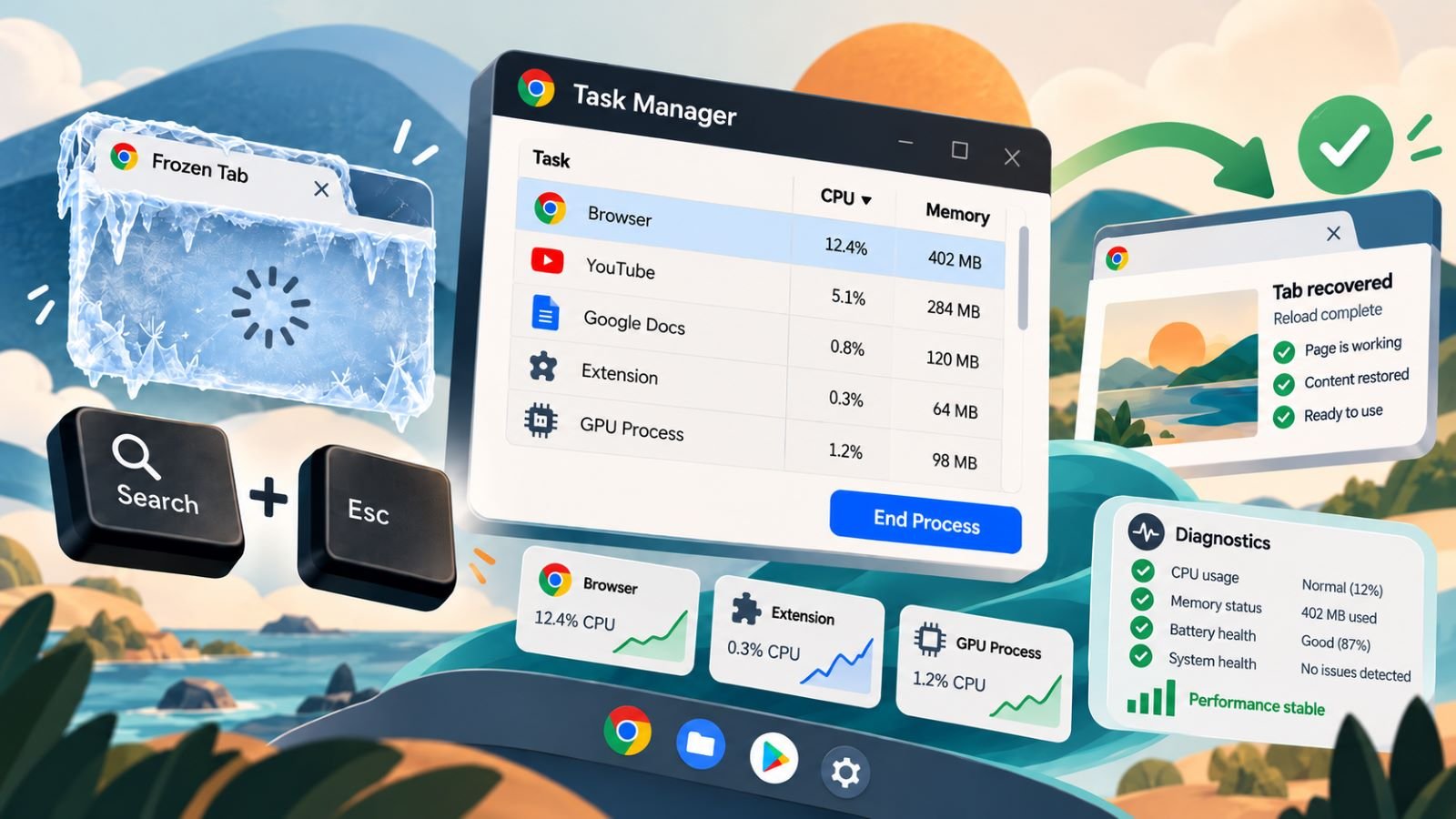
A slow Chromebook doesn’t always need a restart. Sometimes a single browser tab, extension, or app is responsible for the slowdown, and ChromeOS Task Manager can help you identify it without closing everything else.
The built-in tool shows running tasks alongside CPU, memory, and network activity. You can use it to investigate an unresponsive page, examine unusual resource consumption, or stop a troublesome process. The important part is knowing what to close and when the problem needs a different approach.
How to Open Task Manager on Chromebook
The quickest way to open Task Manager on a Chromebook is to press Search + Esc. On keyboards with a Launcher key instead of Search, use Launcher + Esc. The window should appear with a list of running tasks and their resource readings.
The Search or Launcher key usually sits where Caps Lock appears on a conventional keyboard. Its symbol may be a magnifying glass or launcher icon, depending on your Chromebook. If you’re using an external Windows or Mac keyboard, the Windows or Command key can serve as Search.
You can also open Task Manager through Chrome:
- Open the Chrome browser.
- Select the three-dot menu in the upper-right corner.
- Choose More tools → Task manager.
The menu route is useful when the Chromebook Task Manager shortcut doesn’t respond or you’re working with an unfamiliar keyboard layout. Once Task Manager opens, take a few seconds to identify whether the problem affects one tab, several applications, or the entire Chromebook.
Some Google troubleshooting pages also mention Shift + Esc, but Search + Esc is the primary Chromebook shortcut and the best one to try first. Google documents the current combination in its ChromeOS keyboard reference.
How to Read Tasks and Resource Usage
ChromeOS Task Manager displays individual tasks rather than presenting the simplified application list you might expect. Browser tabs, extensions, and supporting processes can appear as separate entries. Depending on the workload, other system-related tasks may also be visible.
The most useful columns are:
- Task: Identifies a page, extension, application component, or background process.
- Memory footprint: Shows the memory attributed to a task.
- CPU: Indicates how much processing activity the task is using.
- Network: Displays network activity associated with the task.
- Process ID: Helps distinguish processes with similar names.
Click a column heading to sort the entries. CPU is a useful starting point when the Chromebook becomes hot, animations stutter, or a page runs slowly. Memory footprint deserves attention when several tabs are open and the system repeatedly reloads pages.
Don’t treat the largest number as proof of a problem. Video playback, online meetings, and demanding web applications can use substantial resources while functioning normally. A brief CPU spike during page loading is also expected. What matters more is whether unusually high activity continues after the demanding work has stopped.
Watch a suspected task for a short period rather than acting on one reading. If an inactive page continues consuming considerable CPU, or an extension becomes unusually busy whenever the slowdown occurs, you have something specific to investigate.
A frozen page may show little CPU activity, so a low reading doesn’t rule it out. Task names and the behavior you can reproduce are often more informative than a single snapshot. Because of Chrome’s multiprocess design, Task Manager entries won’t necessarily match the number of open tabs.
How to Close a Frozen Tab or App
When a Chromebook tab freezes, start with the least disruptive option. If other tabs still respond, there’s usually no reason to restart the device or terminate several processes.
First, try Ctrl + R to reload the affected page. If it remains stuck and you suspect a problem with cached content, Ctrl + Shift + R reloads the page without using the normal cache. Be careful with either shortcut if the page contains unsaved work.
If the tab won’t respond to a reload, try Ctrl + W to close it. This can be enough when the browser window still accepts keyboard commands.
For a page that remains unresponsive:
- Open Chromebook Task Manager with
Search + Esc. - Find the task associated with the frozen page.
- Select the relevant entry and choose End process.
- Return to Chrome and reload the page if needed.
If the same website freezes again after reopening, consider whether a browser extension might be involved. Temporarily disable a suspected extension through chrome://extensions, repeat the action that caused the freeze, and compare the results.
A standalone Android app may not behave exactly like a browser tab or appear as an easily identifiable task. If you cannot confidently match it to an entry, close the app normally or restart the Chromebook rather than ending an unfamiliar system process.
How to End a Process Safely
Ending a process on Chromebook is useful when you’ve identified a specific task that is no longer responding or is behaving abnormally. It isn’t a general-purpose performance boost, and closing processes simply because they consume memory can cause more problems than it solves.
Before selecting End process, check the task name and think about what might be lost. A frozen news page is usually less consequential than an unfinished document, an active upload, or a video call. Ending a process can discard unsaved form entries, interrupt work, or leave the affected page displaying an error.
Some processes support multiple browser components. Ending one can therefore affect more than the tab you intended to close. Entries associated with the browser itself, graphics processing, or unfamiliar services deserve particular caution. Google’s Chrome performance recommendations also warn that ending tasks can discard unsaved work.
If you’re unsure which entry is responsible, a safer test may be to close unused tabs or disable one recently installed extension. Watch whether the Chromebook becomes responsive again before changing anything else.
When a process reappears immediately after being stopped, that doesn’t necessarily mean Task Manager failed. ChromeOS or the application may restart a required component, while reopening a page can launch its process again. Repeatedly terminating the same entry won’t address the underlying issue. The goal is to isolate the cause, not reduce the process list to the smallest possible number.
What to Do If Task Manager Won’t Open
Sometimes the problem is serious enough that Task Manager itself won’t appear. A frozen browser interface, an unresponsive keyboard, or wider ChromeOS instability can prevent either opening method from working.
First, check whether the Chromebook still responds elsewhere. Try switching windows or opening the system status area from the bottom-right corner. If Chrome is stuck but the rest of the system works, the problem may be limited to the browser.
When Search + Esc doesn’t respond, use the Chrome menu method described earlier. If neither works, stop repeatedly trying shortcuts and consider restarting the device.
Save any accessible work before selecting Shut down from the system status area. Once the Chromebook powers off, start it again and test Task Manager before reopening all your previous tabs and applications.
A completely unresponsive device may require holding the Power button until it shuts down. Treat that as a last resort because unsaved work can be lost.
If Chromebook Task Manager still won’t open after an ordinary restart, check for ChromeOS updates through Settings → About ChromeOS. Google’s Chromebook troubleshooting steps recommend checking updates when the device runs slowly and using Diagnostics when problems persist.
Avoid jumping straight to a factory reset. Task Manager failing to open doesn’t, by itself, establish that the operating system needs to be reinstalled or the device erased.
When to Use ChromeOS Diagnostics or Contact an Administrator
Task Manager is most useful when you’re trying to identify a particular resource-consuming task. ChromeOS Diagnostics serves a different purpose: examining the overall condition of the device.
Open Settings → About ChromeOS → Diagnostics, or search for Diagnostics from the Launcher. This tool provides information about battery health, CPU activity, memory, and connectivity. It can help when slowdowns affect the entire Chromebook rather than one website.
For example, if several applications become sluggish while Task Manager shows no obvious culprit, the CPU graph in Diagnostics can reveal broader processing activity. Memory tests may help investigate suspected hardware issues, although a failed test is not something to solve by randomly ending processes.
Google’s ChromeOS Diagnostics reference describes the available tests and their limitations. CPU stress tests can temporarily slow the Chromebook, so run them when you aren’t doing important work.
School and workplace Chromebooks require another consideration. Administrators may control extensions, applications, updates, and other device settings. If an enforced extension seems responsible for repeated freezes, you may not be able to disable it yourself.
Before contacting an administrator or hardware support, record what happens: the affected website or app, whether the slowdown occurs across the system, which shortcuts still work, and whether the issue returns after restarting. If Diagnostics reports a failure, include that result as well.
If only one tab freezes, start with Task Manager. When slowdowns affect the entire Chromebook, use Diagnostics to investigate system-wide problems before considering more disruptive fixes.