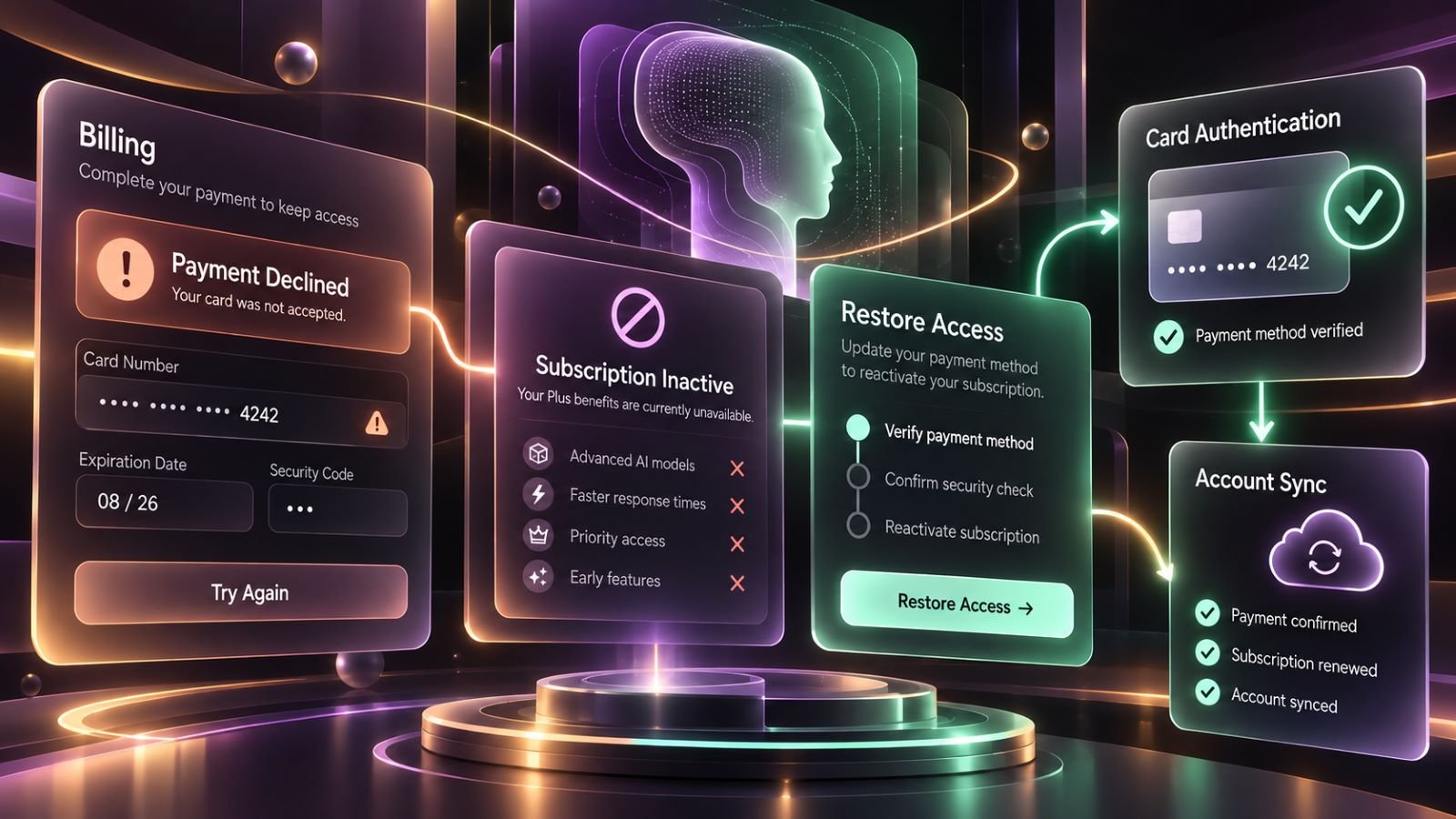
A ChatGPT Plus payment declined error can prevent you from activating a subscription or renewing an existing one. Sometimes the bank rejects the transaction, while in other cases the payment succeeds but ChatGPT still displays the Free plan. These situations require different fixes, and trying to subscribe again before identifying the problem can lead to duplicate charges.
How to Check Your ChatGPT Plus Payment Status
Before retrying a failed payment, determine which platform handles your subscription. ChatGPT Plus can be purchased directly through chatgpt.com, Apple’s App Store, or Google Play. Each platform maintains its own billing records, so a purchase made through Apple will not appear as a web-managed subscription.
Check the relevant location:
- Web: Sign in at chatgpt.com, open Settings → Billing, and review your subscription status, payment methods, and available billing history.
- iPhone: Open iOS Settings, tap your name, select Subscriptions, and look for ChatGPT.
- Android: Open Google Play, select the Google account used for the purchase, and check Payments & subscriptions → Subscriptions.
Next, compare the subscription status with your bank statement or purchase receipt. A pending card transaction does not necessarily mean the subscription was activated. If the payment has been completed but ChatGPT still shows Free, investigate the account connection rather than immediately paying again.
Make sure you’re signed in to the ChatGPT account used for the original purchase. Subscriptions aren’t shared between accounts, even on the same device. Before paying again, review OpenAI’s advice on avoiding duplicate subscriptions to ensure you haven’t already subscribed through another platform.
| Problem | Likely Cause | What to Do |
|---|---|---|
| Card payment declined | Bank restriction, incorrect details, or unsupported payment region | Verify card details, regional eligibility, and issuer restrictions |
| Authentication fails during checkout | Incomplete 3D Secure verification or blocked redirect | Complete bank approval and check browser interference |
| Payment completed, but ChatGPT shows Free | Wrong ChatGPT account or missing subscription access | Verify the original account and billing platform |
| Mobile subscription is missing | Purchase linked to another Apple, Google, or ChatGPT account | Check the store subscription and original ChatGPT login |
| Subscription renewal failed | Issuer decline or unresolved store billing issue | Check renewal status before attempting another purchase |
Why ChatGPT Plus Payments Get Declined
If a ChatGPT Plus payment failed, the card might still work for other online purchases. Banks apply different security checks to international transactions, online payments, and recurring billing. OpenAI often does not receive the bank’s detailed reason for rejecting a transaction, which makes the card issuer an important part of troubleshooting.
Start with the payment details. Check the card number, expiration date, security code, and billing address, including the postal code if requested. Make sure the card has sufficient available funds and that your bank permits online and recurring payments.
If those details are correct, consider three additional possibilities:
- Bank restrictions: The issuer may have blocked the transaction under its fraud-prevention rules. Contact the bank and ask whether it rejected the attempted subscription payment.
- Authentication requirements: Some purchases require 3D Secure or Strong Customer Authentication. A missing or incomplete approval through your bank’s app can prevent the payment from finishing.
- Regional eligibility: ChatGPT purchases require a supported country or region, and the payment card must be issued by a bank in a supported region.
Changing cards will not solve an unsupported-region problem. If you suspect eligibility is the issue, verify the relevant restrictions before making another attempt.
OpenAI’s official card decline advice covers these checks. If the bank confirms that your card is permitted to make the purchase but continues to reject it, another supported card may be more productive than repeatedly submitting the same one.
To change a ChatGPT Plus payment method for a web subscription, use Settings → Billing. If Apple or Google handles your subscription, update the payment method through the corresponding store instead. Check that an earlier payment did not succeed before attempting another charge.
Why ChatGPT Plus Is Not Active After Payment
Seeing a completed charge without an active Plus subscription is different from receiving a payment declined message. Avoid starting another subscription until you establish which account and platform received the purchase.
First, sign out and return using the authentication method associated with the original subscription. Someone who subscribed through Continue with Apple, for example, should check that same sign-in method rather than assuming an email-and-password login will access the same account. Apple’s Hide My Email feature can also make the account address look unfamiliar.
For a subscription purchased directly on the web, open ChatGPT’s Billing settings and check the plan information. Compare any available invoice or receipt with the payment shown by your bank. If the correct account still displays Free despite a confirmed payment, collect the transaction details for support.
Mobile purchases are tied to two accounts: the Apple or Google account used for payment and the ChatGPT account signed in during purchase. Signing into another ChatGPT account will not transfer the subscription, even when the phone and payment method are unchanged.
How to Restore ChatGPT Plus on iPhone and Android
For mobile purchases, start with the store that charged you. On iPhone, ChatGPT provides an option to restore an App Store purchase. Android users should verify their Google Play subscription and the ChatGPT account originally linked to it.
Restoring a ChatGPT Plus Purchase on iPhone
Begin by opening iOS Settings → your name → Subscriptions. Find ChatGPT and check whether Apple lists the subscription as active. Also make sure you are using the Apple ID that originally completed the purchase.
If the subscription exists but Plus features remain unavailable:
- Open the ChatGPT iOS app and sign in to the original ChatGPT account.
- Go to Settings → Account.
- Select Restore purchases.
- Return to your account and check whether the paid plan is available.
This restoration option is intended for subscriptions purchased through the App Store, not subscriptions purchased directly on chatgpt.com. OpenAI explains how to restore App Store purchases.
A failed restoration may mean the purchase belongs to another ChatGPT account. Reinstalling the app will not change that association, and mobile subscriptions cannot be transferred between ChatGPT accounts.
Checking a Google Play Subscription on Android
On Android, open Google Play and verify that you have selected the Google account used for the original transaction. Navigate to the subscriptions section and check whether ChatGPT is active. If you use several Google accounts on the device, inspect the relevant one rather than assuming the currently selected account handled the payment.
Then open the ChatGPT app and sign in to the ChatGPT account that originally purchased the subscription. Restarting the app may refresh what is displayed, but it will not move the subscription to a different account.
When Google Play confirms an active subscription but the correct ChatGPT account still has no Plus access, contact OpenAI Support with the purchase information. Avoid buying another subscription through the web as a workaround.
Fixing Authentication and Checkout Problems
Not every unsuccessful checkout is caused by a rejected card. Sometimes the bank’s verification page fails to appear, the browser blocks a redirect, or the payment flow stops before authentication finishes. This can be especially confusing when the bank requires approval through a mobile app or a one-time security code. The checkout may appear to be processing even though the required confirmation was never completed.
If the payment fails during verification, try the following:
- Allow the payment page to open its authentication window or redirect.
- Temporarily disable browser extensions that block scripts, pop-ups, or redirects.
- Try a private browsing window or another browser if the checkout does not load correctly.
- Disable a VPN temporarily if it interferes with verification, or test another network.
- Complete the bank’s confirmation without refreshing or closing the checkout prematurely.
Change one condition at a time so you can identify what caused the problem. For example, if authentication succeeds in another browser, the original browser configuration deserves investigation. If the bank continues declining the transaction across devices and networks, changing browser settings is unlikely to address the underlying rejection.
For a persistent renewal failure, OpenAI also recommends clearing browser cache and cookies, verifying payment details, and checking possible restrictions imposed by the card issuer. These steps are useful for checkout problems, but they should not be used as a reason to repeat charges when a completed payment is already visible.
If ChatGPT also fails to load, sign in, or respond outside the payment process, the issue may not be related to billing. Before changing your payment method, check why ChatGPT isn’t working to rule out browser problems, account errors, or service outages.
How to Avoid Duplicate Charges and Contact Support
Repeated subscription attempts can turn an access problem into a billing problem. This is particularly risky when you switch between the web, App Store, and Google Play without checking whether an earlier subscription remains active.
A failed Apple renewal deserves special attention. Apple may continue attempting to recover the subscription after a payment problem, even if the plan appears inactive inside ChatGPT. Purchasing another subscription elsewhere and then updating the Apple payment method can result in two active subscriptions.
Before subscribing again, confirm whether an existing subscription needs to be restored, renewed, or canceled. Uninstalling the ChatGPT app does not cancel an App Store or Google Play subscription.
If the problem remains unresolved, use the support chat available at OpenAI’s Help Center. Describe whether the payment was declined or completed, which platform processed it, and what troubleshooting steps you have already attempted.
Useful information to prepare includes:
- The ChatGPT account email and original sign-in method.
- The purchase platform and subscription plan.
- The transaction date, amount, and currency.
- The exact error message or a screenshot with sensitive details removed.
- Any relevant receipt or transaction reference.
Never send your full card number, security code, password, or one-time authentication code. Before attaching a screenshot or receipt, remove unrelated personal and financial information. The same caution applies when deciding what not to upload to AI chatbots. If a payment is genuinely unauthorized, contact your bank promptly rather than treating it as an ordinary subscription activation problem.
Before retrying a ChatGPT Plus payment, confirm which platform handles your subscription and whether the original purchase succeeded. This can prevent unnecessary troubleshooting and duplicate charges.