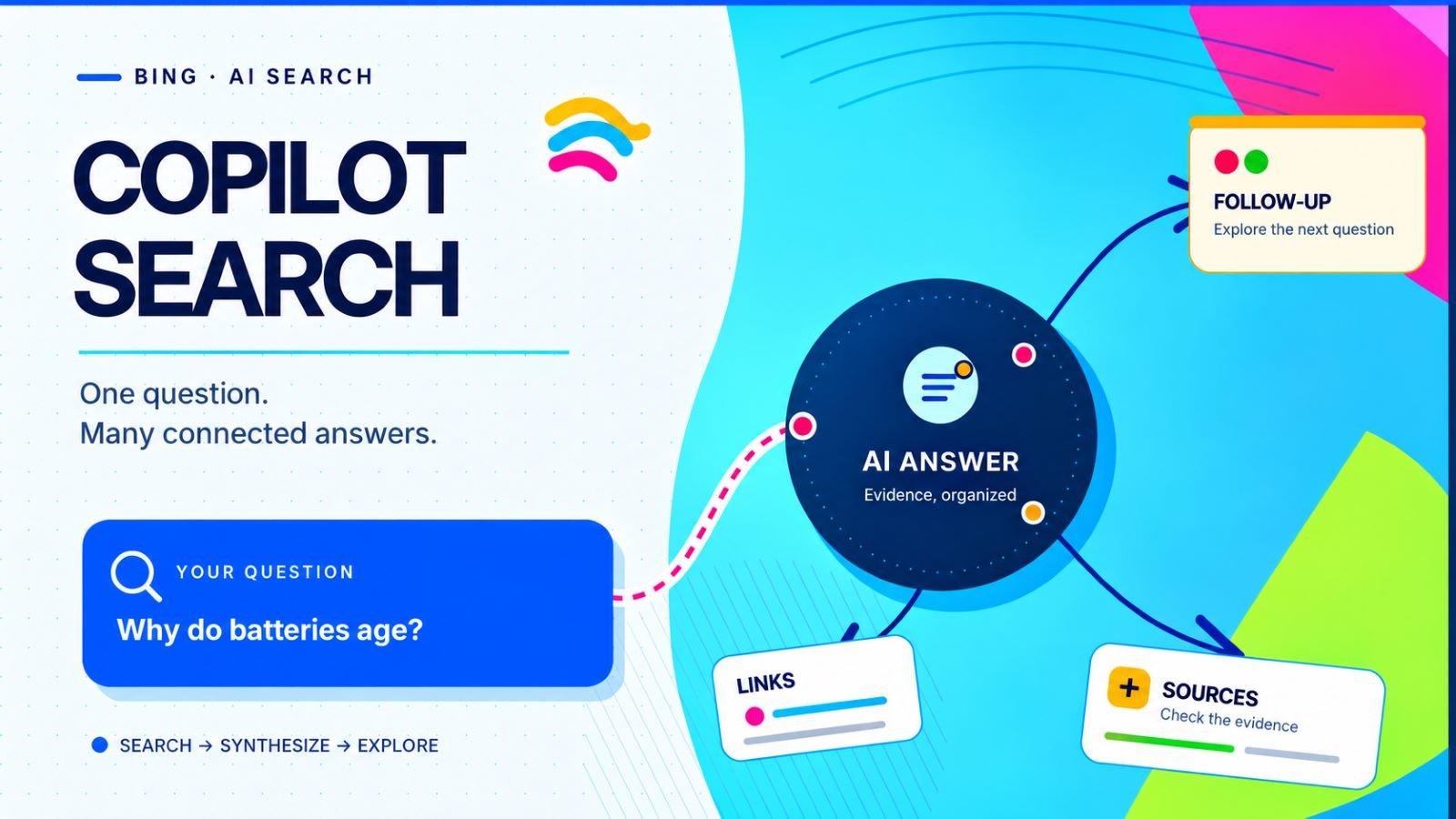
Bing AI looks quite different from the chatbot Microsoft originally introduced. The old Bing Chat experience evolved into Microsoft Copilot, while Bing now offers Copilot Search, an AI-powered search experience that combines summarized answers, web sources, and follow-up questions.
If you’re looking for the original Bing AI interface, trying to enable Copilot in Bing, or wondering where Creative and Precise modes went, the distinction matters. Copilot Search and Microsoft Copilot are related services, but they serve different purposes and don’t share the same controls.
What Happened to Bing AI and Copilot in Bing?
Bing AI became widely known in 2023, when Microsoft added conversational responses to its search engine. Users could ask questions, refine answers, and choose response styles without leaving Bing. The experience felt more like a chatbot attached to search than a conventional search engine.
Microsoft subsequently expanded the assistant under the Copilot name. On April 4, 2025, it introduced Copilot Search in Bing, bringing AI-generated explanations directly into a search experience built around web information.
Instead of replacing search results with a separate conversation window, Copilot Search organizes information from relevant websites into a readable response. It displays supporting sources, offers related topics, and allows users to investigate a question further. Traditional search results remain part of the experience rather than disappearing behind the AI answer.
This shift explains why older Bing AI instructions can be misleading. Tutorials mentioning a preview waitlist, the original Bing Chat sidebar, or Creative mode often describe interfaces that no longer work the same way.
Microsoft’s Copilot Search overview describes the current approach to AI-powered search. Basic access doesn’t require a paid Copilot subscription or a Microsoft account, although availability and individual features may vary by location and device.
How to Open Copilot Search in Bing
Copilot Search works through Bing in a web browser, so there’s no separate desktop application to install. You can start with Microsoft Edge, Chrome, or another compatible browser. To open the AI search experience, follow these steps:
- Visit Bing and enter a question, such as “Why do lithium-ion batteries lose capacity over time?”
- Look for Copilot Search in the navigation or alongside the search results.
- Select the AI search experience to examine its generated answer.
- Open supporting sources or choose a related question to continue exploring.
You can also reach the experience through Microsoft’s dedicated Copilot Search page. The exact navigation may change between browser versions, screen sizes, and regions, so don’t assume every interface will display an identical button.
For a first test, choose a question that needs an explanation rather than a simple fact. A search about battery degradation, for example, gives Copilot Search an opportunity to combine technical information from several sources. The answer may include an overview, supporting links, and suggestions for further investigation.
Copilot Search in Bing doesn’t require signing in to a Microsoft account for basic AI-powered web search. If Bing instead opens the standalone Microsoft Copilot assistant, you may encounter different account requirements, including a sign-in prompt for certain features. These are separate experiences, so being redirected to Copilot Chat doesn’t mean Copilot Search itself requires manual activation.
How to Use AI Answers, Sources, and Follow-Up Questions
Copilot Search becomes more useful when a traditional list of links would leave you comparing several pages manually. It can summarize the main points, but its real advantage is letting you move between the explanation and the underlying information.
Imagine researching OLED screen burn-in. The generated answer might discuss uneven pixel aging, explain why static interface elements increase the risk, and mention technologies designed to reduce it. You get an overview without opening five separate pages, but the summary should still be treated as a starting point.
Source links are particularly important. Depending on the interface, Bing may offer controls such as See all links and All links, allowing you to inspect cited material and discover additional relevant pages. These collections don’t necessarily mean the same thing: some links support the generated answer, while others may simply be related search results.
When checking a Copilot Search answer, look beyond whether its sources seem credible at first glance. Three details deserve particular attention:
- Whether the cited page actually supports the claim made in the summary.
- When the source was published or last updated, particularly for changing technologies.
- Whether independent sources agree on important details.
Follow-up questions provide another way to narrow the search. After investigating OLED burn-in, you could ask whether pixel shifting helps, how modern panels compensate for uneven wear, or what different manufacturers include in their warranties.
The answers won’t always be equally reliable. A summary can omit qualifications, combine incompatible findings, or misunderstand a technical explanation even when citations are present. For purchases, troubleshooting, and other consequential decisions, checking the original material is worth the extra effort.
Copilot Search in Bing vs. Microsoft Copilot Chat
Both services can answer questions using web information, but their starting points are different. Copilot Search begins with a search query, emphasizing summarized findings, citations, related topics, and opportunities to explore the web. It’s especially useful when the objective is to investigate a subject rather than produce a finished piece of work.
Microsoft Copilot is a broader conversational assistant. You can use it to draft and revise text, explain programming concepts, brainstorm ideas, or develop a project through several exchanges. Depending on the account and subscription, additional tools and capabilities may also be available.
There’s another distinction for workplace users. Microsoft Copilot Search for work and school searches organizational information across Microsoft 365 and connected services. Despite the similar name, it isn’t the same as the public web-search experience in Bing.
Choosing between these services becomes more complicated when Microsoft 365 subscriptions and workplace accounts enter the picture. The different Microsoft Copilot versions determine which features, integrations, and data sources are available to you.
A simple way to choose is to consider the result you need. Use Bing to explore information and inspect its sources; use Copilot Chat when you want to create, rewrite, analyze, or develop something through a conversation.
What Happened to Creative, Balanced, and Precise Modes?
The original Bing Chat offered three recognizable response styles: Creative, Balanced, and Precise. Creative encouraged more imaginative responses, Balanced provided a middle ground, and Precise aimed for tighter answers. Those options became familiar enough that many tutorials still refer to them.
Today’s Copilot Search in Bing doesn’t use that original mode selector. If you’re searching for a way to restore Precise mode, the problem is probably not a missing setting or outdated browser.
The standalone Microsoft Copilot assistant now provides a different selection of conversation modes, including Quick response, Think Deeper, Smart, Study and learn, and Search. These support different tasks rather than reproducing the old three-style system.
Quick response is intended for straightforward requests, while Think Deeper allows more involved reasoning. Smart adapts to the question, Study and learn emphasizes guided explanations, and Search focuses on information from the web. The options shown to an individual user can depend on the account and interface.
Microsoft’s conversation modes documentation describes these controls. Importantly, Search mode within Copilot Chat shouldn’t be confused with Copilot Search in Bing, even though both can use current web information.
If you previously preferred Precise mode for technical questions, you can still influence the response through clearer instructions. Describe your device or software version, request a specific sequence of steps, and ask the assistant to distinguish verified information from possible explanations. That approach won’t guarantee accuracy, but it gives the assistant a more useful target than simply requesting a precise answer.
How to Use Copilot Search on Mobile
Copilot Search is available on mobile devices, including through the Bing app. The interface may look different from its desktop counterpart, particularly when navigation controls compete for limited screen space.
The easiest starting point is a mobile browser. Open Bing, enter a question, and look for Copilot Search in the results or navigation. From there, you can explore the generated answer, inspect sources, and follow related questions.
If you prefer the Bing app on Android or iPhone, check that it’s updated through the relevant app store. Open the app and perform a search before looking for AI-specific controls. Their position may differ from what you’ve seen in desktop screenshots or older tutorials.
Don’t assume that a missing button means your Microsoft account is incorrectly configured. Features can appear in different locations across platforms, and availability may vary with the app version or region.
A useful comparison is to open the same question in your mobile browser and the Bing app. If Copilot Search works in one but not the other, focus on the affected interface rather than changing device-wide settings.
The separate Microsoft Copilot app is another option, but it isn’t a replacement for every Bing feature. Install it when you want the broader conversational assistant, not simply because a Copilot Search control is difficult to find.
How to Fix Copilot Search When It Won’t Load
A missing Copilot Search option, an empty response area, and a failed search request may have different causes. Treating them as one problem often leads to unnecessary browser resets or app reinstalls.
Start by running a conventional Bing search. If ordinary results work, the issue may be limited to the AI search interface. If Bing itself doesn’t load, investigate the browser or network connection first.
| Symptom | Possible Explanation | First Check |
|---|---|---|
| Copilot Search option is missing | Changed navigation or regional availability | Open the official Copilot Search page |
| AI answer remains blank | Extension interference or a loading error | Test another browser or private window |
| Search requests repeatedly fail | Temporary service or connection issue | Retry later or test another network |
| Works in a browser but not the Bing app | Outdated app or app-specific problem | Update and restart the Bing app |
| Creative or Precise mode is missing | Changes to the original Bing Chat interface | Check current Copilot modes instead |
Browser and Network Troubleshooting
If Copilot Search works in a private window but fails during a normal browser session, inspect extensions and saved site data. Temporarily disable a suspected blocker, reload the page, and see whether the behavior changes. Avoid clearing all browser data before testing a narrower explanation, especially if you have active sessions you want to preserve.
When the same error appears across multiple browsers, try another network. A VPN, DNS filter, or workplace security tool might interfere with loading, but a failed request alone doesn’t prove that any of them is responsible. Test one possibility at a time so you can identify what actually changes the result.
Mobile App and Regional Availability Issues
Regional availability deserves a separate check when Copilot Search is missing entirely. Changing your device language or Microsoft account country won’t necessarily make an unavailable feature appear. It’s better to verify whether the experience is offered in your location than to repeatedly adjust settings.
For persistent problems in the Bing mobile app, restart it after installing available updates. If it crashes whenever you open Copilot Search while the mobile website works normally, reinstalling may be reasonable. Keep in mind that clearing app data or reinstalling can remove local preferences and require another sign-in.
If failures continue across browsers, devices, and networks, the cause may be outside your control. At that point, submitting feedback through Bing is more productive than repeatedly resetting the same settings.
Copilot Search in Bing is no longer the original Bing AI chat window. Its value lies in combining search results with AI-generated explanations and accessible sources. Use it to investigate questions and follow the evidence, while turning to Microsoft Copilot Chat when the task calls for a broader conversational assistant.