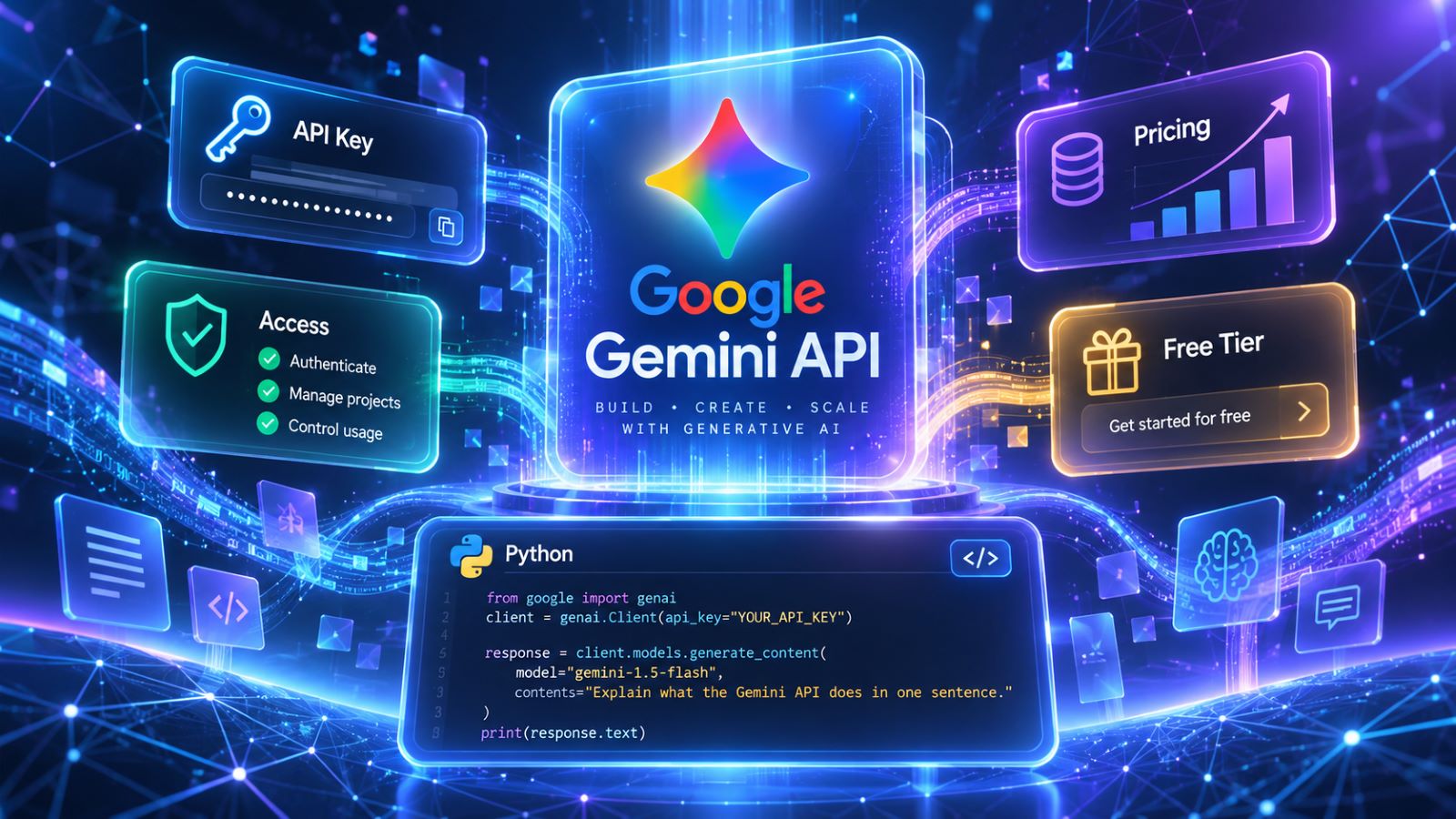
The Google Gemini API lets developers add Google’s AI models to applications, websites, and automated workflows. Getting started involves more than copying an API key: you also need the right Cloud project, an available model, and a clear understanding of usage costs. A request can fail even when the key looks valid, particularly if permissions or billing settings don’t match the application.
This walkthrough covers obtaining credentials in Google AI Studio, making a first Python request, comparing free and paid access, and identifying common errors. It also explains what to secure before moving beyond a test project.
What Is the Google Gemini API?
The Gemini API gives software programmatic access to Google’s generative models. Applications can submit text and, with supported models, work with images or other inputs without requiring a user to open the Gemini website. Model capabilities and prices vary, so an integration should be designed around its actual workload.
It helps to separate three products. The Gemini app is an assistant for end users; Google AI Studio lets developers try models and manage projects and keys; and the Gemini API connects those models to code. Gemini is also available through Google Cloud’s Vertex AI environment, which has its own deployment and identity-management considerations.
If you simply want the assistant rather than a software integration, start with using Google Gemini. You don’t need API credentials for ordinary use of the consumer app.
How to Get a Gemini API Key in Google AI Studio
Every Gemini API key is associated with a Google Cloud project. That association affects access, quotas, and billing, making it important to check the selected project before creating credentials. New AI Studio users may find that Google has already created a default project and key for them.
Create a Key and Confirm the Project
- Sign in to Google AI Studio with the account you intend to use.
- Open Dashboard, then Projects. Import an existing Google Cloud project if it isn’t listed.
- Go to API Keys and select Create API key when a new credential is needed.
- Choose the intended project and store the generated key securely.
- Confirm the key belongs to that project before putting it into an application.
If a project is missing or key creation is unavailable, check your Google Account and project permissions. Organization-managed projects may require administrator approval. Creating another account or several new keys can make the issue harder to trace rather than solve it. Google’s API key documentation describes project management, restrictions, and the permissions needed to create credentials.
Google AI Studio now creates authorization keys by default. Unlike older standard API keys, authorization keys are tied to service accounts and can support more granular access controls. Google’s migration guidance announced a September 2026 cutoff for standard-key authentication, so a new integration should use authorization keys rather than rely on legacy behavior.
If an older script stops working, check its key type before rewriting the request. Replace legacy credentials through AI Studio, update the application, and verify the replacement before revoking the previous key. Never paste an API key into a public repository or support forum when investigating access problems.
How to Make Your First Gemini API Request
A minimal test is the fastest way to confirm that the credentials, project, and model work together. Start with a short text prompt instead of an agent or document-processing workflow. That gives you a useful baseline if a larger application later fails.
Install Google’s Python SDK before running a request. Use the following command:
pip install -U google-genaiStore your key in an environment variable named GEMINI_API_KEY. On Windows, use the system’s Environment Variables settings; on macOS or Linux, set it in your shell. Reopen the terminal after changing your environment, and don’t put the secret directly into the Python file.
from google import genai

client = genai.Client()

interaction = client.interactions.create(
    model="gemini-3.8-flash",
    input="Explain what an API does in one sentence."
)

print(interaction.output_text)
This example uses the current google-genai SDK and Interactions API. The client reads the key from the environment, sends the prompt to Gemini 3.8 Flash, and prints the response. If GOOGLE_API_KEY is also configured, it takes precedence over GEMINI_API_KEY, which can lead to an unexpected project being used.
If the script returns an error, record its exact wording before changing anything. Test the key and model against the intended project, then rerun the same prompt. Once it succeeds, save the script as a reference for future troubleshooting.
Is the Gemini API Free? Pricing and Billing Explained
The Gemini API has a Free Tier for eligible projects and supported models, but it comes with usage limits. Some newer or more demanding models are paid-only. Consumer subscriptions such as Google AI Pro do not automatically pay for requests made through the developer API.
On paid tiers, the main charges come from tokens: the input sent to the model and its billable output, which can include thinking tokens. Tools, caching, and specialized requests may have separate rates. Check the specific model rather than applying one price to every Gemini request.
Gemini API Pricing by Model
| Model | Input per 1M Tokens | Output per 1M Tokens | Free Tier |
|---|---|---|---|
| Gemini 3.8 Flash | $0.75 | $3.75 | Available |
| Gemini 4 Argon | $2.00 | $10.00 | Not available |
These introductory prices have announced end dates. Gemini 4 Argon’s rates rise on December 1, 2026, and Gemini 3.8 Flash’s on January 1, 2027. Review Gemini API pricing before setting a production budget.
For example, suppose 1,000 requests to Gemini 3.8 Flash each use 1,500 input tokens and 500 billable output tokens. That totals 1.5 million input tokens and 500,000 output tokens: $1.125 for input plus $1.875 for output, or $3.00 overall. The calculation excludes separately charged tools and assumes actual billable output stays at the estimated level. More reasoning or longer responses can increase the bill.
How Billing and Usage Limits Work
Paid access requires a linked Cloud billing account. Google assigns Prepay or offers Postpay depending on account eligibility. With Prepay, you purchase credits in advance, starting at $5; when the balance reaches zero, paid requests stop rather than automatically switching to the Free Tier. Postpay accumulates charges for later payment.
That differs from Gemini free and paid plans for the consumer assistant. Treat developer API usage and app subscription benefits as separate decisions.
Gemini API rate limits commonly cover requests per minute, input tokens per minute, and requests per day. They apply per project, not per key, while some paid accounts also face spending-rate limits. Check the active figures and usage dashboard in AI Studio instead of relying on quotas quoted in older tutorials. Paid and free access also have different data-use terms, which matters if you process confidential information.
Which Gemini API Model Should You Choose?
Start with the least expensive model that reliably completes the task. Gemini 3.8 Flash is a useful baseline for general text processing, structured outputs, and many application workflows. Its lower prices and eligible Free Tier make experimentation easier, although production volume may still require paid access.
Gemini 4 Argon is intended for difficult reasoning, coding, scientific, and multi-step agent tasks. Its higher price can make sense when it materially improves accuracy or reduces failed attempts. For straightforward requests at scale, however, paying more for a flagship model may provide little practical benefit.
Compare models using a repeatable sample of your own prompts. Measure response quality, formatting reliability, latency, and billable tokens, not just how impressive a single answer looks. A small benchmark of repeatable requests often reveals more than product claims, especially when output formatting must remain consistent across many inputs. If your decision also involves platforms or integrations, the comparison of Gemini and ChatGPT workflows addresses a different part of that choice.
Model names change as Google releases and retires versions. Confirm that your selected identifier is currently supported before copying code from an older tutorial.
Why Gemini API Requests Fail
A request can fail because of authentication, project access, depleted credits, an unavailable model, or traffic limits. The HTTP status gives a starting point, but the machine-readable error code often provides a more precise diagnosis. Avoid fixing every problem by creating another key or retrying indefinitely.
| HTTP Status | Likely Cause | First Check |
|---|---|---|
| 401 Unauthorized | Missing or invalid authentication | Key and environment variables |
| 402 Payment Required | Prepay balance exhausted | Billing balance |
| 403 Forbidden | Insufficient permissions | Project access and key type |
| 404 Not Found | Model or resource unavailable | Model ID and endpoint |
| 429 Too Many Requests | Rate, quota, or spend limit | Usage dashboard and limits |
| 503 Service Unavailable | Temporary server problem | Retry after a delay |
A 402 requires billing action, not a new key. A 403 points toward permissions, while a 404 often means the requested model or resource isn’t available. For a 429, distinguish short-term rate limiting from a daily quota or spend-based restriction; only some of these problems resolve after a brief wait.
Retry transient errors such as 429 or 503 with bounded exponential backoff, rather than repeatedly sending requests without delay. Consult Google’s API error reference for the error codes returned by the Interactions API. When the failure appears only in a complex application, run your original minimal Python script again to isolate the cause.
How to Secure Your Key and Prepare for Production
An exposed API key can let someone else use your project’s allowance and potentially generate charges. Keep credentials in server-side environment variables or a secrets manager, not public JavaScript, mobile application bundles, or Git repositories. Browser applications should generally send requests through a controlled backend that holds the secret.
Apply the appropriate key restrictions and separate development from production where possible. Monitor spend, quota usage, and error rates before increasing traffic, and make sure the application displays a meaningful message when a request fails. If sensitive information is involved, review the data-use terms associated with your billing tier instead of assuming the Free Tier offers the same protections.
If a key leaks, replace it, test the replacement, and revoke the compromised credential. Review usage for unfamiliar activity and remove the secret from code, deployment settings, and repository history where possible. Larger teams should also assess whether the Gemini Developer API or Google Cloud’s Vertex AI environment better suits their authentication and governance requirements.
A successful first request proves the connection works; a dependable integration requires more. Choose a model based on measured performance, keep credentials protected, understand the billing limits, and make failures predictable before scaling up.