Google Gemini is easiest to use when you treat it as a working tool rather than a search box. Start with a clear task, give it enough context to understand what you need, and use follow-up prompts to improve the result instead of trying to write one perfect instruction.
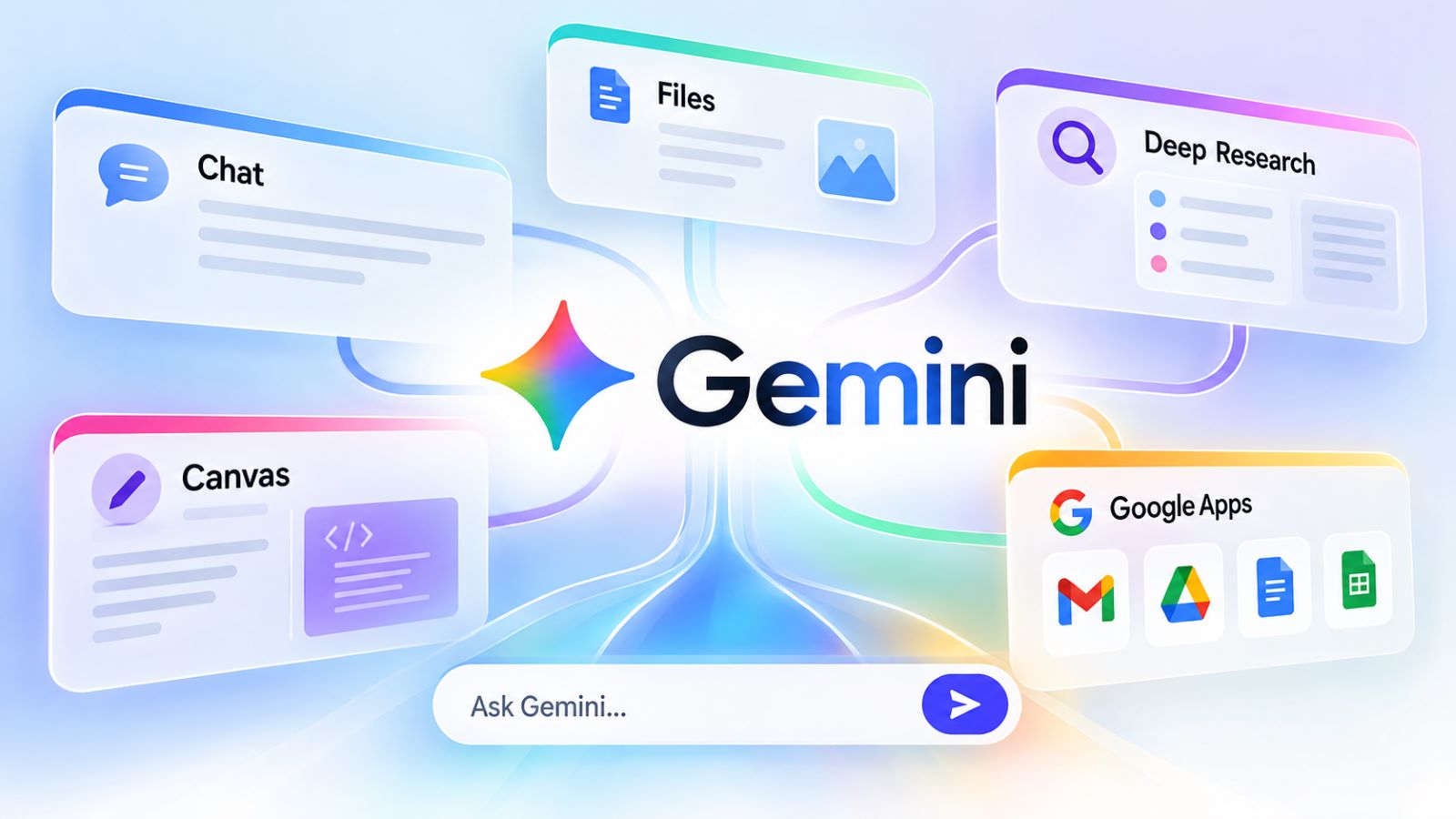
Gemini can handle everyday writing, research, file analysis, planning, and work inside Google apps. Regular chat handles many quick jobs, but Gemini also includes tools for files, deeper research, longer projects, and connected services. Some of those features overlap, while others solve very different problems. Knowing when to switch between them matters almost as much as knowing how to write the prompt.
How to Access Google Gemini
You can open Gemini in a supported browser or use the mobile app. Some basic features may be available without signing in, depending on the device, location, and current product availability.
Signing in to Google Gemini gives you access to more account-based features, saved activity, and supported integrations. The current Gemini Apps help also explains availability and account requirements for personal, work, and school accounts. Those account types do not always expose exactly the same tools. A work account, for example, may be affected by administrator settings even when the same feature is visible on a personal account.
Using the same account on a computer and phone keeps the experience more consistent. If something disappears after you sign in, check which account is active before assuming the feature has been removed. Regional access, subscription level, and managed-account restrictions can all change what appears.
What Can You Do in Google Gemini?
For beginners, the easiest way to understand how Google Gemini works is to match each feature to the kind of task it handles best. Regular chat covers many everyday jobs, while specialized tools make more sense when you bring your own material, need broader research, or expect to keep editing the result.
| Gemini Feature | Best For | Example |
|---|---|---|
| Regular chat | Questions, writing, planning, brainstorming | Draft an email or explain an unfamiliar concept |
| File and image upload | Documents, PDFs, screenshots, photos | Summarize a report or inspect an error screenshot |
| Deep Research | Multi-source research and synthesis | Compare options using information from several sources |
| Canvas | Longer work that needs editing | Develop a document, presentation, app, or code |
| Connected Apps | Tasks that use supported Google services | Work with Gmail, Drive, Docs, or related context |
Most people should start with ordinary chat rather than reaching for the most advanced mode every time. A quick explanation or rewrite rarely needs Deep Research. A report built from several sources may benefit from it immediately, while Canvas becomes useful once the output itself turns into something you plan to keep editing. The simpler option is usually better until the task gives you a reason to switch.
How to Write a Useful Gemini Prompt
A useful prompt tells Gemini what the job is, what context matters, and what kind of answer would actually help. Length alone does not improve a prompt; a short instruction with precise requirements can outperform a long paragraph that leaves the objective unclear. The aim is not to impress the model with elaborate phrasing. It is to remove ambiguity.
A practical structure has four parts:
- Goal: what you want Gemini to do.
- Context: who the result is for and what information matters.
- Output: the format you want, such as bullets, a table, an email, or a short plan.
- Constraints: length, tone, exclusions, deadlines, or other boundaries.
This approach also matches Google’s current prompt-writing guidance, which emphasizes clear instructions, useful context, and manageable steps rather than special prompt syntax. You do not need a complicated framework for every request. A few precise details are often enough.
A Simple Prompt Structure That Works
Compare these two prompts:
Write an email.
and:
Write a short follow-up email to a supplier who missed a delivery deadline. Keep the tone polite but firm, mention that the order is now three days late, ask for a confirmed delivery date, and keep the email under 120 words.
The second prompt does not use advanced terminology or a complicated template. It simply removes choices Gemini would otherwise have to guess, so the first response has a much better chance of fitting the situation. The difference comes from specificity, not prompt length.
The same method works for planning and technical questions. Instead of asking for “ideas for a trip,” provide the destination, dates, budget, travel style, and preferred format. A troubleshooting prompt should include the device or software, the exact error, what changed before the problem appeared, and what you have already tried. Extra detail is useful only when it changes the answer. Dumping unrelated background into the prompt can make the result less focused rather than more accurate.
How to Improve an Answer With Follow-Up Prompts
You rarely need to start over because the first answer is only partly right. A focused follow-up can repair one section, preserve useful material, or ask Gemini to approach the same task from another angle.
Useful follow-ups include:
- “Make the second paragraph easier for a non-technical reader.”
- “Keep the explanation, but reduce the answer to five bullets.”
- “Give me three alternatives instead of rewriting everything.”
- “Which part of this answer are you least certain about?”
- “Keep the structure but remove recommendations that require paid software.”
Specific corrections usually work better than “make it better.” If several things need attention, tackle the most important issue first and look at the revised result before adding another instruction. This keeps the conversation easier to control and makes it obvious whether the change actually helped. It also prevents a good part of the previous answer from being rewritten unnecessarily.
How to Use Gemini With Files and Images
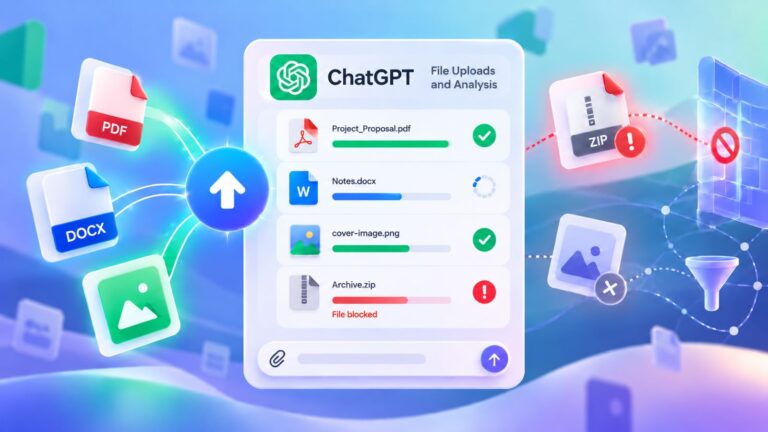
Gemini can analyze supported documents, PDFs, images, screenshots, code, and other file types, with limits varying by account and plan. This is especially practical when the information already exists in a file and manually copying it into a conversation would be slow or awkward. A file also gives the prompt something concrete to work from instead of relying entirely on general context.
You might upload a report and ask for its main decisions, compare two versions of a document, inspect a screenshot for a settings problem, or ask questions about a photo. Related files can also be used together when the task involves finding differences, combining information, or organizing material into a new format.
Good Tasks for File and Image Uploads
The quality of the request still matters after a file is attached. “Summarize this PDF” leaves a lot open to interpretation, whereas “Summarize the decisions, deadlines, risks, and unresolved questions for a manager” gives the analysis a clear purpose. Asking for specific evidence from the document can also make the result easier to check.
Screenshots benefit from the same specificity. Instead of asking Gemini simply to describe an error screen, explain what you were trying to do and what happened immediately beforehand. With tables, charts, product photos, and diagrams, state whether you want extraction, explanation, comparison, or troubleshooting. That small instruction can completely change the usefulness of the answer.
Privacy deserves its own check before uploading anything. Passwords, authentication codes, complete payment details, confidential client material, and unnecessary personal records should not be sent merely because the tool can process them. The broader checklist of files you should never upload to AI chatbots is useful whenever a document contains sensitive or private information.
When Should You Use Deep Research?
Deep Research is designed for questions that require gathering and synthesizing information from multiple sources rather than producing a quick conversational answer. It can build a research plan, search across available sources, and return a structured report that is easier to inspect than a long chain of ordinary messages. The extra process is useful when evidence matters more than speed.
Product comparisons, market research, background reports, and questions with conflicting evidence are natural candidates. Regular chat is usually faster when the facts are already known and the job is mainly drafting, organizing, or thinking through them.
For more involved work, the current Deep Research workflow can incorporate additional sources when they are available and authorized. A polished report should still be treated as analysis rather than automatic proof. Sources can disagree, old information can remain indexed, and one weak assumption can change the conclusion. The quality of the final report still depends on the material behind it.
When a decision matters, inspect the evidence behind the claims that would actually alter what you do. Checking every sentence is rarely necessary, but checking the decisive ones often is.
When Is Canvas Better Than Regular Chat?
Regular chat works well when the answer itself is what you need. Canvas fits a different situation: the response has turned into something you expect to edit, restructure, and develop through several rounds. That shift usually becomes obvious once the conversation starts filling with repeated requests to rewrite individual sections.
Longer documents, presentations, code, and other project-like work are better examples. Instead of repeatedly asking Gemini to regenerate an entire response, you can concentrate on particular sections while keeping the larger work visible. That makes structural editing less cumbersome and reduces the chance of losing useful material elsewhere.
There is no advantage in moving every task into Canvas. Ask ordinary chat for explanations, options, brainstorming, or quick drafts. Switch when the draft starts behaving more like a project than an answer.
How Gemini Works With Gmail, Docs, Drive and Other Google Apps
Gemini can also work with information already stored across Google’s ecosystem. Supported integrations reduce some of the copy-and-paste work between email, documents, files, and the Gemini interface, although access varies by account, subscription, and administrator settings.
The useful part is not simply generating text inside another Google product. Context can already exist where the task is happening, allowing a summary, draft, or analysis to begin with less manual preparation. This is especially valuable when a task depends on material spread across several Google services rather than one isolated prompt. The workflow can feel very different from starting with an empty chat box.
Gmail and Docs
In Gmail, Gemini can help summarize long threads, draft replies, and revise existing messages. One practical approach is to get a usable first version and then request a narrow change: strengthen the request, include a missed deadline, shorten the reply, or adjust the tone for a particular recipient. This keeps the revision tied to the actual communication goal instead of producing a completely different email.
Docs suits material that keeps evolving. Gemini can help establish a structure, rewrite selected sections, change the level of detail, or work from supporting information without treating every revision as a brand-new document. Names, figures, dates, promises, and anything with legal or business consequences still deserve a human check before the document is used.
Drive and Cross-App Workflows
Drive is particularly useful when one task depends on several stored files. Where access is supported and authorized, Gemini can work with relevant account context instead of forcing you to open each document, locate individual passages, and paste them into a prompt. The time saved becomes more noticeable as the number of source files grows.
That kind of integration is one reason AI assistants can feel very different even when their basic chat capabilities look similar. The comparison of Gemini and ChatGPT workflows looks more closely at what happens when email, documents, files, and everyday work already live inside a particular ecosystem.
A feature demonstrated in one Workspace plan or managed organization should not be assumed to exist identically in every personal account. Rollouts, administrator controls, subscription differences, and regional availability can all change the experience. When an option is missing, the account context is often more relevant than the device you are using.
Is Google Gemini Free?
Google Gemini can be used without paying for a Google AI subscription, although access to particular models, usage limits, and advanced features varies. For occasional writing, explanations, brainstorming, and straightforward questions, free access may cover most everyday needs. Someone using Gemini several times a week may never encounter a reason to upgrade.
Paid access matters more when limits start interrupting work or when advanced models, research features, and larger-file workflows become part of a regular routine. That is a different decision from simply asking whether the free version works.
Because plan names, limits, and included features can change, reproducing the full pricing structure inside a general usage guide would age quickly. The current trade-offs are covered separately in the Google Gemini free vs paid comparison.
What Should You Avoid Sharing With Gemini?
Convenience should not override basic data hygiene. Passwords, recovery codes, authentication tokens, complete payment details, and private information that does not serve the task should stay out of the prompt.
Work material needs the same judgment. A public PDF and an internal document containing customer records may both be readable by an AI tool, but they do not carry the same privacy or compliance risk. Remove unnecessary personal information before uploading confidential material. Company policies may also restrict what can be sent to external AI systems, even when the file seems harmless.
Accuracy creates another boundary. Gemini can produce incorrect information with confident wording, and the risk becomes more important when the output influences medical, legal, financial, technical, or business decisions. A plausible answer is not the same as a verified one. The higher the consequence of an error, the stronger the case for checking the underlying facts independently.
What to Try if Gemini Is Not Working
When Gemini does not load or a feature disappears, first work out whether the problem affects the entire service or only your setup. Account type, regional availability, browser state, administrator settings, app version, and subscription can all change what is visible. Starting with the simplest variables usually saves time.
Try these checks in order:
- Confirm that you are using the Google Account you intended to use.
- Open Gemini in a private browser window to rule out cached data or an extension conflict.
- Try another supported browser if the problem continues.
- Update and restart the mobile app if the issue occurs on a phone.
- Check whether the missing feature requires sign-in, a particular account type, or a different plan.
- For a work or school account, check whether an administrator controls access.
If the problem persists, save the exact error wording rather than describing it from memory. The message, device, account type, and point where the failure occurs provide much better clues than a general report that Gemini “doesn’t work.” A screenshot can help when the problem involves an interface element or setting that is hard to describe precisely. If the same failure appears on multiple devices and networks, the issue is more likely to sit outside the local browser or app.
How to Get Better Results From Gemini
Better results usually come from improving the workflow rather than making every prompt longer. Start with a specific task, include the context that changes the answer, and state what a useful output should look like. Short, targeted follow-ups can then correct individual weaknesses without throwing away work that is already good.
Stay in regular chat until the task gives you a reason to switch. Uploads make sense when the source material already exists, Deep Research when evidence has to be gathered, and Canvas when the output has become something you expect to keep editing. Connected Google apps can reduce manual preparation when the relevant information already lives in Gmail, Docs, Drive, or related services.
Gemini is most useful when it accelerates work without replacing judgment. Use it to draft, organize, research, compare, and explore ideas, then check the details that matter before the result becomes an email, decision, report, or published document.