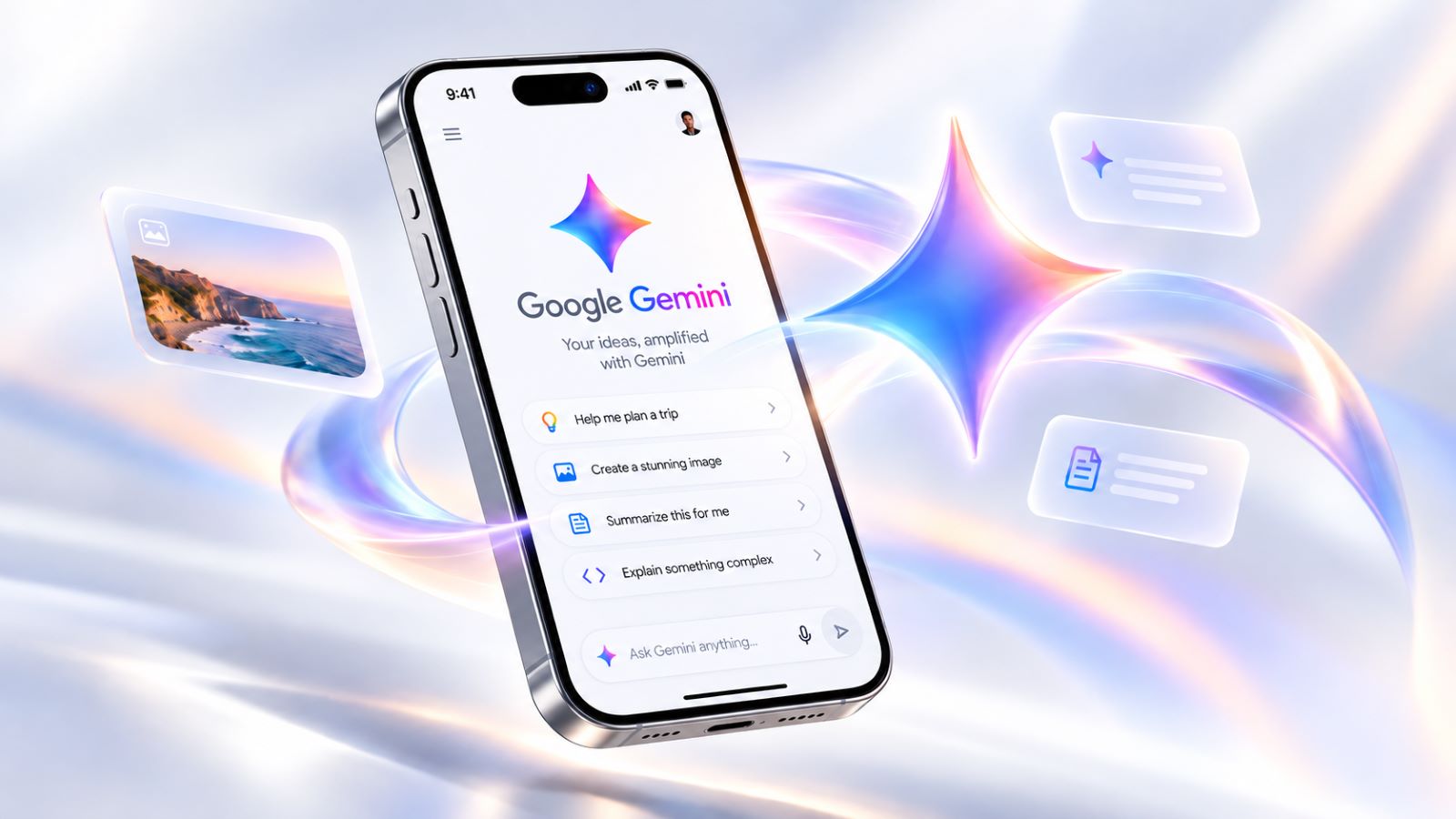
Learning how to use Google Gemini on iPhone is mostly about choosing the right way to interact with it. You can type a prompt, talk through Gemini Live, show something with the camera, share your screen, or give the app a photo or file to analyze.
Not every iPhone gets exactly the same experience. Your iOS version, language, region, Google Account, and account type can affect which features appear, especially newer ones. That makes a quick compatibility check useful before assuming a missing feature is an app problem.
What You Need Before Using Gemini on iPhone
The first requirement is a compatible iPhone with a recent enough version of iOS. Google’s support documentation has listed iOS 16 or later, while the App Store can show a newer minimum version for the current release. If you want to download Google Gemini on iPhone, the live Gemini App Store listing for your device and region is the most practical place to check.
Language, location, and account type can also affect access. A personal account may show features that are limited on a managed work or school account, while some newer capabilities can arrive separately from basic text chat.
How to Install Gemini and Sign In
The official Google Gemini iOS app is available through the App Store on supported iPhones. Confirm that Google is the publisher, install the app, and open it normally rather than following an unfamiliar third-party download link.
After you sign in to Google Gemini on iPhone, check which Google Account is active. This matters on phones with several Google profiles because personal, work, and school accounts can expose different tools and settings. If something appears to be missing, verifying the account is usually more useful than changing unrelated iPhone settings.
Gemini is also available through a supported browser. The web version will not reproduce every mobile workflow, but it can help determine whether a problem belongs to the app or the account.
What Can Gemini Do on an iPhone?
The iPhone app combines several different ways of working with Gemini. Text is still the simplest option for precise questions, while Live, visual input, files, and Connected Apps make more sense when the task involves material outside a normal chat.
| Feature | Useful For | iPhone-Specific Note |
|---|---|---|
| Text chat | Writing, questions, planning | Best for precise prompts |
| Voice input | Dictating quickly | Requires microphone access |
| Gemini Live | Spoken back-and-forth conversation | Useful when typing interrupts the task |
| Live camera | Showing Gemini what you see | Works well with physical objects and surroundings |
| Screen sharing | Help with something visible on the iPhone | Can expose notifications or private information |
| Photos and files | Screenshots, PDFs, documents, images | Gives Gemini source material to analyze |
| Connected Apps | Tasks involving supported services | Availability varies by account and setup |
You do not need the most advanced option for every task. A short question belongs in text chat, while a conversation may work better in Live. A screenshot makes sense when exact labels matter, and camera sharing is useful when describing the physical object would take longer than showing it.
How to Get Better Results in the iPhone App
Mobile prompts rarely need complicated formulas. State what you want, add the context that changes the answer, and specify the format only when it matters.
“Plan dinner” leaves most decisions open. “Suggest three vegetarian dinners for two people that take under 30 minutes and use chickpeas, tomatoes, and rice” gives Gemini much less to guess. A follow-up such as “Turn option two into a shopping list” can then extend the same task without repeating everything.
Voice can make conversations grow messy because speaking feels less restrictive than typing. If one chat has drifted across several unrelated topics, starting a fresh conversation may be cleaner than correcting assumptions inherited from older requests.
When the task moves beyond mobile features into prompts, Deep Research, or Canvas, how to use Google Gemini is the better fit.On iPhone, the more distinctive choice is usually whether the task is easier to type, discuss, show through the camera, or expose on screen.
How to Use Gemini Live on iPhone
Gemini Live is designed for ongoing spoken interaction rather than a series of carefully written prompts. You can interrupt, change direction, request another example, or return to an earlier point without rebuilding the conversation from scratch.
That works well while walking, cooking, brainstorming, practicing an explanation, or thinking through a decision where typing would interrupt the flow. The value comes from the conversation itself rather than simply converting speech into text.
Talk to Gemini Without Typing
Start a Live session and speak naturally. Short turns often make the exchange easier to steer, but you can still ask for a detailed explanation when the subject needs one.
You can ask Gemini to simplify an answer, challenge an assumption, give another example, or revisit something from earlier in the conversation. If Live is missing, check the active account, microphone permission, app version, and current availability before reinstalling anything. The Gemini Live help also covers current camera and screen-sharing controls.
Use the Camera During Gemini Live
Camera sharing lets you bring a physical object or surroundings directly into the conversation. Instead of trying to describe an unfamiliar connector, appliance panel, sign, or device layout, point the camera at it and ask about the specific part that matters.
The question still needs direction. “What do you see?” invites a broad description, whereas “Which of these ports should this cable use?” gives Gemini a practical goal. Before sharing, check the background for documents, faces, addresses, screens, or other information that has nothing to do with the task.
Screen sharing is useful when the problem already exists inside the phone. An unfamiliar setting, menu, website, or app interface may be much easier to show than to describe button by button.
The privacy trade-off is larger because unrelated information can appear on screen. Close banking apps, password managers, medical records, and private conversations first, and watch for notification previews. Gemini can discuss what is visible, but you still remain responsible for taps, purchases, permissions, and account changes.
How to Use Photos and Files With Gemini on iPhone
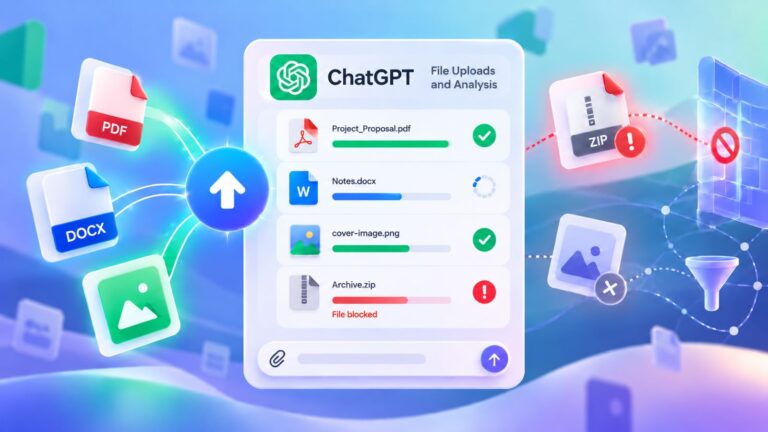
A saved photo or file is often a better choice than Live when you want to work with material that will remain fixed. Screenshots, PDFs, documents, and photos can stay attached while you ask several related questions.
You might upload an error screenshot and ask which setting matters, attach a report and request its deadlines, or compare two images for visible differences. Multiple related files can also work together when the real task is comparison rather than separate summaries.
Ask Gemini About a Photo or Screenshot
Give the visual analysis a purpose. “Analyze this screenshot” is broad; “Read the warning and tell me which two settings I should check first” points Gemini toward something useful.
Screenshots are especially effective for interfaces because they preserve the wording and layout you saw. Product labels, menus, diagrams, photographed text, and receipts can also work well, although important figures or instructions should still be checked against the original.
Image generation is a different workflow. Uploading a photo asks Gemini to interpret existing information, while describing a new image asks it to create something that was not there before.
Upload a File and Ask Questions About It
Large files become easier to use when the request is narrower than “summarize this.” Ask for key dates, unresolved issues, requirements, differences between two versions, or the section that affects a particular decision.
Do not upload sensitive material simply because Gemini can read it. Credentials, recovery codes, confidential customer records, complete financial details, and unnecessary personal information should be removed whenever possible. Before uploading anything sensitive, review which files you should never upload to AI chatbots and remove credentials, financial details, or unnecessary personal information first.
Does Gemini Replace Siri on iPhone?
Gemini on iPhone is primarily an AI app rather than a replacement for iOS system control. It gives you text, Live conversations, visual input, files, screen sharing, and supported connected services, but that is different from becoming the built-in operating-system assistant.
Siri still handles functions tied directly to Apple’s system integration. If you expect Gemini to take over every timer, call, message, setting, or device command associated with the iPhone assistant, the distinction matters.
The two can therefore coexist without solving exactly the same problems. Gemini focuses on conversation, generation, interpretation, and working with information, while iOS retains the deeper system-level controls Apple provides.
How Connected Apps Work on iPhone
Connected Apps let Gemini work with supported services when you authorize them. That can reduce copying when useful information already exists elsewhere in your Google account.
Where supported, Gemini may identify a relevant service from the request or let you select one directly. The available connections vary by account and setup, so an Android tutorial or managed Workspace account may show options that do not appear on your personal iPhone. You can review current connections through the Connected Apps settings.
Connect services because a task benefits from them, not simply because the option exists. Someone who mainly uses Gemini for general questions and writing may need far less account access than a workflow built around email, documents, or stored files.
How to Manage Gemini Privacy on iPhone
Privacy operates on two levels. iOS controls device permissions such as microphone, camera, and photo access, while Gemini and your Google Account control activity settings and connected services.
Grant only the permissions that fit the way you actually use the app. A text-only workflow can stay relatively narrow, while voice and visual workflows naturally require more access. If a feature stops working after you changed iPhone privacy settings, inspect the relevant permission before reinstalling the app.
Before screen sharing, clear sensitive apps and notification previews from view, then stop sharing when the task is complete. Activity and Connected Apps settings deserve the same selective approach.
Sensitive tasks often need less real information than you think. Crop a screenshot, replace a person’s name with a role, or remove details that do not affect the answer.
Is Gemini Free on iPhone?
You can use Gemini on iPhone without buying a Google AI subscription. Free and paid accounts may receive different models, usage limits, or advanced features, but many everyday questions, drafts, planning tasks, and visual interactions do not require a paid plan.
An upgrade becomes more relevant when usage limits repeatedly interrupt work or particular premium features become part of a regular workflow. If higher usage limits or advanced features start to matter, Google Gemini free vs paid helps determine whether an upgrade would actually change your day-to-day use.
What to Try if Gemini Is Not Working on iPhone
Start by defining what actually failed. An app missing from the App Store, a Live button that never appears, a sign-in loop, and a camera permission problem may all be described as “Gemini isn’t working,” but they have different causes.
Avoid changing several settings at once. Test the most likely layer first, see what changes, and then move to the next possibility.
If the App Is Missing From the App Store
Check the App Store compatibility requirement first, especially on an older iPhone. Then consider device language, region, account eligibility, and any age restrictions that apply.
Try Gemini in a supported browser as a comparison. If the web version works with the same account while the iOS app remains unavailable, the problem is more likely tied to device or app availability.
If Gemini Live or Camera Features Are Missing
Confirm that the intended Google Account is active and that Gemini has microphone or camera permission. Then check the app version and current availability for that account.
Work and school profiles can be more restrictive because administrators may control services independently of the iPhone. Basic chat can therefore work normally while a newer or account-dependent feature remains unavailable.
If the App Won’t Load or Sign In
Test Wi-Fi and cellular separately, and temporarily disable a VPN or filtering service if you use one. Next, update Gemini and restart the iPhone.
Before reinstalling, confirm that the same Google Account can sign in to another Google service. If the error continues, keep the exact wording and note where it appears; that gives you much more useful information than a general description that Gemini “doesn’t work.”
How to Use Gemini on iPhone More Effectively
The iPhone version becomes easier to use once every interaction stops being treated as the same kind of chat. Type when wording needs precision, use Live when conversation feels more natural, show the camera when a physical object is part of the problem, and share the screen only when the visible interface genuinely matters.
Files and photos give Gemini stable source material, while Connected Apps can reduce repetitive copying when another service already contains the information you need. The useful balance is simple: give Gemini enough context to solve the problem without giving it access to information the task never required.