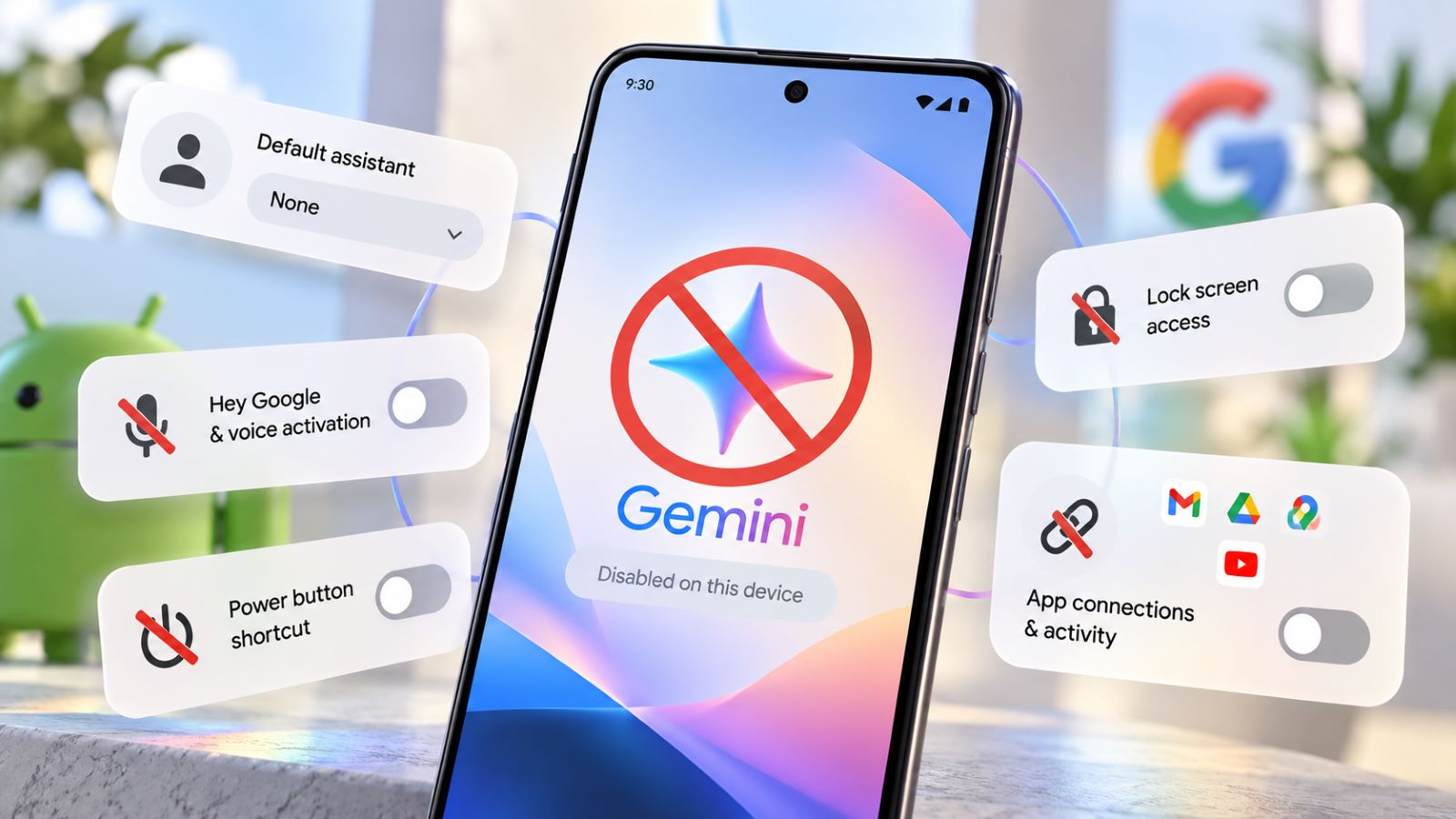
You can disable Google Gemini as your Android assistant without removing the app from your phone. The main complication in 2026 is that switching back to the classic Google Assistant is no longer available on most devices. However, Android still lets you change the default assistant, stop voice activation, and prevent Gemini from opening through system shortcuts.
The best approach depends on what you actually want to stop. Removing Gemini from your phone, preventing accidental activations, and limiting the information it stores are different tasks with different settings.
What Does Disabling Google Gemini Actually Change?
Disabling Gemini is not a single action with one universal switch. Android handles the default assistant, voice activation, lock-screen access, installed apps, and account activity separately. Turning off one feature does not necessarily affect the others, which explains why Gemini can sometimes appear after you thought you had disabled it. The settings below address the most common situations.
| What You Want | Setting to Change |
|---|---|
| Stop Gemini from opening as your assistant | Change the default digital assistant to None |
| Turn off Gemini voice activation | Disable “Hey Google” |
| Stop the power button launching Gemini | Change the power-button gesture |
| Prevent Gemini from working on the lock screen | Disable Gemini lock-screen access |
| Remove the standalone application | Uninstall Gemini where supported |
| Stop saving new Gemini conversations in activity history | Turn off Keep Activity |
| Limit access to other apps | Manage Connected Apps |
For most people, changing the default digital assistant is the simplest place to start. You can leave Gemini installed for occasional use without allowing it to respond to your usual assistant shortcuts.
How to Disable Gemini as Your Android Assistant
To turn off Gemini on Android, start by removing it as your default assistant. This stops Android from treating it as the primary option for standard assistant actions, although manufacturer-specific shortcuts may need separate attention. You can then disable voice activation and system gestures without uninstalling the app.
How to Remove Gemini as Your Default Assistant
Android lets you choose another digital assistant or leave the assistant role unassigned. The second option is particularly useful now that Google Assistant may no longer appear among the available choices.
- Open Android Settings.
- Select Apps → Default apps → Digital assistant app.
- Tap Default digital assistant app.
- Choose None or another available assistant.
If you cannot locate the menu, search Settings for “digital assistant app.” On some phones, the current assistant appears as Google rather than Gemini because the Google app provides the underlying assistant functionality. The name shown in Android’s settings therefore may not match the standalone app you see on your home screen.
Selecting None removes the default assistant assignment without deleting conversations or uninstalling Gemini. If you choose a different assistant, its behavior depends on the features that application supports. The Android assistant management controls also cover voice activation, shortcut changes, and app removal.
Turn Off “Hey Google” for Gemini
You can stop Gemini from responding to the “Hey Google” wake phrase while keeping the app available for manual use. This is helpful if nearby conversations or other audio occasionally trigger the assistant. Voice activation has its own control, separate from Android’s default assistant selection.
- Open the Gemini app.
- Tap Menu → your profile picture or initial → Settings.
- Select Talk to Gemini hands-free.
- Turn off Hey Google.
The wake phrase should no longer activate Gemini through that setting, but other ways of launching the assistant may remain available. A power-button shortcut or system gesture, for example, can still open Gemini unless you change its assigned action.
On many Android phones, holding the power button launches a digital assistant instead of displaying the power menu. If you regularly activate Gemini by accident, changing the button’s behavior can be more convenient than removing the app.
- Open Android Settings.
- Go to System → Gestures → Press and hold power button.
- Choose Power menu or another available action instead of Digital assistant.
Google Pixel phones generally place these controls within Android’s default apps and gesture settings. Samsung Galaxy models use somewhat different menus, including side-button settings. The exact wording varies by manufacturer and Android version, so the same instructions will not look identical on every device. Neither phone family offers one universal switch that disables every Gemini feature across all Google apps.
Some Android devices also let you launch the assistant by swiping diagonally from a bottom corner. If Gemini keeps appearing while you navigate around the screen, check whether that gesture is enabled and change its behavior where the option is available.
Disable Gemini on the Lock Screen
Gemini can answer supported questions and perform certain actions without requiring you to unlock your phone. You may find that convenient for quick requests but unnecessary if you rarely use voice assistance. Android and Gemini provide separate controls for restricting this access.
- Open Gemini.
- Tap Menu → your profile picture or initial → Settings.
- Select Gemini on lock screen.
- Turn off Use Gemini without unlocking.
This limits Gemini’s ability to respond while the device is locked, but it does not remove the app or erase previous activity. If you want to prevent ordinary assistant launches as well, adjust the voice, button, and default assistant settings described above.
Can You Still Switch Back to Google Assistant?
For most Android users in late 2026, returning to the classic Google Assistant is no longer a dependable option. Google began discontinuing Google Assistant on mobile on September 3, 2026. The rollout was expected to take several weeks across Android phones, tablets, and supported mobile accessories. Once Google removes Assistant availability from a device, it can no longer be used or selected again.
This explains why many devices no longer display the familiar switch-back setting. Reinstalling Gemini will not restore Assistant on a device from which Google has removed it. Tutorials written before the transition may still show menu options that have since disappeared.
If the Google Assistant Option Is Still Available
Some devices may continue to display the older switching control during the transition. If your phone still offers it, you can try the existing procedure.
- Open Gemini.
- Tap Menu → your profile picture or initial.
- Select Switch to Google Assistant.
- Choose Google Assistant.
- Confirm by tapping Switch.
Treat this as a device-dependent option rather than a guaranteed solution. If the setting is missing, that does not necessarily mean your app is outdated or your Android installation is damaged. Google may simply have removed the older assistant from your device.
The mobile transition also affects supported accessories, including certain Wear OS watches, headphones, and Android Auto connections. Standalone Google Home and Nest speakers follow a different transition process and should not be assumed to have the same controls or availability.
How to Uninstall Gemini on Android
If you no longer want the standalone Gemini app, you can remove it on many Android devices. The available options depend on whether you installed Gemini separately or received it with your phone’s software. Not every device provides the same removal controls.
Open Settings → Apps, locate Gemini, and check whether Uninstall is available; you can also look for the app in Google Play. If Android offers Disable instead, the installed application may not be removable through the normal uninstall procedure.
Removing the standalone app and removing Gemini’s assistant functionality are not necessarily the same thing. Android can still rely on assistant capabilities supplied through the Google app after you delete the separate Gemini application. As a result, the familiar assistant shortcuts may continue to behave differently from what you expected.
If your goal is to stop system-level activations, change your default assistant to None before uninstalling Gemini. Removing the app makes sense when you no longer want direct access to it, but that action alone is not a reliable way to disable every Gemini-related feature.
How to Turn Off Gemini Activity and Delete Chat History
Disabling Gemini as your Android assistant does not automatically delete your conversation history. Google manages that information through account-level activity controls, independently of the shortcuts used to open the application. You can change those settings without removing Gemini from your phone.
To stop saving new conversations in Gemini Apps Activity, follow these steps. The change affects activity saving, not whether the Gemini app can open on Android.
- Open Gemini.
- Tap Menu → your profile picture or initial → Gemini Apps Activity.
- Find the Keep Activity control near the top.
- Select Turn off or Turn off and delete activity.
The second option also starts deleting previously saved Gemini Apps Activity. If you only want to remove selected conversations, the Gemini activity controls let you choose individual items or a particular time range. Deleted account activity may also be subject to Google’s normal deletion processes.
Turning off Keep Activity does not mean every interaction disappears immediately. Google may still retain conversations with your account for up to 72 hours to provide the service and process feedback. Those conversations will not appear in Gemini Apps Activity. This setting does not make sensitive uploads safe either: files you should never upload to AI chatbots include documents containing passwords, account recovery codes, and confidential financial information.
The setting can also affect which features remain available. Some Connected Apps stop working with Gemini, while supported Android device assistance, calling, and messaging integrations may continue functioning. Work and school accounts can have additional restrictions set by an administrator.
How to Disconnect Gemini From Other Apps
Gemini can interact with supported services such as Gmail, Google Workspace, Phone, Messages, WhatsApp, and Android device controls. These connections can make the assistant more useful, but you may not want it interacting with every available service. You can manage individual integrations without changing Android’s default assistant.
- Open the Gemini app.
- Tap Menu → your profile picture or initial.
- Open Connected Apps.
- If Connected Apps is not listed directly, select Personal Intelligence → Connected Apps.
- Turn off the connections you no longer want Gemini to use.
The available connections will not look the same for everyone because they depend on your account, location, device, and the features Google currently supports. The Connected Apps controls show which services can interact with Gemini and where individual connections can be managed.
Disconnecting a service does not automatically remove information from earlier conversations. Similarly, turning off Keep Activity does not necessarily disable every Android-related integration, particularly those associated with device assistance or communication. Review the available connections individually if limiting access matters more to you than simply preventing accidental launches.
Gemini may also continue using publicly available information from Google services such as Search. Disabling connections to personal accounts should not be confused with blocking every source of information the assistant can use.
Why Does Gemini Keep Popping Up?
If Gemini keeps popping up after you turn it off, the most likely explanation is that another activation method remains enabled. Disabling “Hey Google” does not automatically change the power-button shortcut, for example. Likewise, uninstalling the standalone application can leave the Google app assigned as Android’s default digital assistant. The assistant may therefore continue appearing through a button or gesture even though you no longer have the separate app installed.
Start by checking Android’s default digital assistant setting, then look at the shortcuts your phone supports. Power-button actions, corner gestures, and lock-screen access are controlled separately on many devices. Changing the one responsible for the unwanted activation is usually more useful than repeatedly reinstalling the app.
Managed accounts and customized Android interfaces can complicate matters further. A work profile may restrict certain settings, while a manufacturer’s software can move assistant options into menus that differ from standard Android.
How to Keep Gemini Installed Without Using It as Your Assistant
You do not have to remove Gemini completely to regain control of your Android phone. Setting the default digital assistant to None, disabling unwanted shortcuts, and restricting lock-screen access allows you to decide when the app opens. You can also keep voice activation turned off if you prefer not to use hands-free commands.
Gemini remains available for tasks you start yourself. You can use Google Gemini for ordinary chats, file analysis, Deep Research, or other supported features without making it your default Android assistant. This is a useful middle ground if you occasionally need AI tools but do not want them interrupting everyday phone use.
If privacy is part of your concern, review Keep Activity and Connected Apps separately from the system settings. Returning to the classic Google Assistant may no longer be possible, but you still have control over many of the ways Gemini opens, connects to services, and stores account activity.