
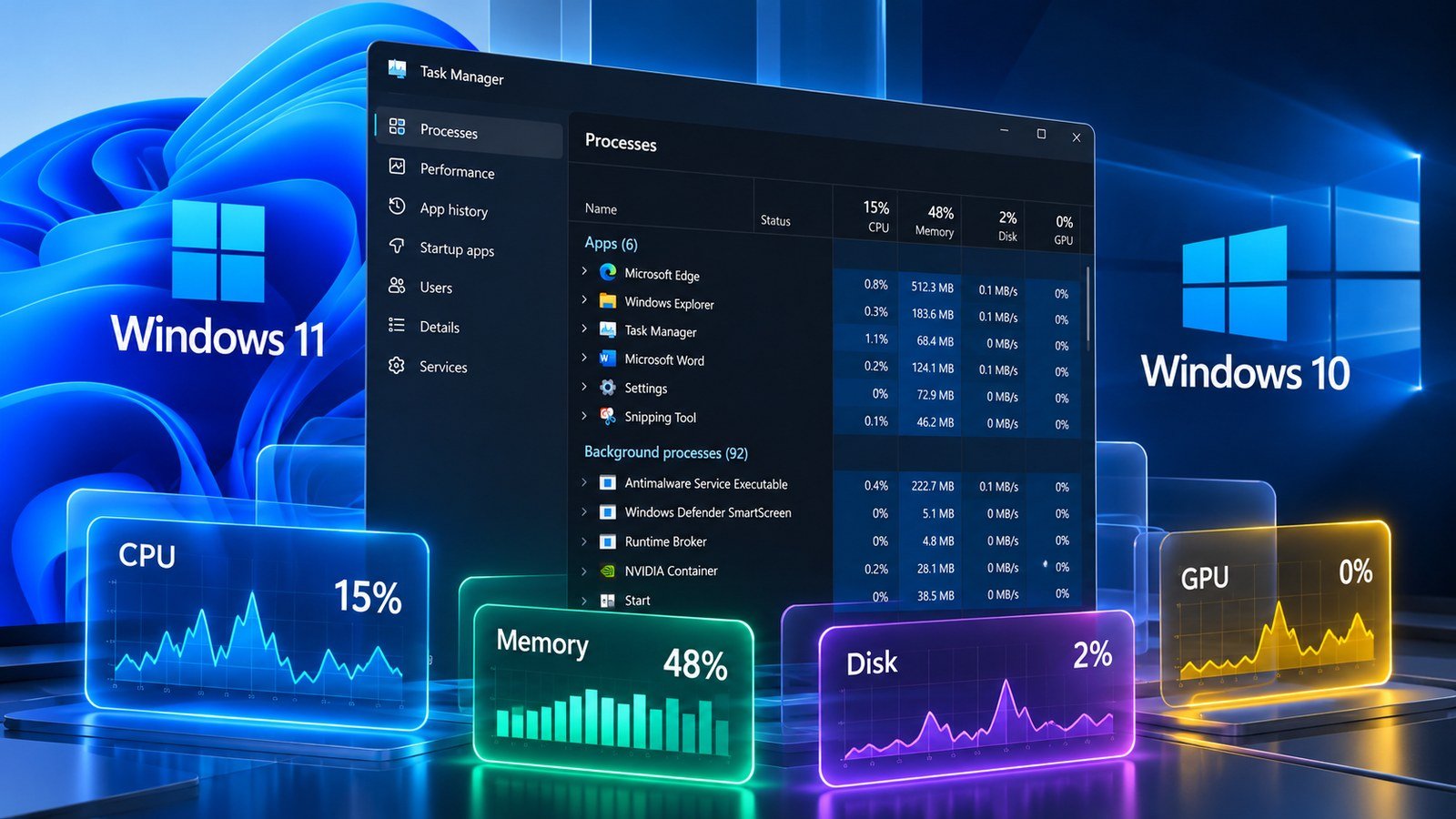
The fastest way to open Task Manager in Windows 11 and Windows 10 is to press Ctrl + Shift + Esc. It launches the utility directly, without navigating through Start or Settings. If an app freezes or the desktop becomes slow, this shortcut is usually the first thing to try. Windows also provides several alternatives when a particular menu or key combination isn’t responding.
Once open, Task Manager helps you close unresponsive apps, inspect CPU and memory usage, and manage startup programs. The main functions are shared by Windows 11 and Windows 10, although the layout differs.
The Fastest Ways to Open Task Manager
You don’t need to install anything to access Task Manager. Choose a method based on which parts of Windows are still responding.
| Method | What to Do | Best For |
|---|---|---|
| Keyboard shortcut | Press Ctrl + Shift + Esc |
Immediate access |
| Security screen | Press Ctrl + Alt + Del, then select Task Manager |
An unresponsive desktop or taskbar |
| Start menu | Right-click Start or press Win + X, then select Task Manager |
Mouse or keyboard navigation |
| Windows Search | Press Win + S, search for Task Manager, and open it |
Finding the utility by name |
| Taskbar | Right-click an empty area and select Task Manager | Quick access when the option appears |
Unlike the direct shortcut, Ctrl + Alt + Del opens the Windows security screen first. This alternative can be useful when the taskbar stops responding but Windows still accepts keyboard input.
Both operating systems provide access through the Start button’s context menu. Windows 10 usually includes Task Manager when you right-click the taskbar, and current Windows 11 builds offer that option too. If your taskbar menu differs, use the keyboard shortcut or Start instead. Windows Search is another simple fallback when the desktop is responsive. If the entire screen appears stuck, give Windows time to respond before forcing a restart; repeated clicks and shortcuts will not necessarily speed up a system that is processing a heavy task.
How to Open Task Manager Using Run or Command Prompt
The command for Task Manager is taskmgr, which launches the built-in taskmgr.exe application. Press Win + R, type taskmgr, and press Enter. The same command works in Command Prompt and PowerShell, making it useful when a particular menu isn’t functioning.
You can request administrator privileges if an operation requires elevation. Find Task Manager through Windows Search, choose Run as administrator, and approve the User Account Control prompt if permitted. Ordinary monitoring and closing your own applications generally don’t require this step. Even elevated access cannot necessarily end protected Windows processes or override an organization’s policies.
How to Use Windows Task Manager
The Processes section lists open applications and background activity. Select the CPU, Memory, Disk, or Network column to sort processes by resource consumption. Watch the figures for a little while before acting: a short CPU spike while opening a program is normal, whereas sustained unexplained activity may deserve attention.
The main sections have different purposes:
- Processes identifies running applications and background processes.
- Performance shows overall CPU, RAM, disk, network, and supported GPU activity.
- Startup apps controls many programs that launch when you sign in.
- Details provides process-level information and advanced options.
- Services displays the status of Windows services.
Windows 11 presents these areas in a side navigation panel. Windows 10 normally uses tabs across the top; select More details if you see only a compact list of apps. Microsoft’s Windows system tools overview explains how Task Manager fits alongside other built-in diagnostics.
You rarely need to change anything just to identify a problem. Often, sorting Processes and observing Performance provides enough information to decide which application needs attention. Remember that several processes may belong to one application, especially a web browser with multiple tabs. A high reading should prompt investigation, not automatic termination.
How to End a Frozen App Safely
When a program stops responding, give it a moment to recover, particularly if it’s saving a large document. End task forces a program to close and can discard unsaved changes. Use it for the affected application rather than trying to clear the entire process list.
- Press
Ctrl + Shift + Escand open Processes. - Find the frozen application under Apps.
- Select it and choose End task, or right-click and select End task.
- Wait for the program to close, then reopen it if needed.
If Windows responds normally afterward, the issue may have been limited to that application. Frequent freezes in the same program call for further checks, such as updates or damaged application files. If the program keeps reopening automatically, check whether another application or background service starts it, rather than repeatedly ending related processes. Don’t terminate unfamiliar system, driver, or security processes just because their resource usage is high; some are essential and may restart automatically.
Task Manager’s End task command is specific to Windows. On an iPhone, closing an unresponsive app uses the App Switcher rather than a desktop process list. The procedure for iPhone app controls is therefore different.
How to Check CPU, RAM, Disk, and GPU Usage
Open Processes and sort by a resource column, then compare what you see with Performance. High CPU usage can be normal during updates, video rendering, or other demanding tasks. Sustained use from an unfamiliar process while the system is idle is a better reason to investigate than a brief spike.
High RAM usage isn’t automatically a problem because Windows also uses memory for caching. More meaningful warning signs include persistent slowdowns, heavy paging, and applications running out of memory. Disk activity near 100% indicates that the drive is heavily occupied with read or write operations, not that its storage capacity is nearly full. Updates, antivirus scans, and slow storage can cause sustained activity even when transfer speeds appear modest.
Supported computers also show GPU activity in Performance, which can help with games and graphics software. Check the process responsible before closing anything. Microsoft’s Windows performance recommendations cover additional checks when Task Manager doesn’t reveal a clear cause.
How to Disable Startup Apps
Some applications open automatically at sign-in and continue using resources in the background. Task Manager lets you disable many registered startup entries without uninstalling the software. This can improve the time it takes Windows to become usable after you sign in.
- Open Startup apps in Windows 11, or Startup in Windows 10.
- Select a program you recognize and check its status and startup impact.
- Choose Disable, then restart Windows later to assess the difference.
Disabling an entry changes future startup behavior; it doesn’t close a program that’s already running. Not every automatic launch appears here, because some apps use services or scheduled tasks. If a program keeps opening, check its own settings before modifying advanced Windows components.
Avoid disabling every entry at once. Security software, backup utilities, and device tools may provide useful background functions. Make a few targeted changes and reverse them if something important stops working.
Why Task Manager Won’t Open
If Task Manager won’t open, first determine whether the problem affects one launch method or all of them. Try Ctrl + Shift + Esc, then Win + R followed by taskmgr. If neither works, restart Windows normally and retry soon after signing in. An isolated desktop glitch may disappear, while a repeated failure needs further investigation.
When Task Manager opens but its values stop updating, check whether other apps are also unresponsive. Heavy disk activity or limited memory can delay the interface. Review recent software changes and Windows security if the issue returns; avoid unfamiliar optimization tools and downloaded registry fixes that promise an instant repair.
Task Manager Has Been Disabled by Your Administrator
This message usually points to an access policy rather than a broken keyboard shortcut. Microsoft’s Task Manager policy documentation describes the DisableTaskMgr setting, which administrators can use to prevent the utility from opening.
On a work or school computer, contact IT instead of bypassing the restriction. On a personal PC, check whether an old organizational account, security software, or unwanted software changed the setting. Unexpected restrictions affecting several Windows tools can justify a malware scan. Avoid registry modifications without understanding their effects and having a recovery plan.
Windows 11 vs. Windows 10 Task Manager
The shortcuts and taskmgr command are largely identical in both systems. The main difference is visual: Windows 11 uses side navigation and newer controls, whereas Windows 10 uses traditional tabs. Both can monitor processes, end unresponsive applications, and manage startup entries. Recent Windows 11 versions also provide a process search or filtering control, which can be useful when the list is long. Windows 10 users can sort by columns or locate an application manually instead.
Other platforms use different tools for similar jobs. On macOS, Activity Monitor provides process and resource information; our Task Manager on Mac article explains where to find those controls.
What Is Efficiency Mode in Windows 11?
Efficiency Mode can reduce interference from eligible background processes by lowering their scheduling priority and applying EcoQoS. In Task Manager, open Processes, select an eligible process, and choose Efficiency mode from the context menu or toolbar. You may need to expand a process group, and protected processes may not offer the option.
Microsoft’s Efficiency Mode explanation describes why this differs from simply changing process priority in Details. Efficiency Mode can slow work that needs consistent processing time, so use it selectively and reverse the change if necessary.
Standard support for most Windows 10 editions ended on October 14, 2025. Task Manager still works, but security update arrangements depend on eligibility for Extended Security Updates or a separately supported long-term servicing edition.
Whether you’re closing a frozen application or investigating high resource usage, Task Manager is most useful when you identify the cause before changing anything. Use its process and performance data to make targeted decisions rather than ending unfamiliar tasks or applying unnecessary system tweaks.