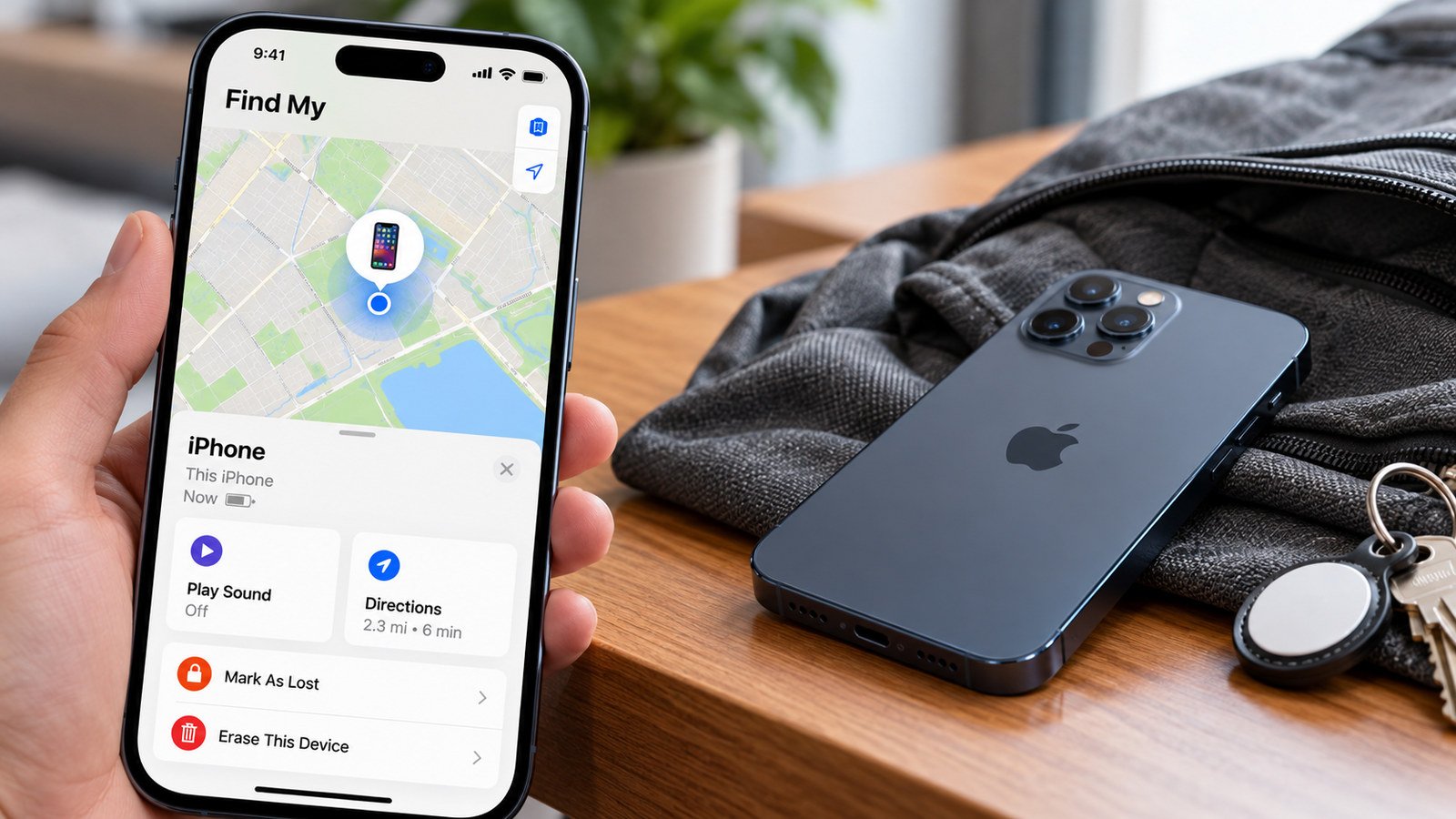
The Find My iPhone feature helps you locate a missing phone, check its last reported position, and protect your information if the device is lost or stolen. You can use Find My on another Apple device or open iCloud.com/find in a browser. Depending on the circumstances, you may be able to play a sound, turn on Lost Mode, or erase the phone remotely. First determine whether the phone is misplaced, its location is outdated, or theft is possible.
Find My needs to have been enabled before the iPhone disappeared. The status labels then help you choose the right action.
What to Do First When Your iPhone Goes Missing
Start with Find My rather than repeatedly calling the phone. A sound alert might reveal an iPhone hidden nearby, but a map pin in an unfamiliar location calls for a different response. Check when the location was last updated before assuming the device is still there.
- Open Find My on another Apple device or go to iCloud.com/find and select the missing iPhone.
- Check its location, connection status, and last update time.
- Choose Play Sound if the phone could be nearby.
- Mark the device as lost if you cannot recover it promptly or suspect theft.
- Consider remote erasure only when recovery appears unlikely or sensitive data needs protection.
If you suspect the phone was stolen, don’t visit an unfamiliar address to confront someone. Report the incident to local law enforcement and contact your carrier about suspending service. Keep the missing device linked to your Apple Account, even if you later erase it, so Activation Lock remains in place.
How to Find a Lost iPhone Using Find My or iCloud
The Find My app and Apple’s browser-based Find Devices service can both help locate a missing iPhone. The app provides access to additional features, especially for supported accessories and devices detected by the Find My network. The website helps when no other Apple device is available.
Find Your iPhone Using the Find My App
On another iPhone, iPad, or Mac signed in to your Apple Account, open Find My and select Devices. Choose the missing iPhone to see its map location, last update, and available actions. If it appears nearby, choose Play Sound; otherwise, use Directions to check the approximate location in Maps. A sound request may remain pending when the iPhone is offline.
Family Sharing can also help. When appropriately configured, a family member may see your missing device below their own devices in Find My. They do not need your Apple Account password to do this.
Locate Your iPhone Through iCloud.com/find
You can locate your iPhone using a web browser, even if the missing phone was your only trusted Apple device. The Find Devices sign-in process is designed for that situation.
- Open iCloud Find Devices and sign in with the Apple Account used on the missing iPhone.
- Select the phone under All Devices.
- Check the location, last update, and available actions.
- Choose Play Sound or Mark As Lost, depending on the situation.
Apple allows access to Find Devices without a verification code from the missing phone. If a sign-in page asks for that code, select Find Devices to continue. The browser may show less location history than the Find My app; an absent pin does not prove the phone was removed from your account.
Can You Find an iPhone That Is Offline or Turned Off?
An offline device might have lost Wi-Fi or cellular coverage, run out of battery, or been switched off. If Find My network was enabled beforehand, nearby participating Apple devices can sometimes detect a supported iPhone over Bluetooth and securely relay its approximate location. A supported model may remain findable for up to 24 hours after shutdown, or up to five hours in power reserve mode, but detection isn’t guaranteed.
The label in Find My guides your next step. Some describe location availability; others describe commands waiting to run.
| What Find My Shows | What It Means | What to Do |
|---|---|---|
| Recent map location | Location information is available, but may not be exact | Check its timestamp before following Directions |
| Offline or last known location | No current connection or update is available | Note the timestamp; enable Notify When Found if offered |
| No location found | Find My has no usable location to display | Turn on Notify When Found if available, and check for new location reports |
| Not sharing location • Online | The device is connected but cannot provide its position | Review Location Services if you recover the phone |
| Lost Mode Pending or Erase Pending | The requested protective action has not completed | Leave the request active until the device reconnects |
Apple says the Find My app may retain a last known location for up to seven days, while iCloud.com/find displays available locations for up to 24 hours. These are maximum periods, not guaranteed visibility. Apple’s Find My locating guidance explains how an unavailable location differs from a device that isn’t listed at all.
A map pin shows where a report originated, not necessarily the phone’s current position. Avoid treating an old address as a real-time tracking result.
How to Turn On Lost Mode
Lost Mode is usually the appropriate protective step when you cannot recover the iPhone quickly. Lost Mode locks the iPhone with its existing passcode. If no passcode was set, Apple prompts you to create one. It also suspends eligible Apple Pay cards and passes, and lets you display contact information for anyone who finds the device. It does not erase your photos or other stored content.
In Find My, select the missing device and open its Lost Mode control. Depending on the current interface, you may see Lost Mode or Mark As Lost under the device’s additional options. Follow the prompts, entering a reachable phone number and a brief message. Avoid including your address, Apple Account password, or other private details.
When the iPhone is offline, Lost Mode may show Pending until it connects to Wi-Fi or cellular service. The lock-screen message cannot appear before the command reaches the device. Apple’s lost iPhone instructions also explain that Stolen Device Protection can require Face ID or Touch ID to turn off Lost Mode, even if another person knows the phone’s passcode.
Keep Lost Mode enabled while you search. Unlike erasure, it protects access without deleting local information.
When Should You Remotely Erase a Lost iPhone?
Remote erasure is a more serious decision. Use it when the device is unlikely to return or protecting personal data outweighs keeping its contents intact. First consider whether you have an iCloud or computer backup, because the erase operation cannot be undone once completed.
Select the missing device in Find My or iCloud.com/find and choose Erase or Erase This Device. Confirm the request and follow the account verification steps. If the iPhone is offline, the command remains pending until it reconnects. If you recover the iPhone before a pending erase begins, open Find My and select Cancel Erase, then enter your Apple Account password. On iCloud.com/find, use Stop Erase Request.
Apple says an iPhone with iOS 15 or later can still be located through Find My after remote erasure when the necessary conditions are met. Crucially, do not remove the device from Find My: doing so can remove Activation Lock and make unauthorized reactivation easier. Erasing and removing a device from your account are different actions.
If theft seems likely, follow Apple’s stolen-device guidance, report the incident, and contact your carrier. Ignore messages that claim Apple has found the phone and ask you to supply a passcode, verification code, or password. Apple does not request those secrets to arrange recovery.
How to Find Other Apple Devices and Family Members’ Devices
Find My also supports compatible iPads, Macs, Apple Watches, and AirPods under Devices. AirTags and compatible tracking accessories appear under Items. Available actions vary: some devices support sound alerts or Lost Mode, while nearby supported accessories may offer more precise finding instructions.
Family Sharing can make relatives’ devices visible within an appropriately configured family group. The People tab serves a different purpose: sharing someone’s location doesn’t automatically provide access to every device or AirTag they own. Likewise, you cannot add an unrelated friend’s phone to your personal device list merely because they need help finding it.
A friend can sign in to iCloud.com/find with their own Apple Account rather than giving you their credentials. When locating an accessory, use the Find My app if the website doesn’t offer the relevant item-finding feature.
Why Your iPhone Doesn’t Appear in Find My
First check that you’re signed in with the same Apple Account that was used on the missing phone. The wrong account can make the device list appear incomplete. Also distinguish a device that’s listed without a current position from one that does not appear at all.
If Find My was never enabled before the phone went missing, you cannot switch it on remotely afterward. Apple’s Find My locating, Lost Mode, and remote erase functions will not be available for that device. If Find My was set up but no coordinates appear, a connection problem, disabled Location Services, or a stale report may be responsible instead.
When theft is suspected, review your Apple Account’s trusted devices and security settings. Change the password if there’s evidence it has been compromised, and contact your carrier. Reviewing two-factor authentication and account security can also help you strengthen recovery options across your accounts.
Apple also notes that certain account changes made while Stolen Device Protection is active can temporarily affect what iCloud.com/find displays. Check the device status in another available Apple device before concluding that tracking has been disabled.
How to Set Up Find My Before Losing Your iPhone
Enable Find My while you still have the device. On the iPhone, open Settings, tap your name, choose Find My, and open Find My iPhone. Then review these three controls:
- Find My iPhone links the device to Apple’s locating service.
- Find My network enables supported offline finding through participating Apple devices.
- Send Last Location attempts to report the phone’s position when its battery becomes critically low.
Check that Location Services is enabled under Settings > Privacy & Security. Apple’s Find My setup instructions also explain how to configure supported iPads, Macs, and accessories. Turning on Find My for a compatible iPhone enables Activation Lock, which helps prevent another person from activating it after erasure.
While the phone is available, review Stolen Device Protection, backups, and Apple Account recovery methods. Together, they make a loss less damaging and recovery more manageable.
If your iPhone disappears, use the latest trustworthy location rather than assuming a map pin is live. Mark the phone as lost when you cannot recover it promptly, and reserve erasure for cases where protecting data takes priority. Whatever happens, keep Activation Lock enabled and be wary of unexpected recovery messages.