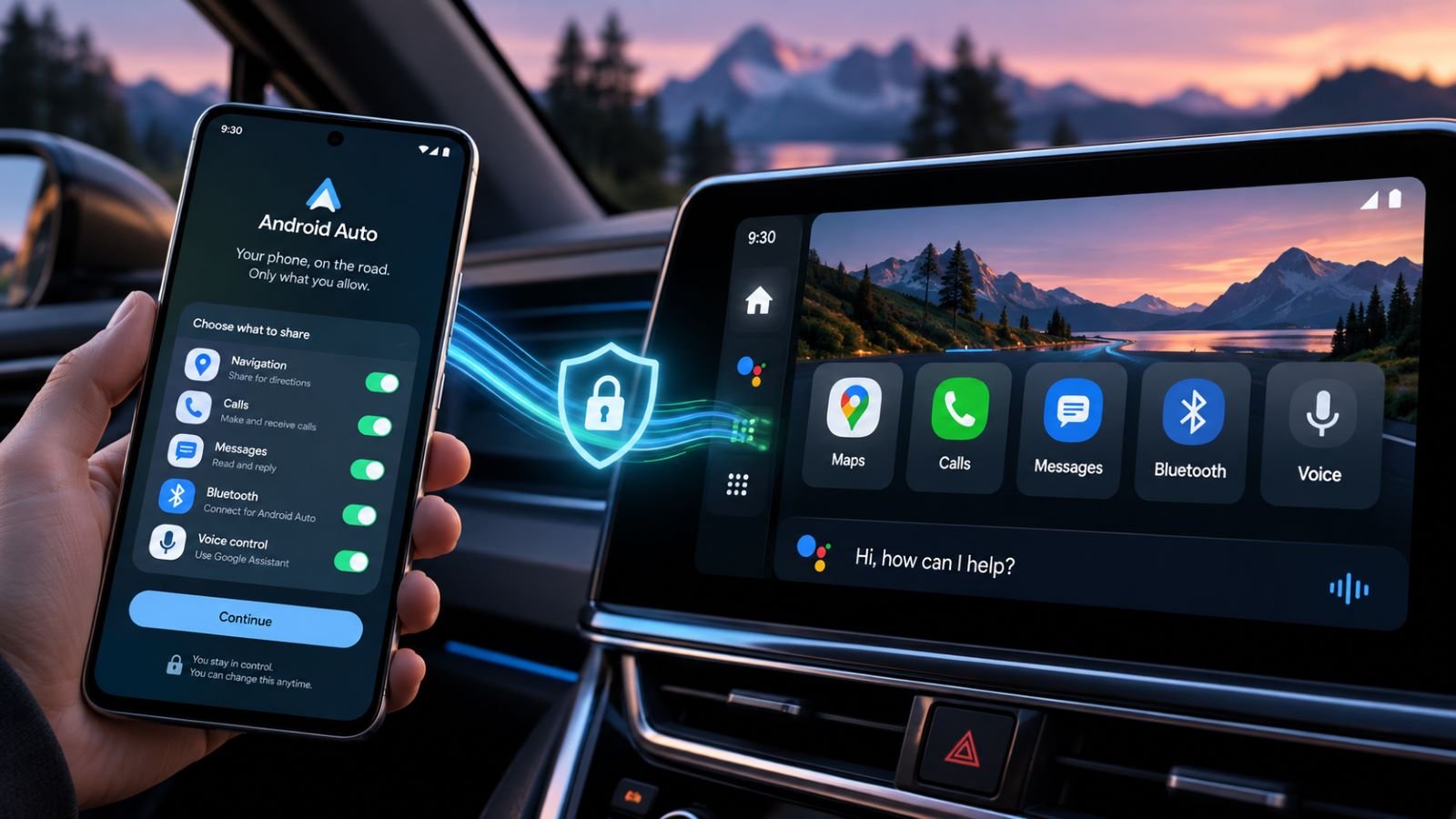
A working Android Auto connection does not require approving every permission that appears on your phone. Start by connecting the devices, then review access for the features you actually use: navigation, calls, messages, and voice commands. A mapping app needs different information from a hands-free calling service. Some access is handled by Google Play services or Bluetooth rather than an Android Auto switch.
Android Auto displays compatible phone apps on the vehicle’s screen. It is not the same as Google built-in, which can run apps directly in a car’s infotainment system. This article covers phone-to-car projection; complete setup and permission changes while parked.
Check Android Auto Compatibility Before Connecting
Check compatibility before opening a permissions menu: Android Auto is built into supported phones, but a vehicle with Bluetooth calling or a USB socket may still lack support. Google’s Android Auto requirements distinguish wired from wireless connections. If the vehicle’s specifications are unclear, confirm the supported projection method in its manual.
Connect With a USB Cable
Use the USB port marked for smartphone projection; another socket in the same car may supply power only. Connect a reliable data cable, unlock the phone, and follow the prompts on both screens. You may also need to choose Android Auto or Smartphone Projection from the vehicle’s infotainment menu.
If the phone charges but projection never starts, check the connection before investigating access settings. Try a known-good, short USB data cable connected directly to the correct port, without a hub or extension. A charging-only cable or socket cannot provide the required data connection, regardless of the Contacts or Microphone access you grant.
Set Up Wireless Android Auto
Wireless Android Auto requires compatible hardware on both sides. Bluetooth handles the initial pairing, while Wi-Fi carries the projection connection; ordinary Bluetooth audio is not enough. For first-time setup, enable Bluetooth and Wi-Fi, check Location Services if the phone requests them, and follow the vehicle’s pairing prompts. Keep the phone nearby and unlocked until setup finishes.
After pairing, Android Auto may launch by itself or appear as a choice on the car screen. Some vehicles support wireless calls and music but only wired Android Auto. Confirm the vehicle’s capabilities before resetting paired devices or granting additional permissions. Neither change can add wireless projection to an incompatible head unit.
Which Permissions Does Android Auto Actually Need?
Android Auto does not have one universal list of permissions that every driver must enable. The car screen brings several services together, but Google Play services, the dialer, messaging apps, and navigation apps handle different functions. Google’s device-connection permissions explain why access to Phone, Contacts, SMS, Microphone, Nearby devices, or Location may be involved. What you need depends on the function, not merely on whether Android Auto is installed.
| Access or setting | What it may support | Practical starting point |
|---|---|---|
| Phone and Bluetooth call audio | Call status and hands-free audio | Keep the car’s calling profile enabled if you make calls |
| Contacts | Caller names and calling someone by name | Review contact sharing separately from call audio |
| SMS and messaging permissions | Supported message reading and replies | Follow the specific app or system request, not a blanket permissions list |
| Notifications | Message alerts, previews, and chimes | Limit visible content before disabling notifications entirely |
| Location | Maps, Waze, and aspects of wireless setup | Allow location to the navigation app while in use where supported |
| Microphone | Calls, voice commands, and dictated replies | Keep the audio path required by the features you use |
| Nearby devices, Bluetooth, and Wi-Fi | Pairing and phone-to-car connectivity | Use the connection controls required for wired or wireless projection |
Search your phone’s Settings for Android Auto or open Connected devices; for an individual app, go to Settings, then Apps, select it, and inspect Permissions. Android manufacturers use different menu names, and Bluetooth calling controls may appear under the paired vehicle instead. Do not revoke Google Play services permissions indiscriminately; those services also support functions unrelated to your car.
Set Up Hands-Free Calls Without Unnecessary Contact Access
Hands-free calling depends partly on the Bluetooth profile shared with the vehicle. Open the car’s entry in Bluetooth or Connected devices and check whether Phone calls or Call audio is enabled. Test a call before changing anything else. If the sound stays on your phone, use the call’s audio-output selector to identify where it is being routed.
Contact sharing is a separate choice. It can show caller names and enable dialing by name. Some systems can place calls without copying the entire address book. If the car offers contact synchronization, think about who else uses its screen and whether those conveniences are worth exposing your contacts. Declining optional synchronization is not the same as disabling the phone’s calling permissions.
In shared or rental cars, contact lists and pairing records can remain in the infotainment system even after you disconnect your phone or revoke its permissions. Before returning the vehicle, remove your pairing from its settings and check for stored contacts or recent-call information. The cleanup options depend on the manufacturer.
Control Message Notifications and Privacy
Android Auto can show messages from supported apps. It may also read them aloud or let you reply by voice. Look in its notification settings for Show message notifications, Show first line of messages, group conversations, or message chimes. These controls vary by version, and some are managed inside the messaging app instead. Check the options actually present on your phone before changing broader notification access.
When passengers can see the display, hide message previews if that option is available. You may also silence group-chat alerts or message chimes while retaining navigation prompts. This gives you more control than turning off every Android notification, which could suppress information you still want in the car.
If an expected message never appears, first confirm that its app produces notifications on the phone. Then review the app’s settings and Android Auto’s message options rather than assuming every device needs a separate Notification access toggle. Google’s messaging instructions distinguish alerts, spoken playback, and replies. Test one incoming message after each relevant change; there is no reason to enable alerts from every installed app.
For live directions in Google Maps or Waze, check both the device-wide Location setting and the app’s separate location permission. In Settings, select Apps, open your navigation app, and review Location permissions. Allow only while using the app is a sensible starting point where supported; enable Precise location if the app needs it for accurate positioning.
When the car shows an incorrect or frozen position, compare it with the map on your phone. If both are wrong, investigate GPS reception, location accuracy, and the app’s settings before troubleshooting projection. If the phone tracks you accurately but the car display lags, the problem may involve projection. Check the connection or head unit before changing location permissions again. Try a short route in an area with a clear satellite signal to compare the two.
Battery settings are worth checking only when the symptoms point there. If directions stop updating after the phone screen goes dark, inspect the map app’s background-activity rules and any manufacturer-specific power-saving mode. Change one restriction and repeat the test, restoring the original setting if nothing improves.
Manage Gemini, Google Assistant, and Microphone Access
Gemini is available in Android Auto, although some vehicles or phones may still show Google Assistant during the transition. Where supported, voice commands can start with Hey Google, an on-screen microphone, or a steering-wheel button. The Gemini–Assistant transition changes the assistant experience, but it does not make personalized account access a prerequisite for maps or music.
The microphone is useful for more than dictating messages: calls and voice commands both need audio input. But that doesn’t mean every vehicle has the same Microphone permission control, or that Android Auto alone manages it. If you don’t use an assistant, review voice activation separately. Avoid disabling an audio path that your hands-free calling still relies on.
Google’s October 2026 Gemini in cars update separates ordinary voice features from Personal Intelligence. That optional feature can draw on connected Google apps to personalize responses, and availability varies by region and account type. You can still request directions, make calls, and play music without enabling it. Before opting in, check which Google apps it would connect. Only grant that access if the added personalization would be useful.
Fix Android Auto Connection Problems Without Changing Every Permission
A connection failure needs different checks from a missing app feature: if Android Auto will not start over USB, inspect the cable, projection port, and vehicle settings first. For wireless failures, confirm compatibility and the state of Bluetooth and Wi-Fi before pairing again. Missing message previews or inaccurate GPS deserve their own troubleshooting paths, not a blanket permissions reset.
When projection works but one function fails, test just that function. A call can reveal audio-routing problems; a message can expose notification settings. A short route can show whether location updates are accurate. Make one change between tests so you know what helped. Granting every available permission at once makes the result harder to interpret.
For repeated pairing failures, review Android Auto’s Previously connected cars list and the saved phone entry in the vehicle. Re-pairing may help, but clearing every remembered car is unnecessary when other connections work. If several phones fail with known-good cables or the head unit repeatedly restarts, check for vehicle software updates and consider manufacturer support.
Review Your Android Auto Privacy Settings
Once the connection is reliable, consider what the car can display or remember, not merely which permissions are enabled on your phone. Review contact synchronization, message previews, voice activation, and optional Gemini connections to personal apps. A shared vehicle needs one further check: it may store phonebook entries, recent calls, or pairing records. Those details can remain visible to other drivers.
Review the settings again after changing phones, installing a messaging app, or allowing another driver to use the car. Test each adjustment against the function it affects, with the vehicle parked. A sensible minimum is the access needed for the features you choose, without exposing information those features never use.