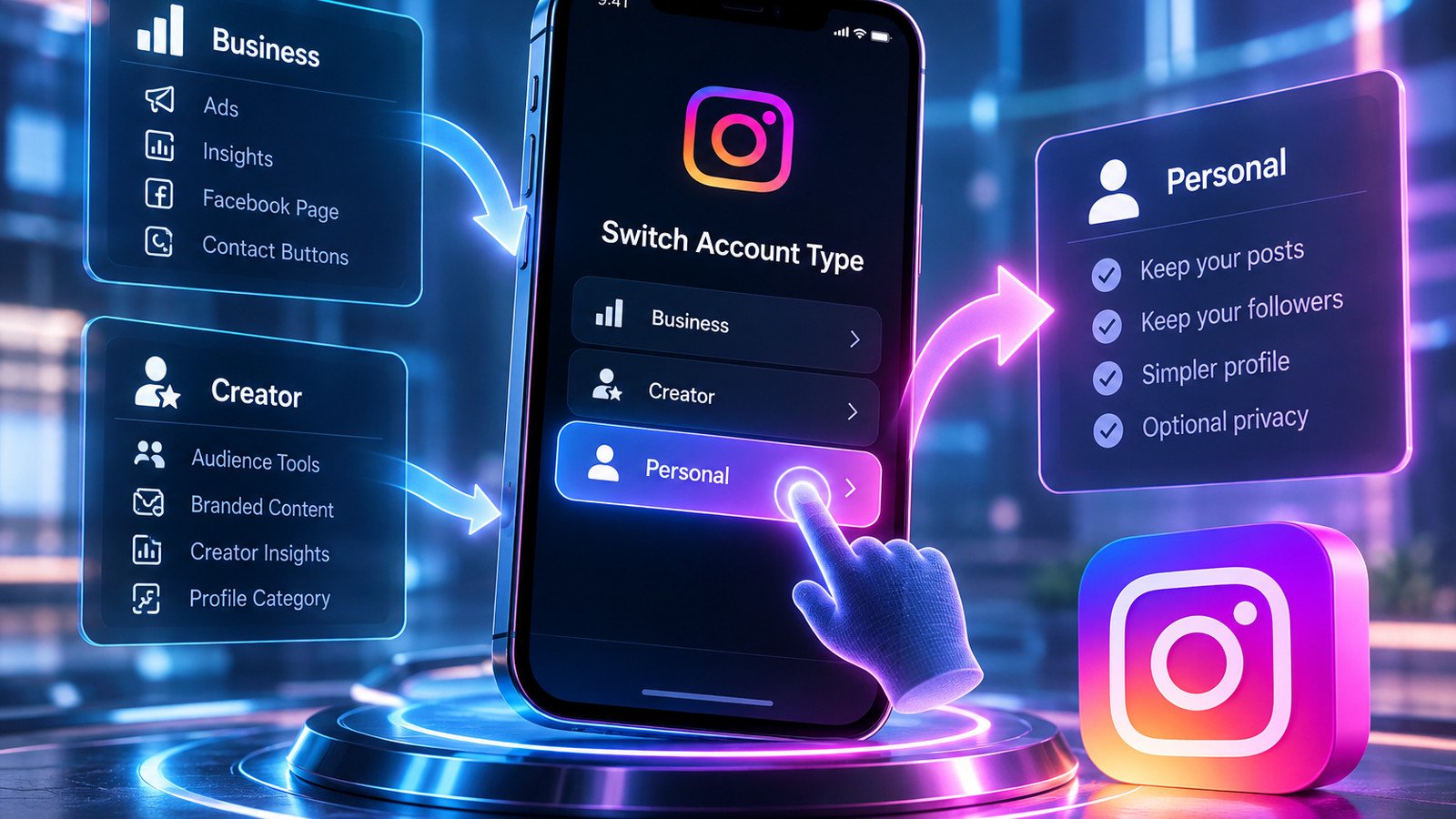
To switch to a personal Instagram account, open your Business or Creator profile’s account-type settings and choose Switch to personal account. You won’t need a new username, and your existing posts and followers stay with the profile. What changes is access to professional features, including advertising and certain third-party integrations. If you use Instagram for work, review those connections before confirming the switch.
A Personal account isn’t necessarily a private one. You can keep it public or change its privacy settings afterward. The steps below explain both the account-type change and what to check if Instagram’s menus look different on your device.
How to Switch to a Personal Instagram Account
The Instagram app is usually the most direct way to return to a Personal profile. Check the username at the top of your profile first. This matters if you manage several accounts. The steps work on iPhone and Android, although the wording of the settings menu can vary.
- Open Instagram and tap your profile picture in the bottom-right corner.
- Tap the three-line menu in the upper-right corner.
- Under
For professionals, openBusiness tools and controlsorCreator tools and controls, depending on your account type. - Tap
Switch account typeand selectSwitch to personal account. - Read the confirmation message, then tap
Switch to personalto finish.
If those controls aren’t visible, the menu may use another label. Look for account-type settings under Account type and tools, Account, or Preferences. Instagram has used different paths across app versions, so the available options matter more than an exact sequence of labels. You can also consult Instagram’s account-switching instructions before making unrelated changes.
Switch From a Business Account
For a Business profile, the usual route begins at Business tools and controls. Choose Personal when the account-type menu offers several destinations; choosing Creator would leave you with a professional account. Your posts and audience stay in place, but the switch changes how you manage the profile.
If you’ve connected a Facebook Page, Instagram says that professional Page connection is disconnected when you return to Personal. Advertising and Meta Business Suite access for that Instagram profile are affected as well. Note your linked Page and any scheduling or reporting services you use, so you know what may need reconnecting if you switch back.
Switch From a Creator Account
A Creator profile follows a similar path. Its menu is typically called Creator tools and controls. Select Switch account type, then Personal rather than Business. Your published content and existing conversations remain on the same account, but creator-specific features are no longer available in the same way.
You may see this task described online as “turning off Creator Mode.” Instagram treats this as a change of account type, not a separate Creator Mode toggle. Changing your category or removing profile labels is not a substitute. If the menu offers Switch to professional account instead of Switch to personal account, check whether the profile is already Personal.
How to Switch Instagram to Personal on a Computer
Instagram also provides account settings at instagram.com. The web interface, however, may not display the same options as the app. Sign in to the intended profile, open More in the left sidebar, and select Settings. Look under the professional-account controls for Switch account type and, if available, choose Personal.
On some accounts, those controls appear under Business tools and controls or Creator tools and controls. If the web version only offers other professional types, don’t assume you’ve successfully changed to Personal. Use the mobile app to complete the switch, then return to the website to check the result.
What Happens When You Switch to a Personal Account?
Switching account types doesn’t erase the profile. Your username stays the same. Existing posts, Reels, messages, and followers generally remain where they are. The main trade-off is losing access to professional capabilities you may have built into your daily workflow.
| Feature | After Switching to Personal |
|---|---|
| Posts, Reels, followers, and messages | Stay with your existing profile |
| Advertising and boosted posts | Professional advertising tools are no longer available |
| Meta Business Suite and Ads Manager | Professional management of this Instagram profile is no longer available |
| Connected Facebook Page | Professional Page connection is disconnected |
| Category labels and contact buttons | Professional display and contact options are removed or unavailable |
| Insights and dashboard | Public Personal accounts may offer basic metrics; professional reporting differs |
| Private account option | Available separately; the switch does not enable it |
Insights deserve a closer look. Instagram’s features have changed, and public Personal accounts may now see basic statistics in Your dashboard. That shouldn’t be confused with retaining the entire Professional dashboard or every past report. Save figures you rely on before switching, particularly if you manage campaigns or report performance to clients.
External tools can be affected even when your Instagram profile looks nearly identical afterward. Some publishing, analytics, and messaging services require permissions associated with Business or Creator accounts. If one of these connections matters to your work, confirm its requirements before leaving the professional account type.
Does Switching to Personal Make Instagram Private?
Switching to Personal does not make your Instagram profile private. Personal is an account type, while Private controls who can see your content. A public Business or Creator profile normally remains public after you switch.
To make the profile private, open the Instagram menu and find Account privacy under Who can see your content. Turn on Private account and confirm the change. Instagram’s privacy instructions explain the control if your app uses a slightly different menu layout.
Professional profiles don’t offer the standard private-account option, which is why moving to Personal is often the first step. Once the profile is private, new visitors generally need approval to view your posts and Stories. People who already follow you remain approved unless you remove them individually.
A private profile still exposes some basic information. Your username and profile photo, for example, may remain visible. Privacy settings also can’t retract material that was previously copied or shared elsewhere. If privacy motivated the change, verify that the Private account switch is actually enabled rather than relying on missing business labels.
Why Can’t You Find the Switch to Personal Account Option?
A missing option often means you’re looking under a different menu name. Business accounts commonly show Business tools and controls. Creator accounts usually show Creator tools and controls. Instagram may also place account-type options under Account type and tools, Account, or Preferences, depending on the interface.
Before troubleshooting further, confirm that you’ve opened the right profile. An account that already uses Personal may show Switch to professional account instead, so there is nothing to switch back from. Don’t judge the account type by its dashboard alone: some public Personal accounts can display Your dashboard.
If the menu is still absent, update Instagram and reopen the app. Compare the mobile and web interfaces, since their settings don’t always match. Make sure you’re checking the same profile in both places. Avoid services that ask for your password and claim they can switch the account on your behalf.
What to Do If Instagram Won’t Switch Account Types
An error after tapping Switch to personal is different from not seeing the option at all. Note the message and check your connection. See whether other Instagram settings save correctly. Then restart the app and try once more rather than repeating the same unsuccessful action.
If a sign-out or reinstall seems necessary, check your login access first. You should be able to receive any verification codes and use your recovery method before ending the current session. This is especially important when two-factor authentication protects the account: a routine troubleshooting step shouldn’t turn into a login problem.
Look for account notices or identity-verification requests that might explain the failure. Don’t assume a Facebook connection or an active promotion is blocking the switch unless Instagram identifies that restriction. If the problem persists, use Report a problem in Instagram and include the error text, app version, and steps that led to it.
How to Confirm Your Instagram Account Is Personal
Return to account-type settings after the confirmation. If Instagram now offers Switch to professional account, that is a useful sign that the profile is Personal. Contact buttons or category labels may also disappear. Those visual clues are less reliable than the available switch option.
If you still see basic metrics, that doesn’t automatically mean the account remained professional. A public Personal account may offer Your dashboard without the business or creator features you previously used. Check Account privacy separately if you intended to make the profile private as well.
You can switch back to Business or Creator later. That may require reconnecting a Facebook Page and third-party services, and you shouldn’t assume every previous professional report will be restored. The profile itself is reusable; recreating its former working setup can take more effort.