
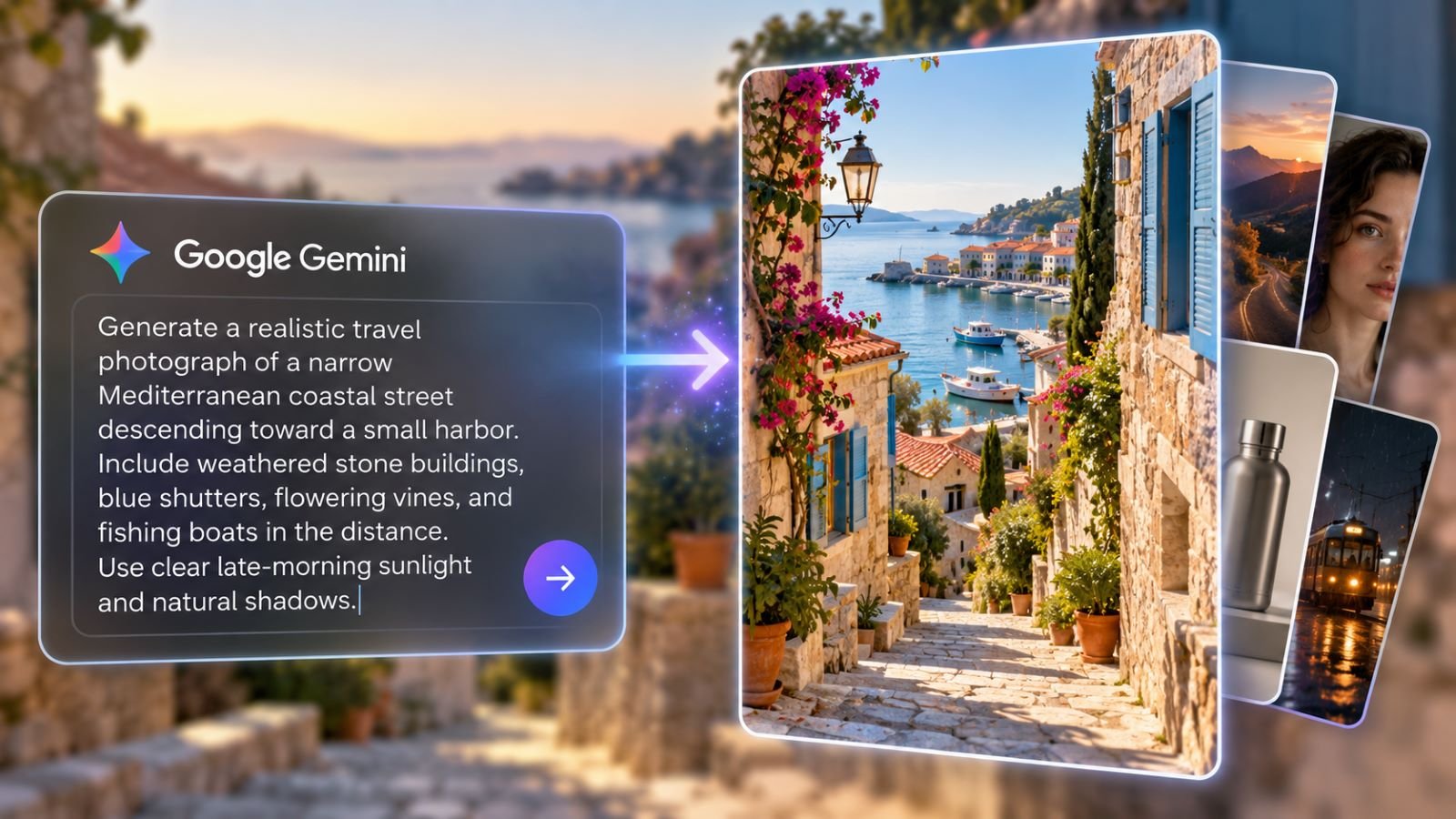
Google Gemini image generation photo prompts are more effective when they describe a specific scene rather than simply naming a visual style. Asking for a “cinematic portrait” leaves Gemini to decide the location, lighting, framing, and even the subject’s appearance. A stronger prompt defines the details that matter.
Gemini can generate images from text and edit photographs you upload. The eight examples below cover portraits, couples, products, travel, editorial photography, and editing. Copy them or adapt the setting to your project.
How to Generate Images in Google Gemini
Gemini uses Google’s Nano Banana image models for image creation and editing. Nano Banana 2 supports reference images and targeted changes, while eligible paid users can access additional options through Nano Banana Pro. You can use the Gemini app without programming or an API key. Google’s image-generation instructions describe the current controls and access requirements.
To get started:
- Open Gemini at
gemini.google.comand sign in. - Select Images or the image-creation option available in your interface.
- Describe the photograph you want, including its subject and setting.
- Review the result and request a specific change if necessary.
- Download the image after checking the details and dimensions.
Available controls differ by account and device. If the image option is missing, confirm feature availability before rewriting your prompt.
Begin with a simple scene, such as a bicycle leaning against a brick wall in afternoon sunlight. Simple scenes make framing and lighting mistakes easier to spot. For general account and chat controls, see the instructions for using Google Gemini.
How to Write an Effective Gemini Photo Prompt
A useful Gemini AI photo prompt identifies the subject, setting, action, composition, and light. Camera terms can suggest a look but shouldn’t replace clear scene details. A request for “a beautiful portrait” gives the model considerably more freedom than a portrait beside a rain-covered window in soft afternoon light.
Use this flexible template:
Create a photorealistic image of [subject] [doing something] in [location]. Frame it as a [close-up, medium shot, or wide shot] from [camera angle]. Use [lighting] and emphasize [textures or details]. The atmosphere should feel [mood]. Compose the image in [aspect ratio], retaining [essential details] and avoiding [unwanted elements].
You don’t need to fill every field. For realistic Gemini photo prompts, coherent lighting often matters more than lens specifications. A reference to a 35mm photograph, for instance, communicates a visual preference; it doesn’t make Gemini operate a physical camera.
Google’s image-prompting recommendations also emphasize subject, composition, action, location, and style. If the subject looks right but the framing is wrong, adjust the composition rather than rebuilding the prompt.
8 Google Gemini Photo Prompts to Copy and Customize
These Google Gemini image prompts use distinct photographic approaches. Adapt the subject or palette while keeping each scene’s defining details.
1. Photorealistic Portrait Prompt
Create a natural photographic portrait of an adult woman in her early thirties with short dark hair and subtle freckles. She is standing beside a large window in a quiet apartment, wearing a simple olive-green shirt. Soft afternoon light illuminates one side of her face, with gentle shadows on the other. Use an eye-level, medium-close composition with realistic skin texture, relaxed posture, and an unobtrusive background. Vertical 4:5 format.
The goal is believable skin and expression rather than flawless beauty. If the portrait looks overprocessed, ask for softer contrast and less retouching.
2. Cinematic Photography Prompt
Generate a cinematic nighttime photograph of a solitary traveler in a dark red coat waiting at an old tram stop during light rain. Reflections from amber streetlights stretch across the wet pavement, while a distant tram approaches through the mist. Frame the scene as a wide shot from slightly below eye level. Use deep shadows, restrained colors, realistic rain, and subtle film grain. Keep the atmosphere contemplative rather than threatening. Widescreen 16:9 composition.
Here, weather, reflections, and restrained colors create the cinematic effect. If the subject disappears into shadow, request brighter reflected light without changing the scene.
3. Couple Photography Prompt
Create a realistic lifestyle photograph of an adult couple walking together along a quiet seaside promenade on an early autumn morning. One person wears a navy jacket and the other a cream-colored sweater. They are talking naturally, smiling at each other rather than posing for the camera. Capture them from a three-quarter angle, with pale morning sunlight, a soft breeze, and the sea slightly out of focus behind them. Use authentic facial expressions and a horizontal 3:2 composition.
Giving the couple a natural activity is more useful than requesting a “perfect romantic photo.” If you upload reference photos of real people, specify which facial features, hairstyles, and clothing details Gemini should preserve. Check the generated result carefully, since identity consistency isn’t guaranteed.
4. Product Photography Prompt
Generate a premium studio product photograph of an unbranded brushed-steel water bottle standing on a sculptural block of pale limestone. Use a warm off-white background, directional side lighting, and subtle shadows that reveal the metal texture. Frame the bottle at a slight three-quarter angle, keeping its proportions realistic and the cap clearly visible. Leave generous negative space on the right for potential advertising copy. Avoid decorative labels or invented branding. Horizontal 16:9 format.
Clearly defined materials and shadows help establish a commercial look. Negative space also leaves room for a headline added later in an image editor.
5. Vintage Film Photo Prompt
Create a photograph that looks like an authentic color film image from the late 1970s. Show a small roadside diner beside an empty desert highway at dusk, with a faded turquoise exterior and an older parked sedan. Use slightly muted colors, fine photographic grain, gentle lens softness, and uneven natural light. Compose the scene from across the road at standing height. Avoid exaggerated retro filters, modern vehicles, or contemporary signage. Horizontal 3:2 format.
Period details establish the era more convincingly than heavy scratches or fading. If modern objects appear, identify them specifically in the next edit.
6. Travel Photography Prompt
Generate a realistic travel photograph of a narrow Mediterranean coastal street descending toward a small harbor. Include weathered stone buildings, muted blue shutters, flowering vines, and a glimpse of fishing boats beyond the rooftops. Use clear late-morning sunlight with natural shadows and warm stone textures. Compose the view from street level, with architectural lines guiding the eye toward the water. Keep the street quiet and believable rather than crowded with tourist attractions. Vertical 4:5 composition.
Architectural lines and a consistent light source make the scene feel coherent. Don’t label a generated landscape as a documentary photograph of a real destination.
7. Editorial Photography Prompt
Create an editorial photograph of a ceramic artist working in a contemporary pottery studio. Capture the artist’s hands shaping a partially finished clay vessel on a wheel, with traces of wet clay visible on the fingers. Natural skylight creates gentle contrast across the work surface. Use a close, documentary-style composition that prioritizes the process rather than a posed portrait. Include realistic materials, restrained earthy colors, and a softly detailed background. Horizontal 3:2 format.
The action makes this stronger than a generic studio portrait. Details such as wet clay and hand movement communicate the story without added text.
8. Existing Photo Editing Prompt
Edit the uploaded photograph while preserving the main subject’s recognizable appearance, body proportions, pose, and clothing as closely as possible. Replace the existing background with a quiet winter waterfront at sunrise. Match the lighting on the subject to the new environment, using soft pink highlights and cool blue shadows. Preserve natural facial details and avoid changing the expression. Keep the original framing and image proportions. Make the result look like a believable photograph rather than a composite.
This request requires an uploaded photograph. Preservation instructions reduce ambiguity, but the model may still change small details, so compare the result with the original.
How to Edit an Existing Photo in Gemini
For Gemini image editing, upload a source photograph or open a previously generated picture and describe the change. You might replace a background, remove an object, change clothing color, or adjust lighting. Specify what to change and what to preserve.
For example, “replace the background with a mountain landscape” leaves room for changes to the subject. Adding “preserve the person’s face, pose, clothing, and framing; match the light to the new environment” gives the model clearer boundaries. Check edges around hair and hands, which can be difficult to preserve convincingly.
Google’s Nano Banana editing examples show how conversational changes can adjust individual objects or backgrounds. Review the result for unintended alterations, and upload only photographs you have permission to use, especially when identifiable people appear.
How to Refine Images Without Losing the Original Look
When the first image is nearly right, target one visible problem at a time. If a portrait’s background is too sharp, request a softer background while keeping the face, expression, and framing unchanged. Rewriting everything can introduce new problems.
Keep the best result as a reference when making further edits. You can reuse a subject, clothing, and palette across several images, but check each output: exact facial or object consistency isn’t guaranteed. When a revision changes something important, return to the better version instead of piling more corrections onto the weaker one.
For automated generation or editing outside the app, developers can use the Gemini API. That requires a different setup, including API credentials and usage-based billing, so it’s best treated as a separate workflow.
Why Gemini Image Prompts Fail or Produce Poor Results
Poor results don’t always signal a technical failure. A prompt may be vague, internally contradictory, or too demanding about details such as lettering and facial consistency. Account eligibility and safety restrictions can also affect whether a request is completed.
| Problem | Possible Reason | Better Next Step |
|---|---|---|
| Faces look artificial | Overly idealized features or lighting | Request natural expressions and realistic skin detail |
| Framing is wrong | Unclear subject placement | Specify angle, placement, and aspect ratio |
| An edit changes the person | Broad editing instructions | Request one localized change and retain key features |
| Text contains mistakes | Imperfect image typography | Provide exact wording and inspect it closely |
| Aspect ratio is incorrect | Format instruction wasn’t followed | Recheck dimensions and request the framing again |
| Gemini refuses a request | Safety or access limitations | Review the request and available features |
For published graphics, examine small details at full size. Text may look readable in a thumbnail yet contain incorrect letters, and requested image ratios aren’t always reproduced exactly. Verify the downloaded dimensions before using an image as a website banner.
If Gemini declines a request, check whether the feature is available to your account and whether the content falls within its rules. Clarify a legitimate but ambiguous request rather than repeatedly trying to work around a refusal.
Is Google Gemini Image Generation Free?
Eligible users can generate images in Gemini without a paid Google AI subscription, subject to usage limits. Nano Banana 2 is available for supported free accounts, while eligible paid plans offer higher allowances and options such as regeneration with Nano Banana Pro. The differences between Gemini free and paid plans matter most if you generate frequently or need additional editing options.
Google describes image downloads at up to 1K resolution without a Google AI plan and up to 2K with an eligible plan. Resolution, however, is different from whether an image follows your requested aspect ratio. Neither figure guarantees a perfect composition.
Availability also depends on age, region, and account type. For personal accounts, generation generally requires users to be at least 13 or meet the local minimum age, while editing requires users to be at least 18. School and workplace accounts may have additional restrictions.
Because model allowances and limits change, Google’s Gemini usage-limit documentation is more useful than daily image counts published in older tutorials. If Gemini says you’ve reached a limit, check your account for reset details before trying again.
Effective Gemini photo prompts give the model enough direction without prescribing every detail. Start with a scene that fits your goal, keep the elements that work, and refine lighting, framing, or background only where necessary. A few deliberate changes usually make the process easier to control than repeatedly generating an entirely new image.